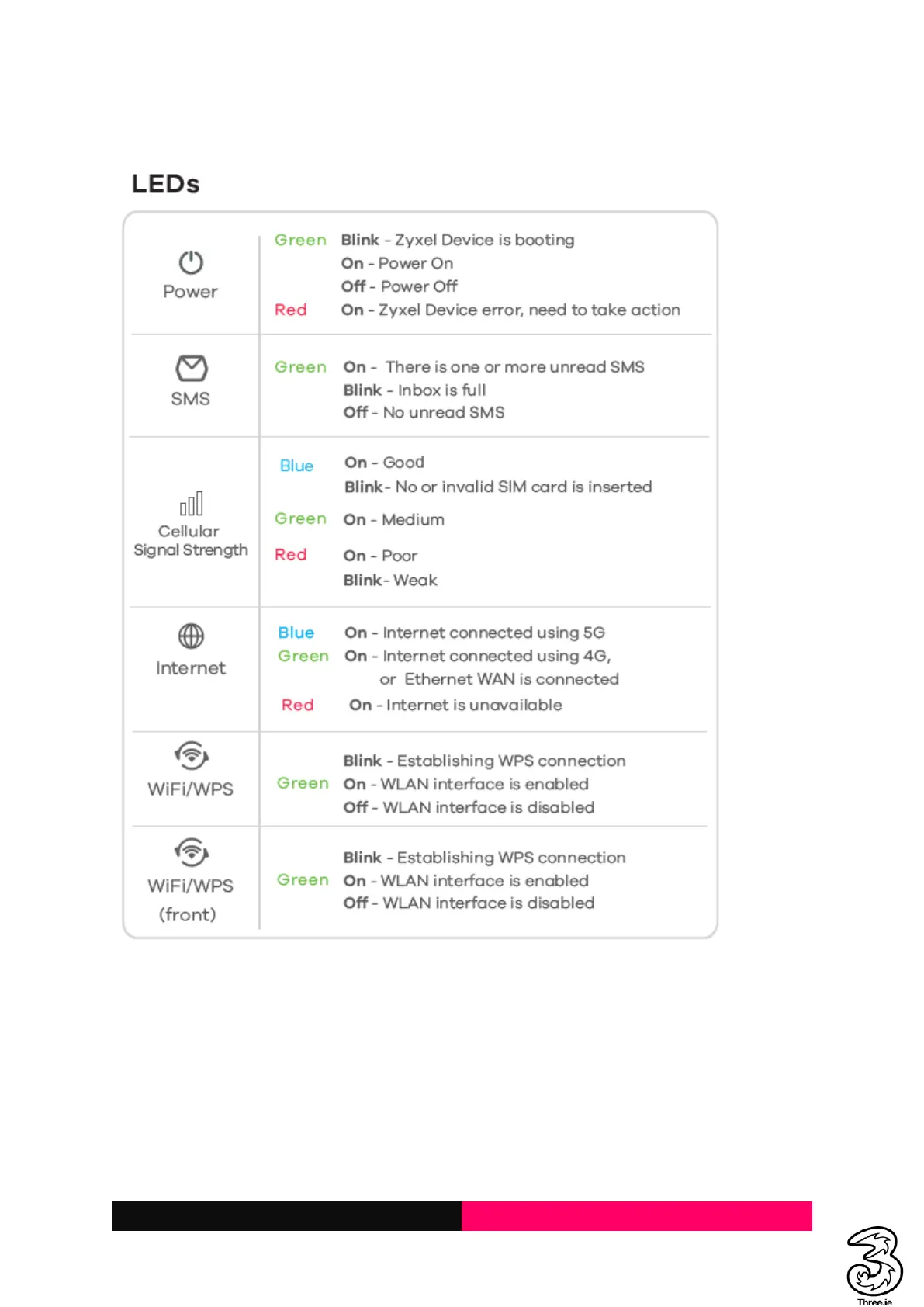
1.3 Indicator Lights
When the Smart Hub is powered on, the following indicators may light up on the top of the device.
2. Connecting to the Smart Hub
You have two options to connect to the Smart Hub from your client devices, via Wi-Fi or a LAN cable.
Once you are connected, test your connection by opening the 5G CPE Admin UI web page.
2.1 Connecting via Wi-Fi
1. Find the default Wi-Fi name (SSID) and password on the label at the base of the Smart Hub.
2. On your Wi-Fi-enabled devices, turn Wi-Fi on and view the list of available Wi-Fi networks.
3. Choose the SSID from the label, enter the password, and select connect.
4. OR Scan the QR code on the label from the Wi-Fi-enabled devices (only applicable when the
SSID and password are set to default).



 To Next Page