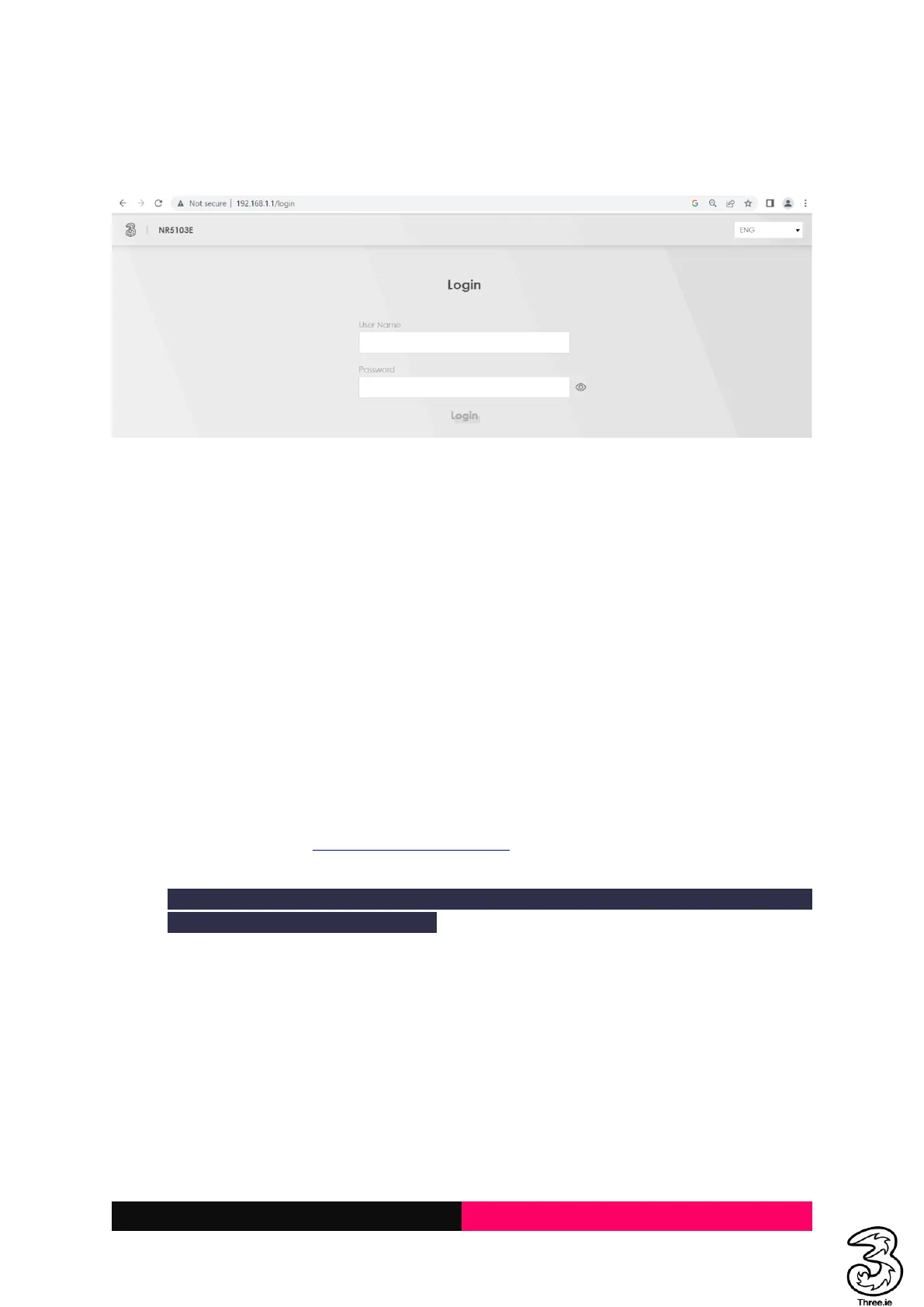
2. Launch the Internet browser from a device connected to the Smart Hub and enter the URL in
the address bar to load the login page as below, Enter the username and password and select
Login.
2.4 Best Placement in the Home
For the best connection from the Smart Hub to the cellular network:
• Place your Smart Hub in a central location close to a window where there is also a power
source. Concrete walls and metal doors can reduce cellular signals from the tower. Placement
in basements should be avoided.
For the best Wi-Fi connection between the Smart Hub and the clients:
• Minimize interference by trying to keep the following items no closer than 2~3 meters from
your Smart Hub: Cordless telephone base stations, microwaves, baby monitors, Bluetooth
devices, and wireless speaker systems.
• Avoid congestion since adding additional devices to your Wi-Fi network may reduce the speed
for all devices on that network.
• Make sure you have a good Wi-Fi signal on your client devices.
3. Troubleshooting Guide
3.1 Forgot the admin http://192.168.1.1/login page password
Resolution:
Resetting your modem will default to factory settings. If your device is reset any customized
settings would need to be reconfigured
a. Locate the reset button/hole
b. The reset hole is located on the bottom of the 5G Hub
c. Press the reset button using a SIM ejector tool or a pin for more than 5 seconds
d. The indicator lights will turn off/rapidly blink and the device will restore to factory setting
in a few minutes
e. You can use the credentials printed on the bottom label of the device to login
f. It is recommended to change the default password after first login



 To Next Page