28 29
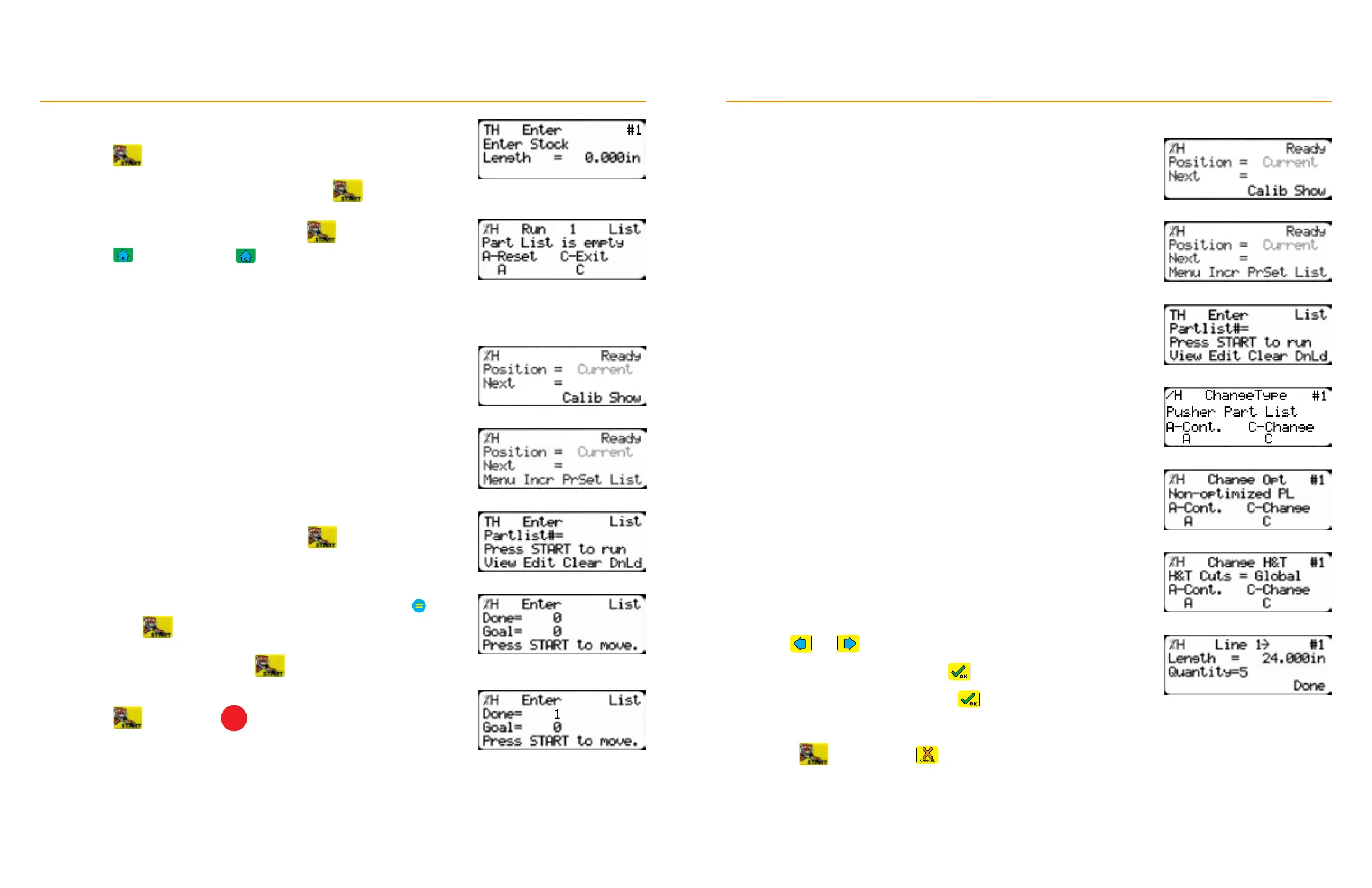
4. Dynamic Optimization upgrade, only: Enter the stock length and then
press
5. Load the material, cycle the tool, and then press to move to the
next length. Repeat, as needed.
6. Unload the remaining stock and then press
7. Press to re-run the list or to exit.
TigerStop
®
Standard Controller Basic Functions
Running a Pattern List
1. From the Ready Screen, press the [Show] soft key.
2. Press the [List] soft key.
3. Enter the list number to run and then press
5. Enter the number of times to run the pattern list and then press
Next, press
6. Load the material and then press to begin processing.
7. Complete the pattern or pull list and the ‘Done’ line increments by 1.
Press
to continue or
STOP
to return to the Ready Screen.
• The ‘Done’ line resets to ‘0’ when exiting the list.
TigerStop
®
Standard Controller Basic Functions
Editing a List
1. From the Ready Screen, press the [Show] soft key.
2. Press the [List] soft key.
3. Enter the list number to edit and then press the [Edit] soft key.
4. To edit the part list type, press the [Change] soft key. Otherwise, press
the [Continue] soft key.
5. Dynamic Optimization upgrade, only: To turn on or o the list’s
optimization, press the [Change] soft key. Otherwise, press the
[Continue] soft key.
6. To edit the head or tail cuts, press the [Change] soft key. Otherwise,
press the [Continue] soft key.
8. Use
and to scroll through the parts to find one to edit.
9. Enter a new length and then press
10. Enter a new quantity and then press
11. Press the [Done] soft key to save.
12. Press to run the list or to exit.


 To Next Page