- 10 -
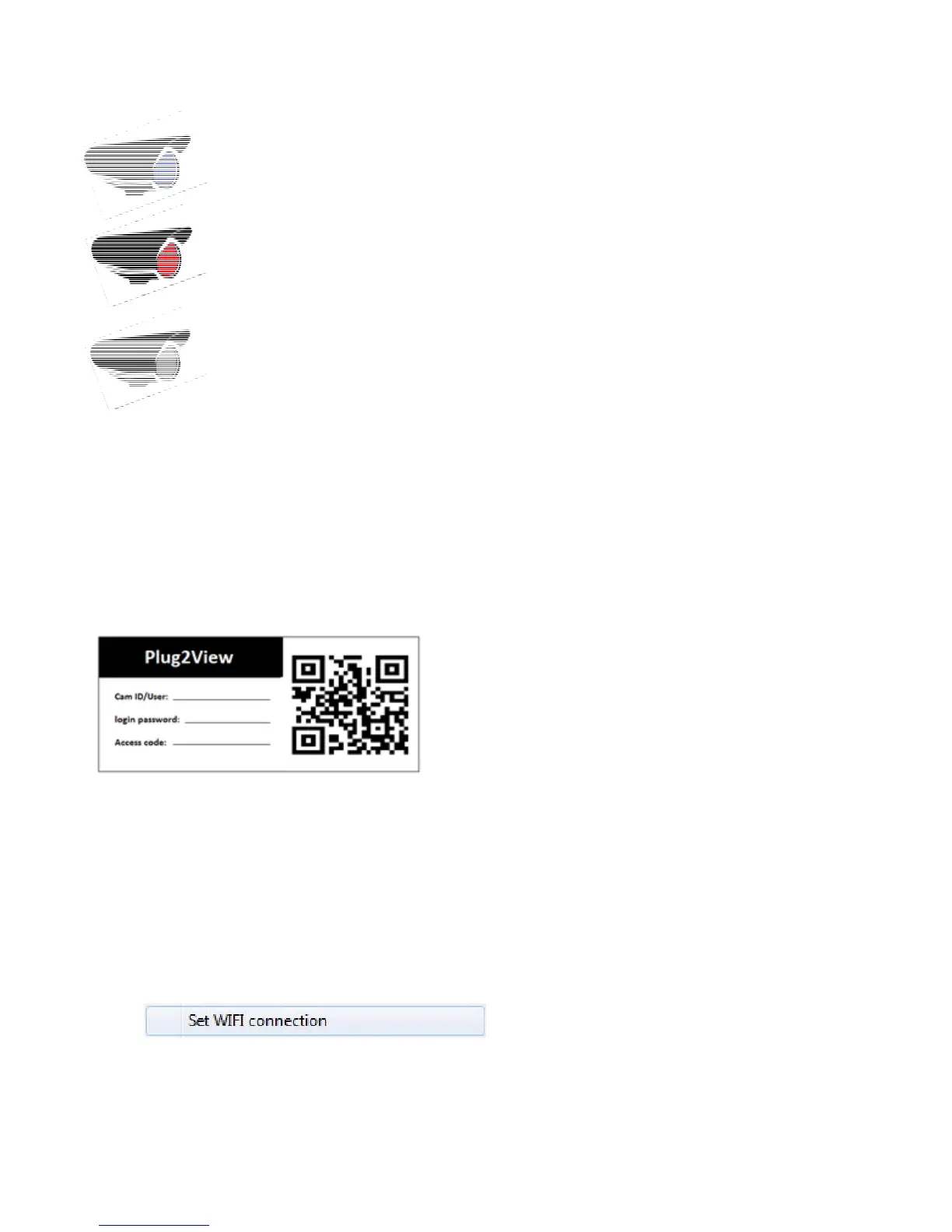
When the camera appears Blue, it means the camera is
connected to the software.
When the camera appears in Red, it means the camera is
currently being viewed.
When the camera appears in Grey, it means that the
camera is offline or fails to connect to a network.
By logging into WAN, the camera can be viewed using the
Ethernet (internet) cable or wirelessly.
If the camera fails to show in LAN, please log into the WAN section using
the details on the back of the camera. These will show the status of the
camera.
To log into the camera via the WAN
setting, on the back of the camera you
will see a Cam ID/User, Login Password
and access code. When logging in, you
will only need the Camera ID/Username.
Setting the camera up wirelessly.
On the software under the LAN Tab, you will need the camera to be
online (Showing Red/Blue).
To set the camera up to your WiFi, right click on the camera name to
bring up a list of options. ‘Click on Set WiFi Connection.’
You will then need to fill in your WiFi Network details.



 To Next Page