- 11 -
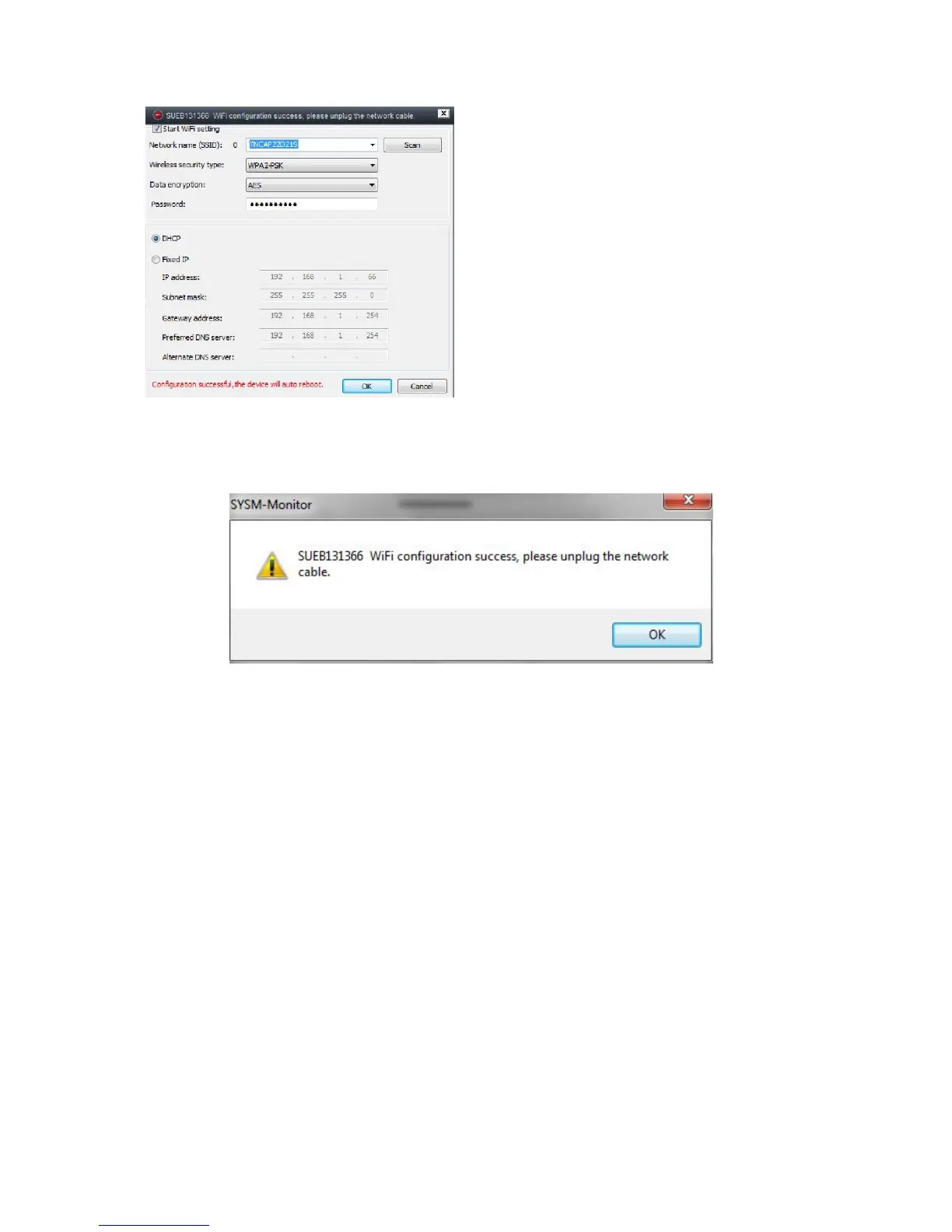
Click on ‘Start WiFi Setting.
Click on Scan to look for local WiFi
Networks. Select your home WiFi
network from the list.
Enter the Password for your internet
router.
Leave the DHCP selected, this
automatically enters your IP Address
into the settings.
Upon completion. Press Ok and the following window will appear.
It may take a few minutes for the camera to connect to your WiFi
and may also make a slight noise.
Settings up Motion Detection
Right click on the camera name and you will see a list of
options. (See image 1)
Click on Email alerts to set up the motion detect (See image 2)
Please note: The motion detect will send an email and up to 3
images. You will need the camera connect to your router via the
Ethernet cable and using the LAN tab to access this setting.


 To Next Page