12
b. Press or button to select the region you wanted, and then press OK button to confirm.
c. Using the same method to choose country, station in turn, radio receiver will perform loading.
‘Genre’ enables you to choose radio stations according to their content, for example Classic Rock,
Sport, News, etc.
Note: Some radio stations do not broadcast 24 hours a day, and some stations are not always on-line.
Select a Station through Podcasts
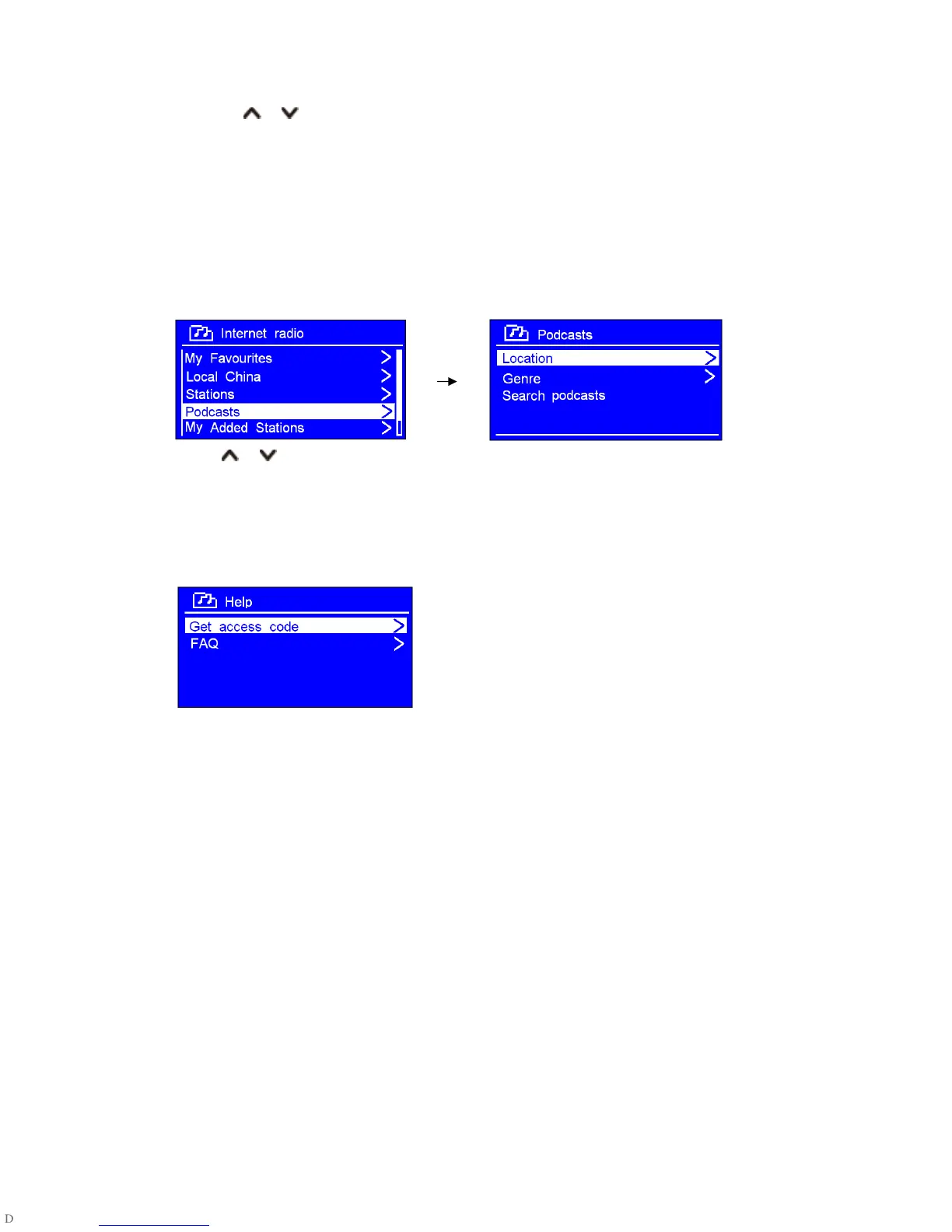
1. Press MENU button > Station list > Podcasts, press OK button to confirm.
2. Press or button to select options, and then press OK button to confirm.
3. Step by step to your selecting program.
Get Access Code and FAQ Solutions
1. To access to this order, press MENU button > Station list > Help, press OK button to confirm.
Note: at this step, you can also listening FAQ solutions.
2. When 'Get access code' is highlighted, press OK button to confirm, you will get it.
Add Station to ‘My Favourites’
1. To register your radio receiver with the portal: www.wifiradio-frontier.com.
2. Create account login, enter Access code is required. Access code can be found from “Station
list > Help > Get access code".
3. You can add your favourite stations via the portal (www.wifiradio-frontier.com).
4. After you added the stations, in order to have your radio access your new settings, get your radio
power off for several minutes is necessary.
5. The added stations are accessible by selecting MENU > Station list > My favourites.
Note: Doing a ‘factory reset’ cannot erase ‘my favourites’ stations.


 To Next Page