22
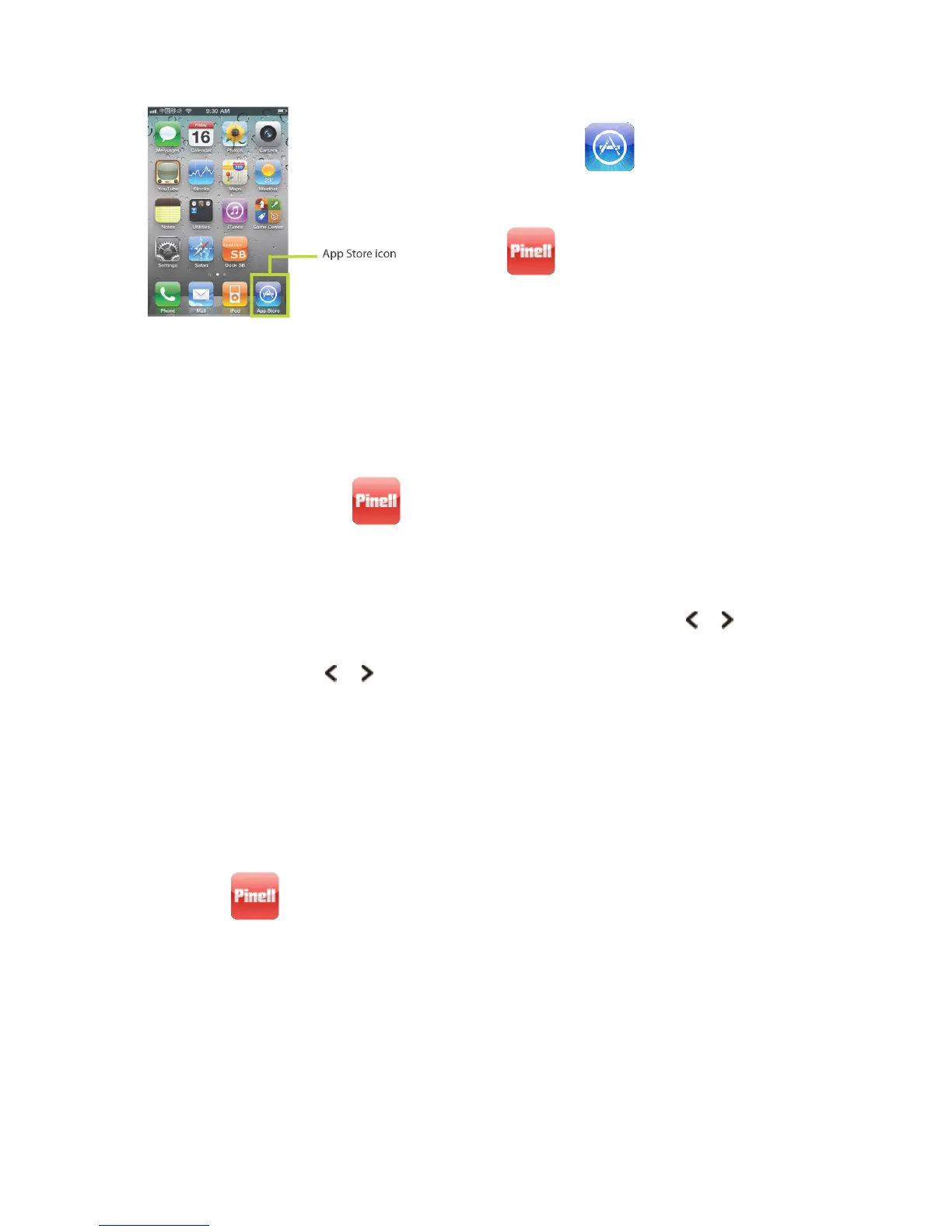
1. In the iPhone/iPod’s main menu, open the App Store by
tapping the App store icon .
2. In the App store, search for ‘Pinell Remote App'.
3. Tap ‘Pinell’ icon, and then tap 'Free' and then
'install'.
The wireless Device Remote control application now is
downloaded and installed on your iPhone/iPod.
Setting up the connection
After you download the wireless device remote control application, you must set up a connection
between the iPhone/iPod and your receiver.
1. For initial use, tap the icon , your device pop-up a dialog box invites you input ‘Net
Remote Pin code’, the default code is 1234, you can give a user-defined code via your receiver:
press the MENU button > Main Menu > System setting > Network > NetRemote PIN setup
.
2. To keep your App works while your receiver under standby mode, press the MENU button >
Main Menu > System setting > Network > Keep network connected, press or button to
select ‘YES’, and then press OK button to confirm.
To save power, press or button to select ‘NO’ to disconnect network when receiver is in
standby mode.
3. Set the iPhone/iPod touch to use the same network access point as your receiver.
a. Select Setting > Wi-Fi.
b. Choose the network of your receiver accessed.
Starting the Navigation
Tap the icon on the main menu of your iPhone/iPod Touch, then operate your receiver via
iPhone/iPod Touch as you operate via the remote control.
Note: the ‘Pinell Remote App' is being updated so that some features may not be available
temporarily.


 To Next Page