52 Recording and Playback
7.3.4 To make a bookmark
You can mark favourite parts of
a recording by creating book-
marks and then jump to them in
sequence. Bookmarks are stored
with the recording so that you
can use them again afterwards.
To make bookmarks, take the fol-
lowing steps during playback:
1. Press the button to display the progress bar.
2. To add a bookmark, press the
F2 button at a desired
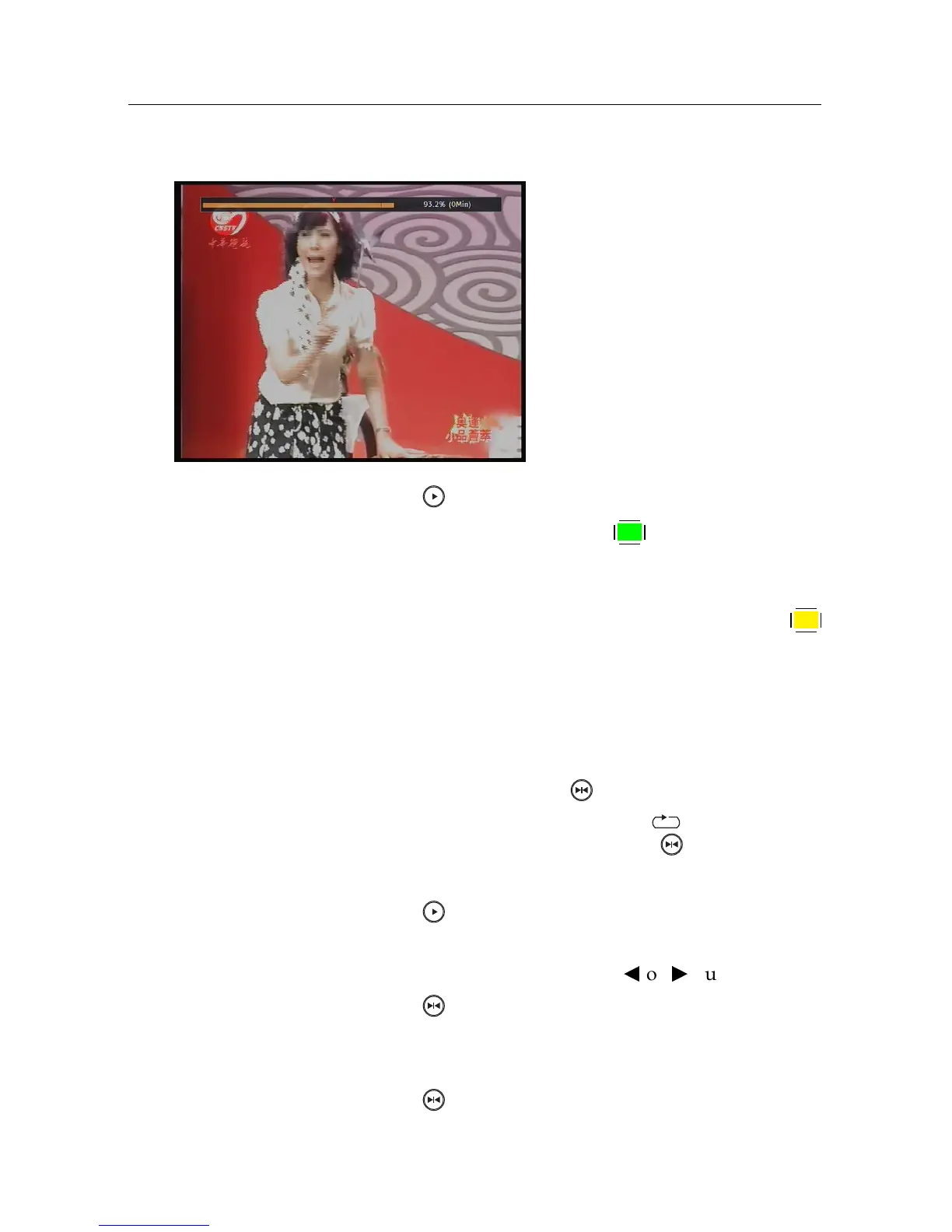
scene, then you will see a small pointer appear above the
progress bar like in the picture above.
3. To jump forward to the next bookmark, press the
F3
button.
7.3.5 To play back a recording repeatedly
You can play back a recording repeatedly both in whole and in
part.
To play back in whole, press the button when the progress
bar is hidden, then the repetition symbol ( ) is displayed on
the information box. To cancel it, press the button again.
To play back in part, take the following steps:
1. Press the button to display the progress bar.
2. Move to the beginning scene of the part you want to play
repeatedly by holding down the
b
or
d
button.
3. Press the button, then the pointer starts to blink.
4. Move to the end scene; the selected part is marked in
black.
5. Press the button again to start repeated playback.













 To Next Page