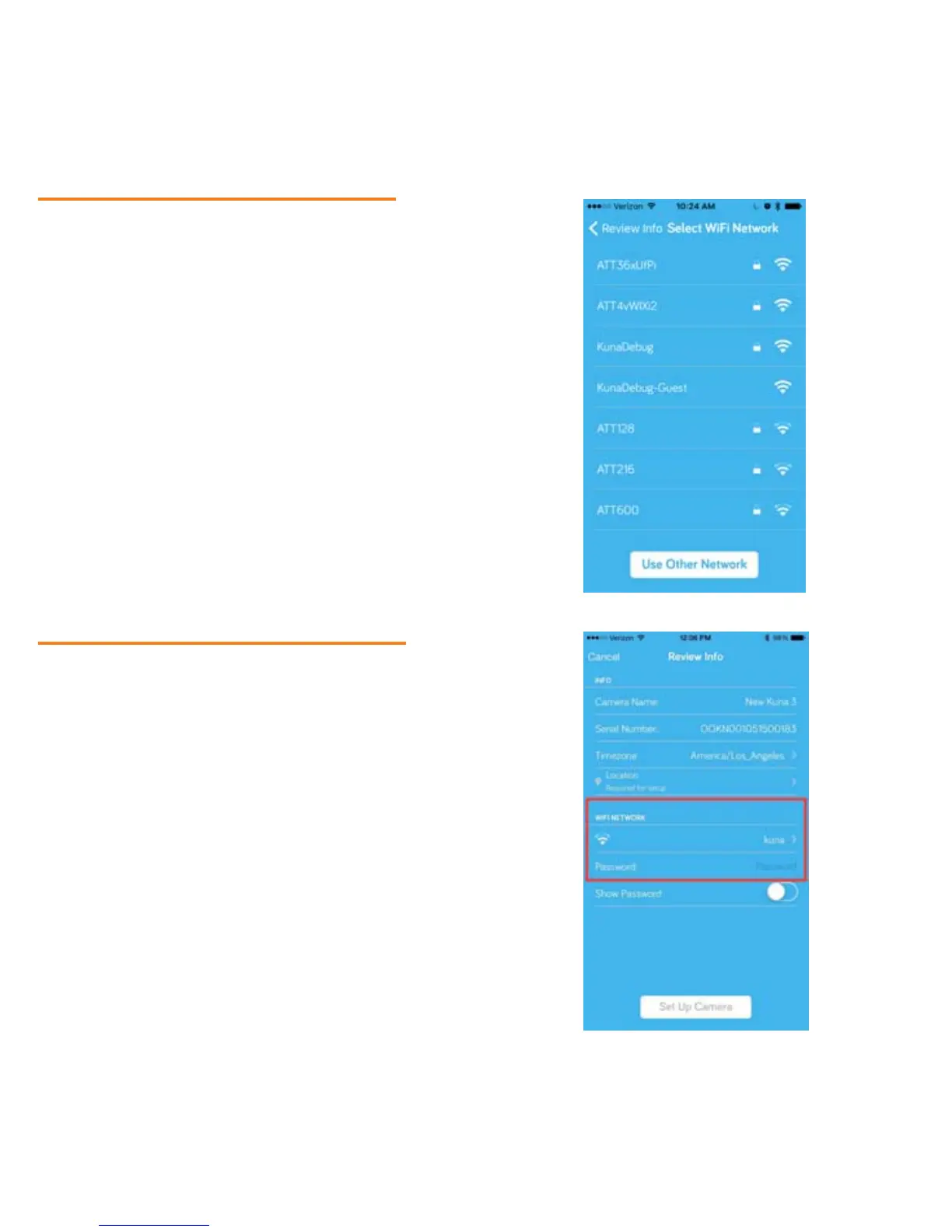
Step 6 – Select Your Wi-Fi Network
Cli
ck into “Select Wi-Fi Network” to
configure your Toucan’s Wi-Fi setup. If
you don’t see your network, or your
network is hidden, click
“Use Other Network”.
Step 7 – Connect Your Kuna to Wi-Fi
Next, enter the password for your local Wi-Fi network. Make
sure that your Toucan is able to see a strong signal (by
checking the Wi-Fi signal bars next to your network’s name).
Then, enter the password for your local Wi-Fi network. We
recommend enabling our Show Password feature for this
step, so you can make sure it’s spelled correctly.
Then, click Set Up Camera. This connection can take up to a
minute
15


 To Next Page