29
Chapter 6
USB Application
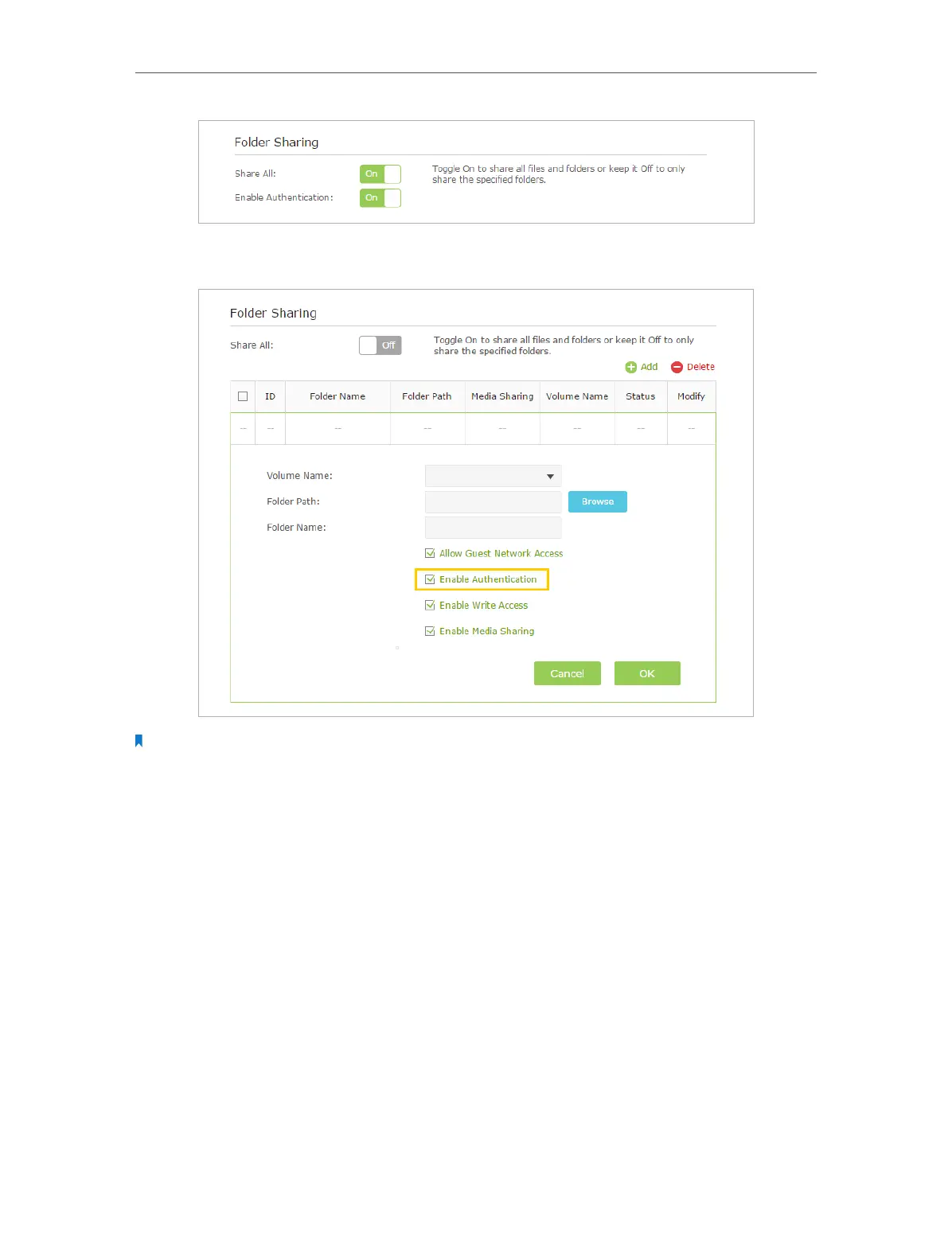
• If Share All is disabled, enable Authentication for specific folders.
Note:
Due to Windows credential mechanism, you might be unable to access the USB disk after changing Authentication
settings. Please log out from Windows and try to access again. Or you can change the address of the USB disk by
referring to To Customize the Address of the USB Disk.
¾ To Customize the Address of the USB Disk
You can customize the server name and use the name to access your USB disk.
1. Visit http://tplinkwifi.net, then log in with the username and password you set for
the router.
2. Select Advanced > USB Settings > Sharing Access. Focus on the Sharing Settings
section.
3. Make sure Network Neighborhood is ticked, and enter a Network/Media Server
Name as you like, such as My-Share, then click Save.






 To Next Page