91
Chapter 15
VPN Server&Client
To use the VPN feature, you need to set up L2TP/IPSec VPN Server on your router, and
configure the L2TP/IPSec connection on remote devices. Please follow the steps below
to set up the L2TP/IPSec VPN connection.
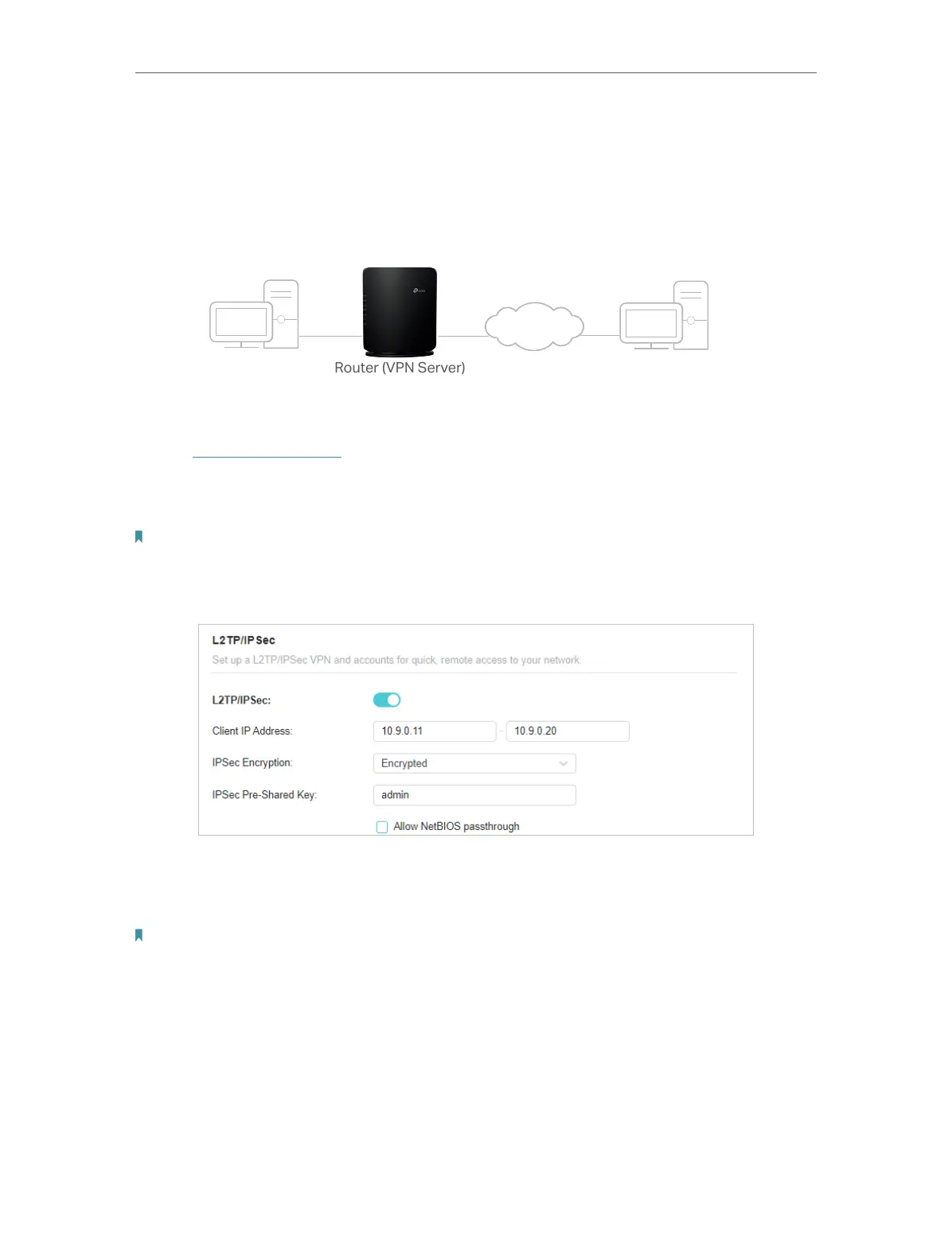
*Image may differ from your actual product.
Home Network Router (VPN Server) Remote Devices
Step 1. Set up L2TP/IPSec VPN Server on Your Router
1. Visit http://tplinkwifi.net, and log in with your TP-Link ID or the password you set for
the router.
2. Go to Advanced > VPN Server > L2TP/IPSec, and enable L2TP/IPSec.
Note:
• Firmware update may be required to support L2TP/IPSec VPN Server.
• Before you enable VPN Server, we recommend you configure Dynamic DNS Service (recommended) or assign a
static IP address for router’s WAN port and synchronize your System Time with internet.
3. In the Client IP Address field, enter the range of IP addresses (up to 10) that can be
leased to the devices by the L2TP/IPSec VPN server.
4. Keep IPSec Encryption as Encrypted and create an IPSec Pre-Shared Key.
Note: Enable NetBIOS Passthrough function to allow NetBIOS packets to be broadcasted through VPN tunnel.
5. Click SAVE .
6. Configure the L2TP/IPSec VPN connection account for the remote device. You can
create up to 16 accounts.











 To Next Page