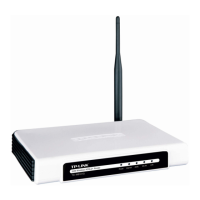
TD-W8950ND 150Mbps Wireless N ADSL2+ Modem Router User Guide
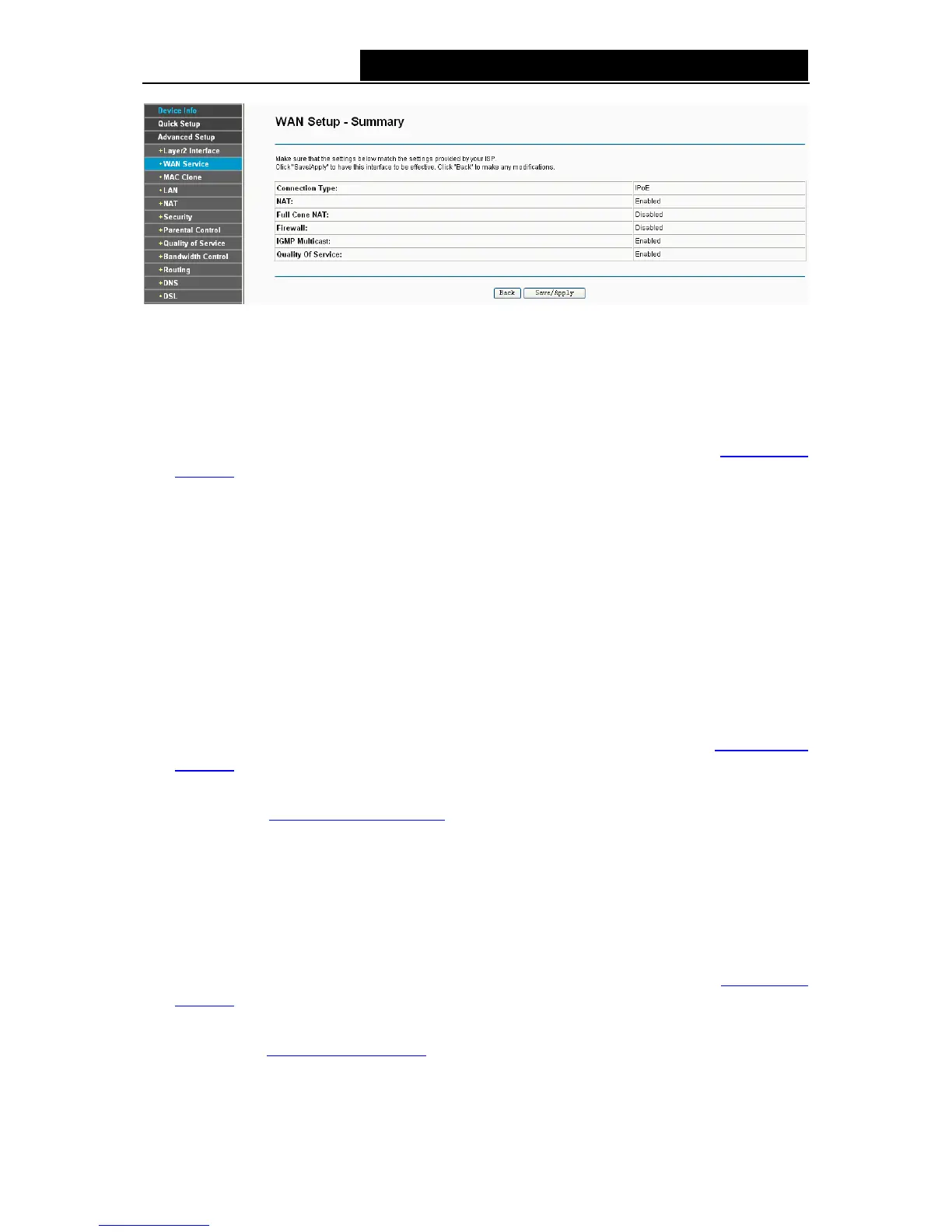
Figure 4-19
4.4.2.3 ATM-EoA-Bridging
If you want to adopt the Bridge service and you need to use an ATM Interface, follow the steps
below to add a WAN service over a selected ATM interface:
1. Add a new ATM interface and select EoA option for DSL Link Type (see 4.4.1.1
ATM
interface).
2. Click the Add button on the screen Figure 4-7. Select WAN Service Interface over ATM PVC
on the next screen (as shown Figure 4-8).
3. Select Bridging option for the WAN service type on the screen (as shown Figure 4-9), and
click Next button to continue.
4. On the screen (as shown Figure 4-13) you will see the detailed settings you’ve made. Please
click the Apply/Save button to save these settings.
4.4.2.4 ATM-PPPoA
If your ISP provides a PPPoA connection and you need to use an ATM Interface, follow the steps
below to add a WAN service over a selected ATM interface:
1. Add a new ATM interface and select PPPoA option for DSL Link Type (see
4.4.1.1 ATM
interface).
2. Click the Add button on the screen Figure 4-7 and the next configuration is similar to PPPoE,
(see section 4.4.2.1
ATM-EoA-PPPoE). The difference is that you don’t need to set the
PPPoE Service Name and Bridge PPPoE Frames Between WAN and Local Ports on the
screen of Figure 4-10.
4.4.2.5 ATM-IPoA
If your ISP provides an IPoA connection and you need to use an ATM Interface, follow the steps
below to add a WAN service over a selected ATM interface.
1. Add a new ATM interface and select IPoA option for DSL Link Type (see 4.4.1.1
ATM
interface).
2. Click the Add button on the screen Figure 4-7 and the next configuration is similar to IPoE
(see section 4.4.2.2
ATM-EoA-IPoE). The difference is that you have to manually set the
Static IP Address on the screen of Figure 4-15, and the Static IP Address for DNS Server on
the screen of Figure 4-18.
29


 To Next Page