51
Chapter 11
Specify Your Network Settings
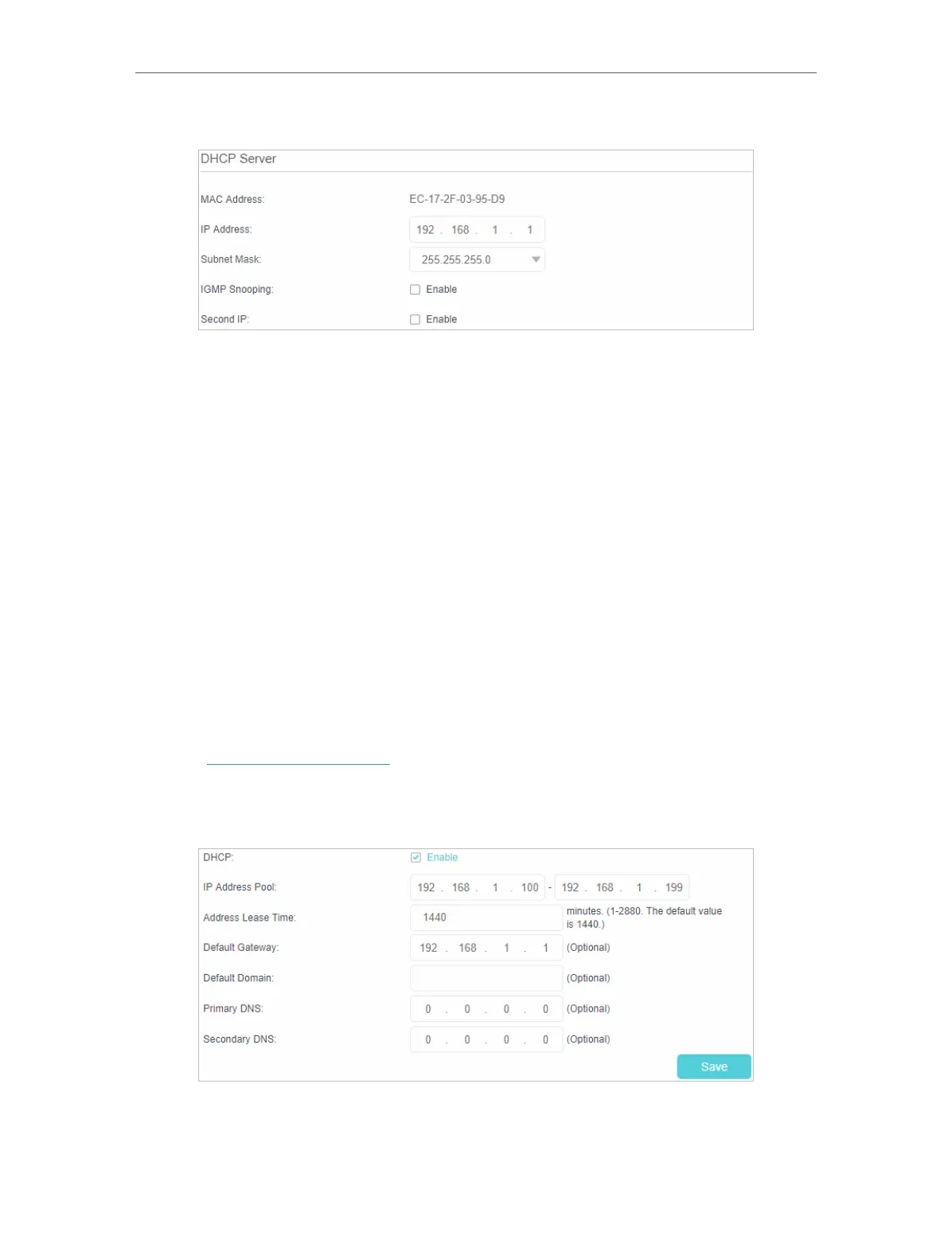
2. Go to Advanced > Network > LAN Settings page.
3. Type in a new IP Address as needed.
4. Select the Subnet Mask from the drop-down list. The subnet mask together with
the IP address identifies the local IP subnet.
5. You can configure the router’s Second IP and Subnet Mask for LAN interface
through which you can also access the web management page.
6. Leave the rest of the default settings as they are.
7. Click Save to make the settings effective.
11. 4. 2. Use the 4G LTE Router as a DHCP Server
You can configure the router to act as a DHCP server to assign IP addresses to its clients.
To use the DHCP server function of the router, you must configure all computers on the
LAN to obtain an IP Address automatically.
Follow the steps below to configure DHCP server.
1. Visit http://tplinkmodem.net, and log in with your TP-Link ID or the password you
set for the router.
2. Go to Advanced > Network > LAN Settings page.
3. Select DHCP to enable the DHCP function and select DHCP Server.




 To Next Page