55
Chapter 11
Specify Your Network Settings
uses the newest standard and the security level is the highest. We recommend you
don’t change the default settings unless necessary.
11. 5. 2. Use WPS for Wireless Connection
Wireless devices that support WPS, including Android phones, tablets, most USB
network cards, can be connected to your router through this method. (WPS is not
supported by iOS devices.)
Note:
The WPS function cannot be configured if the wireless function of the router is disabled. Also, the WPS function will be
disabled if your wireless encryption is WEP. Please make sure the wireless function is enabled and is configured with the
appropriate encryption before configuring the WPS.
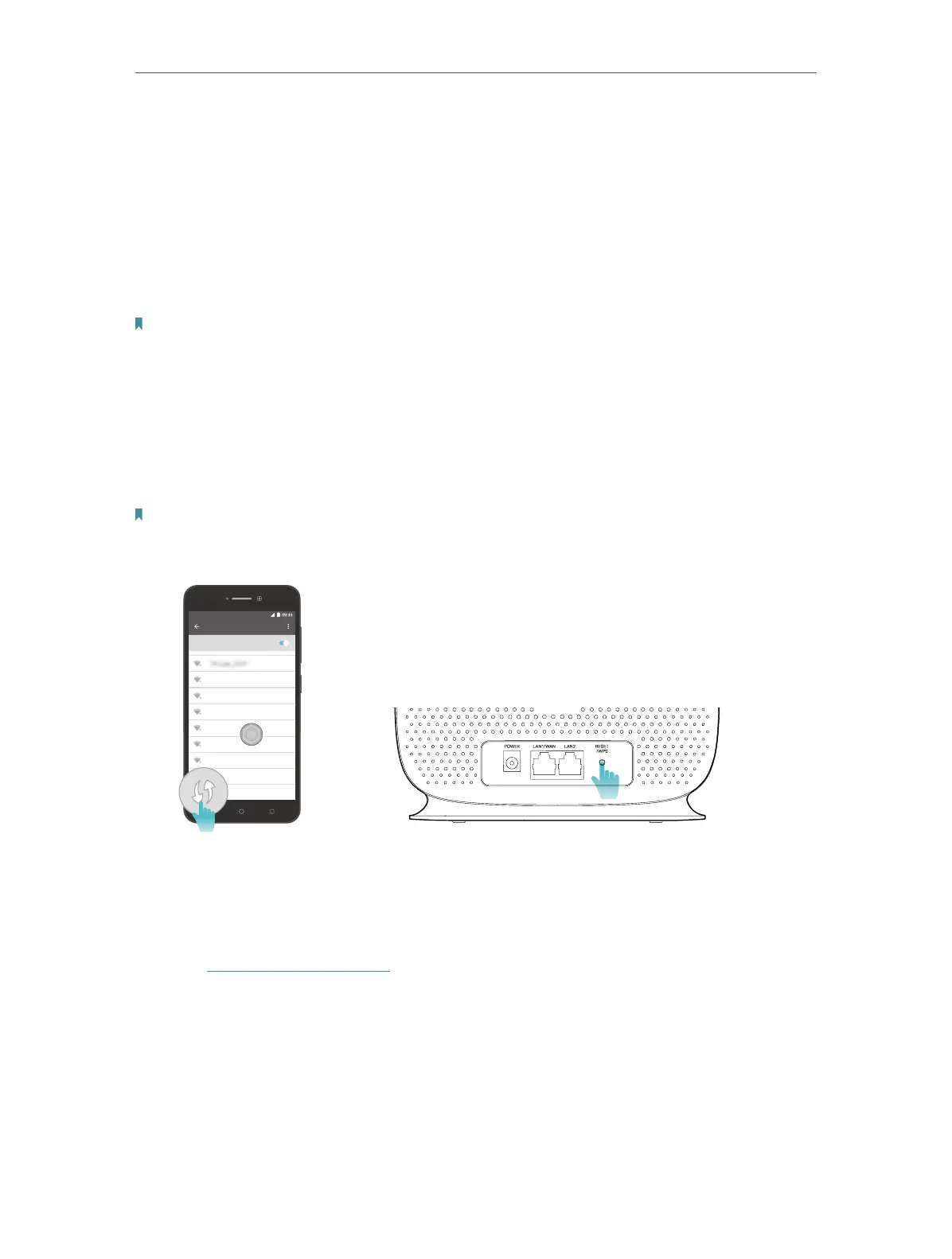
Method 1 Use the Wi-Fi Protected Setup Button
Use this method if your client device has a Wi-Fi Protected Setup button.
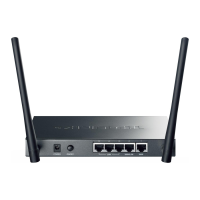
1. Press the WPS/RESET button on the back panel of the router for 1 second.
Note:
You can also use the Push button on the web management page. Go to Advanced > Wireless > WPS page and click the
Start WPS button on the screen.
WLAN
On
LAN
n
TP-Link_Home
My Home
My Network
Home Network
TP-Link_Network
TP-Link_Test
4G
2. Press the WPS button of the client device within two minutes.
Method 2 Enter the client device’s PIN on the router
1. Visit http://tplinkmodem.net, and log in with your TP-Link ID or the password you
set for the router.
2. Go to Advanced > Wireless > WPS page.




 To Next Page