73
Chapter 12
Administrate Your Network
3. Click Refresh to refresh the log list.
• To save the system logs:
You can choose to save the system logs to your local computer or a remote server.
1. Click Save Log to save the logs in a txt file to your computer.
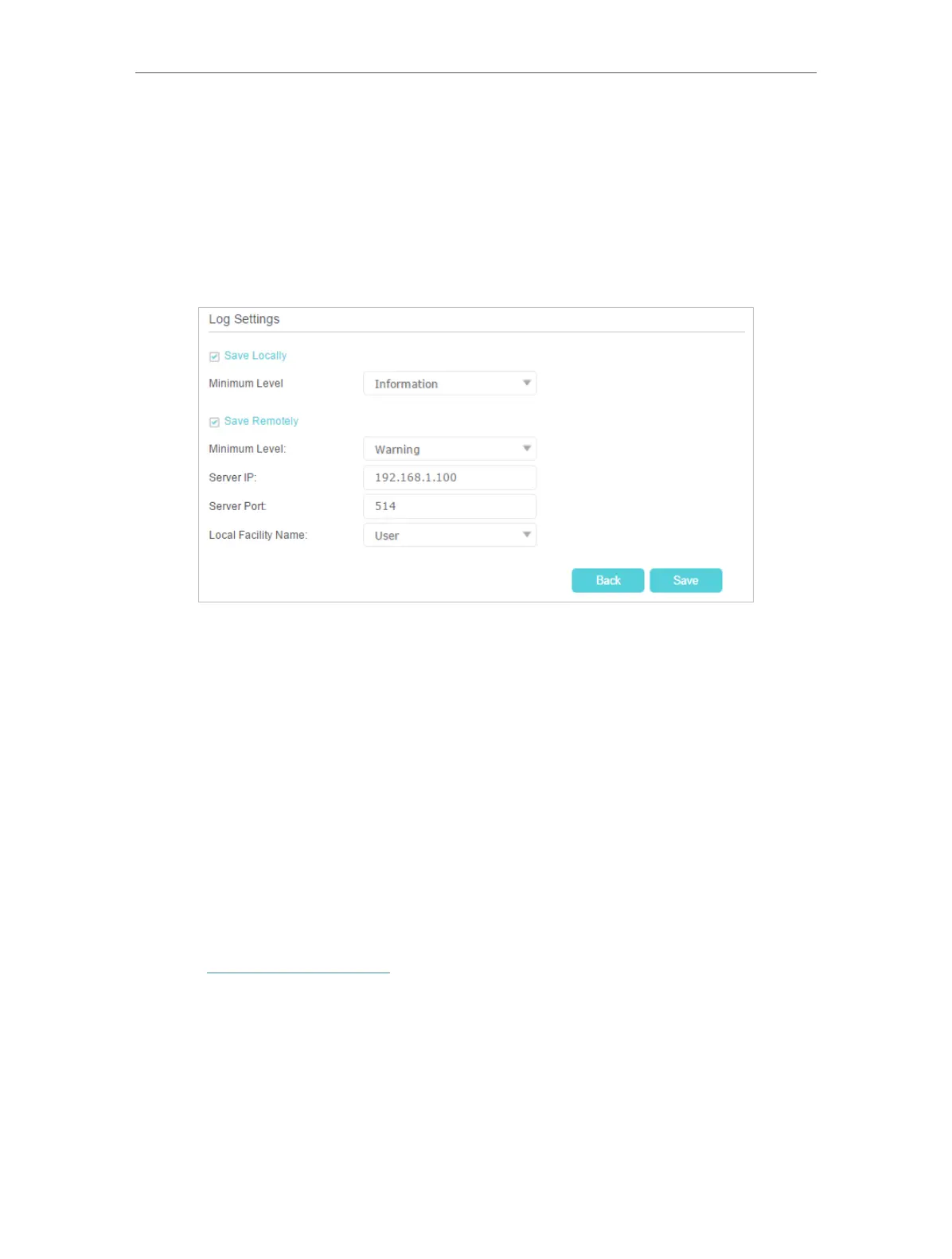
2. Click Log Settings to set the save path of the logs.
• Save Locally - Select this option to cache the system log to the router’s local memory,
select the minimum level of system log to be saved from the drop-down list. The logs
will be shown in the table in descending order on the System Log page.
• Save Remotely - Select this option to send the system log to a remote server, select
the minimum level of system log to be saved from the drop-down list and enter the
information of the remote server. If the remote server has a log viewer client or a sniffer
tool implemented, you can view and analyze the system log remotely in real-time.
12. 11. CWMP
CWMP (CPE WAN Management Protocol, also called TR-069) allows Auto-Configuration
Server (ACS) to perform auto-configuration, provision, connection, and diagnostics to
this device. You may configure this function under your ISP’s instructions.
1. Visit http://tplinkmodem.net, and log in with your TP-Link ID or the password you
set for the router.
2. Go to Advanced > System Tools > CWMP Settings.
3. Enable CWMP.




 To Next Page