72
Chapter 12
Administrate Your Network
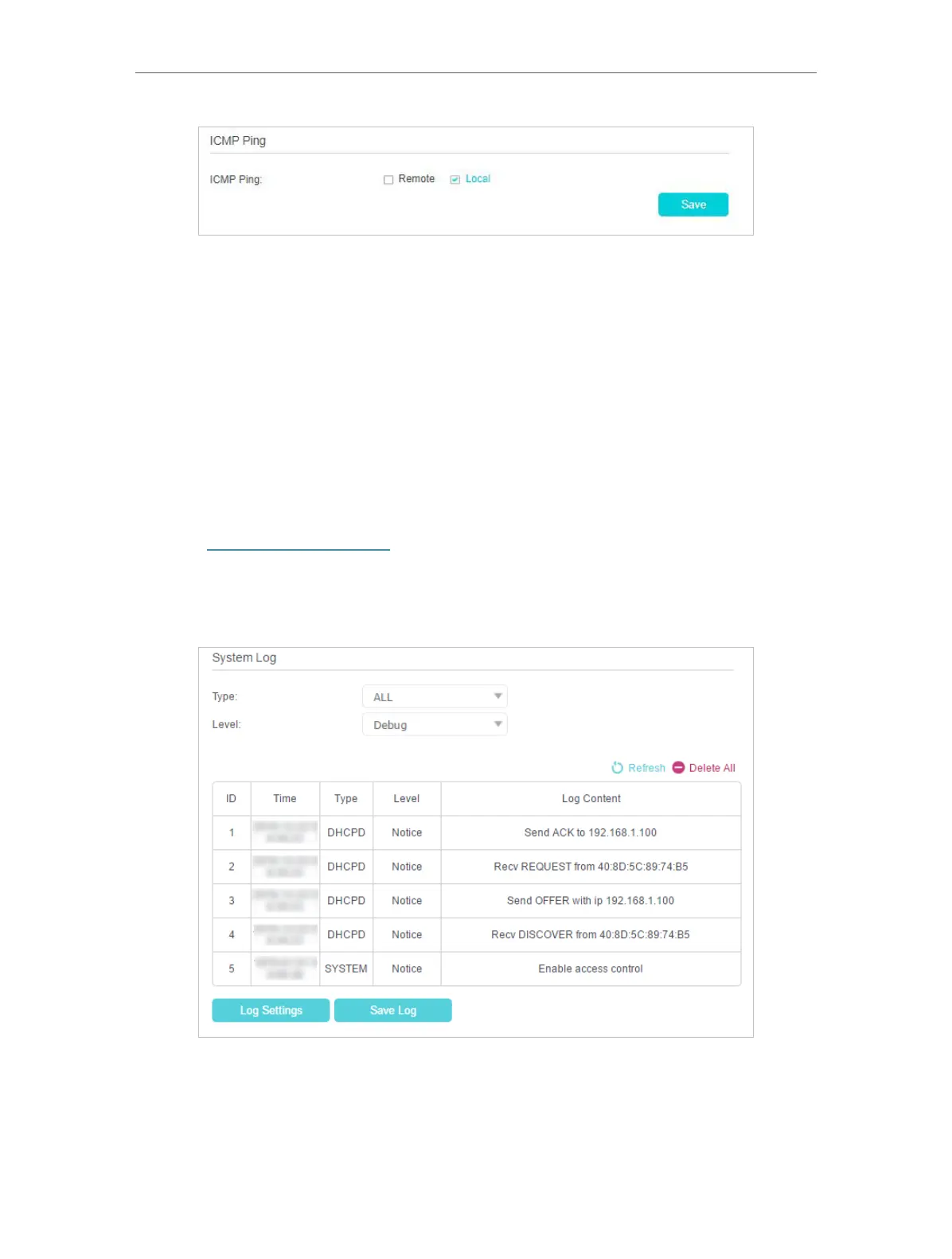
3. Select Remote if you want the computers on a public network to ping the router’s
WAN IP address. Select Local if you want the computers on a private network to
ping the router’s LAN IP address. Or select both.
4. Click Save to make the settings effective.
12. 10. System Log
System Log can help you know what happens to your router, facilitating you to locate
the malfunctions. For example when your router does not work properly, you will need
to save the system log and send it to the technical support for troubleshooting.
1. Visit http://tplinkmodem.net, and log in with your TP-Link ID or the password you
set for the router.
2. Click Advanced > System Tools > System Log page.
• To view the system logs:
1. Select the log Type. Select ALL to view all kinds of logs, or select DHCPD or IGMP
to view the specific logs.
2. Select the log Level and you will see the logs with the specific or higher levels.





 To Next Page