14
Compass
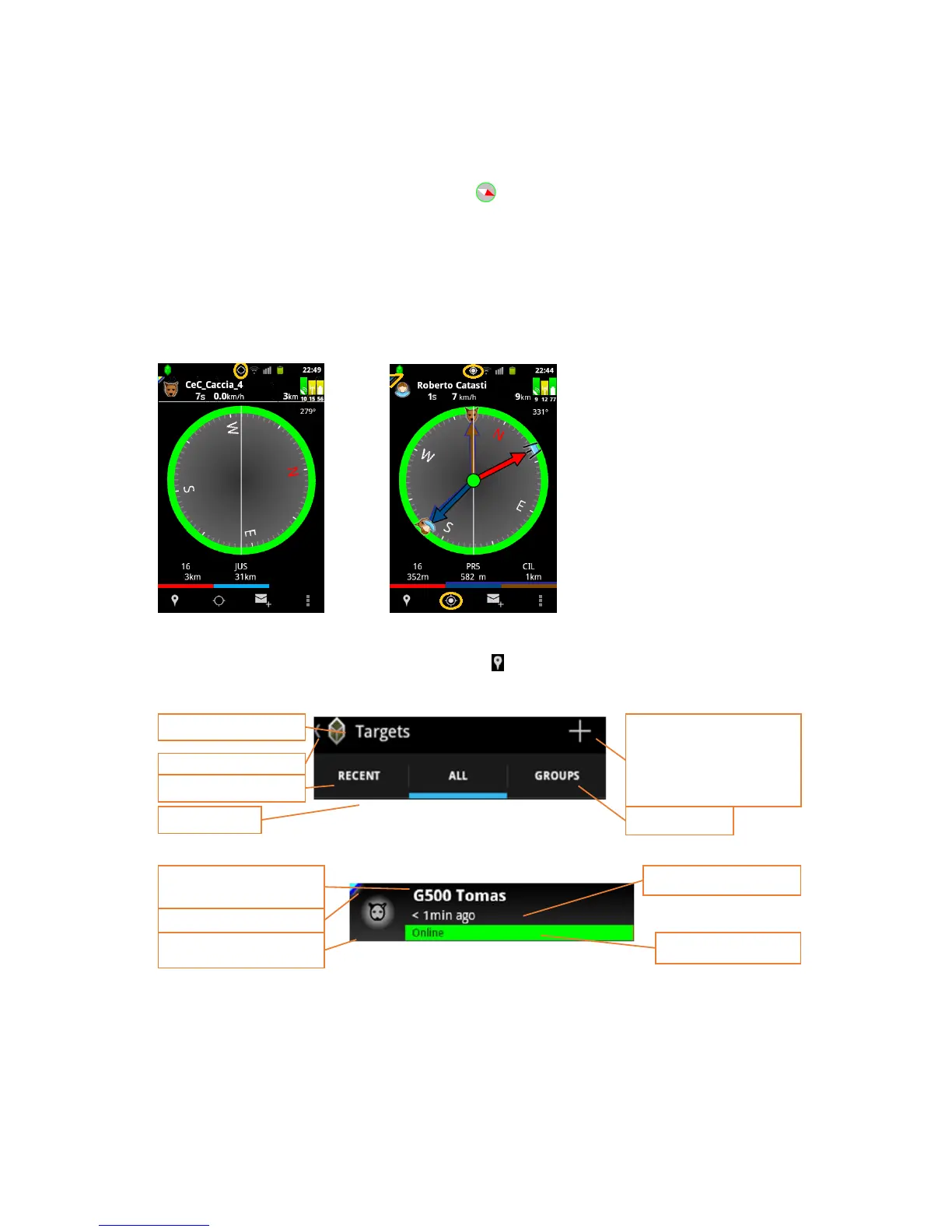
Besides the map view, Tracker for Android™ provides you a compass view. The same information of the
display ed target, as on the map view, is shown on the compass.
You can see the small compass in the top left corner , it gives you orientation on the map. After clicking
in the compass icon, you get to the compass view where you see all relevant information.
The compass shows your correct directions only if the circle around the compass is green. Otherwise
you have to move away from metal or any other element that could distract magnetic fields.
1. Make sure that you have activated GPS. Compass doesn’t work without GPS!
2. If the GPS is not activated or your current position is unknown, the compass remains blank as on
the picture Nr. 2
3. After the correct position is found, the compass shows the current selected target –the colour of
the arrow is the same as the colour of the track
Target menu
You will find the dog menu when you click on „Targets“ and then the name of the dog, if your desired
target isamong the last 10 recent targets, or otherweise: ”All” > GPS Locators > click on the name of the dog.
The menu of the target can vary depending on ownership or viewing rights.
Add targets
It opens the menu where
you can register a dog (GPS
device), create or enter a
group.


 To Next Page
 Loading...