15
Setup for rst use
Change to DHCP IP address
If you want to revert back to DHCP mode, please change the IP address to 0.0.0.0 and follow the chapter about
Change to Static IP address. You don’t have to change the gateway to put the machine in DHCP mode.
4.2 Update the firmware
All printers will be shipped with the latest firmware onboard. In some rare situations it’s possible that while
shipping your 3D printer a new firmware is released. In this case, follow these steps to update the firmware.
Make sure you did the setup procedure for the web interface described in chapter 4.1 Set Up Network.
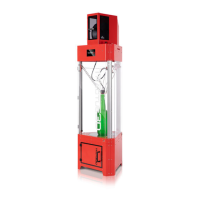
In the web interface go to Settings and tab General.
Click on the blue button Upload File(s) and select the firmware you’ve received from Tractus3D.
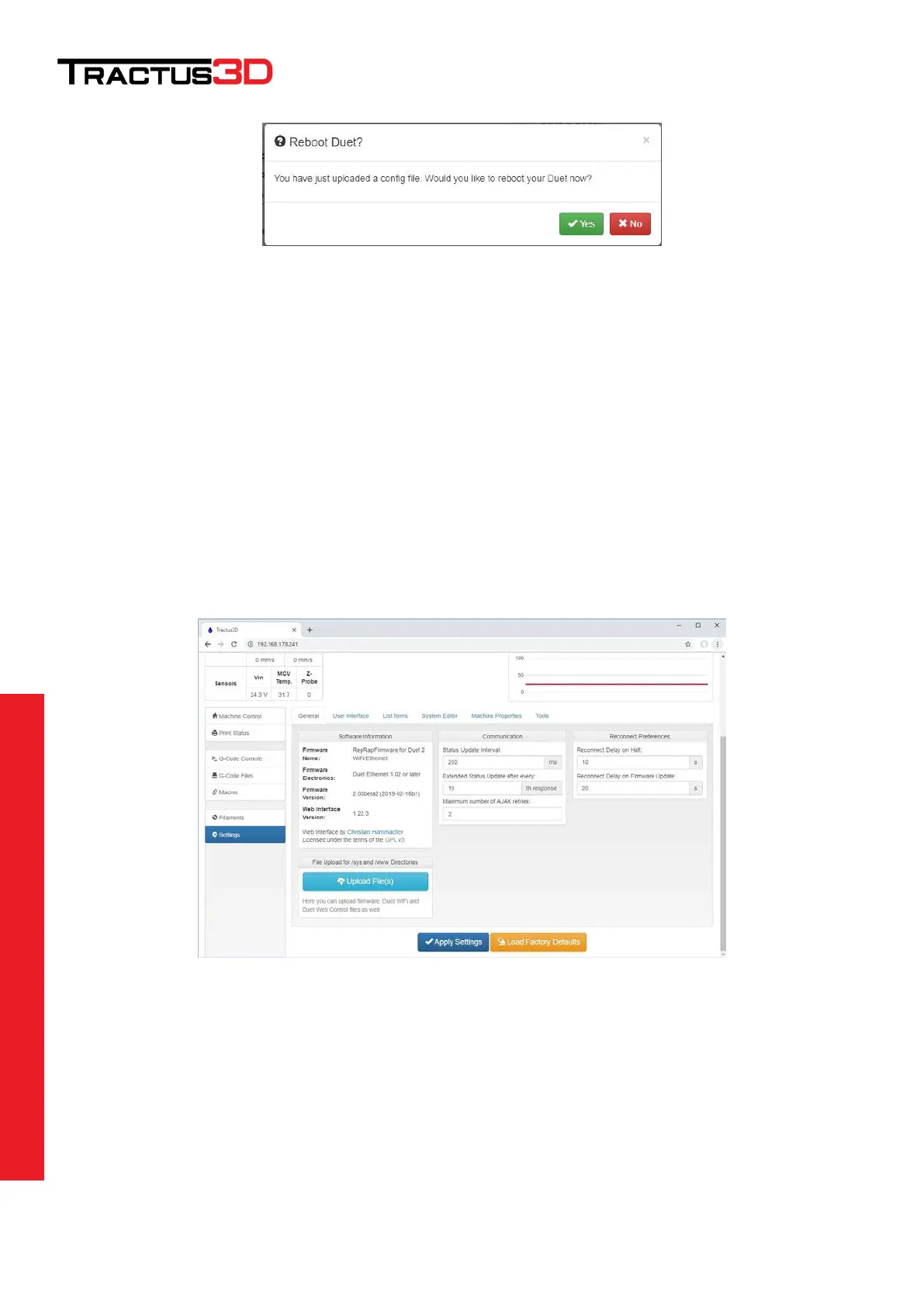
The interface will give you a notification that you uploaded a new firmware.


 To Next Page