23
Setup for rst use
4.5 Uploading files to 3D printer
When you have created a file with your slicer software and you stored the G-Code file on your computer it’s only
a matter of uploading this to the 3D printer to get started.
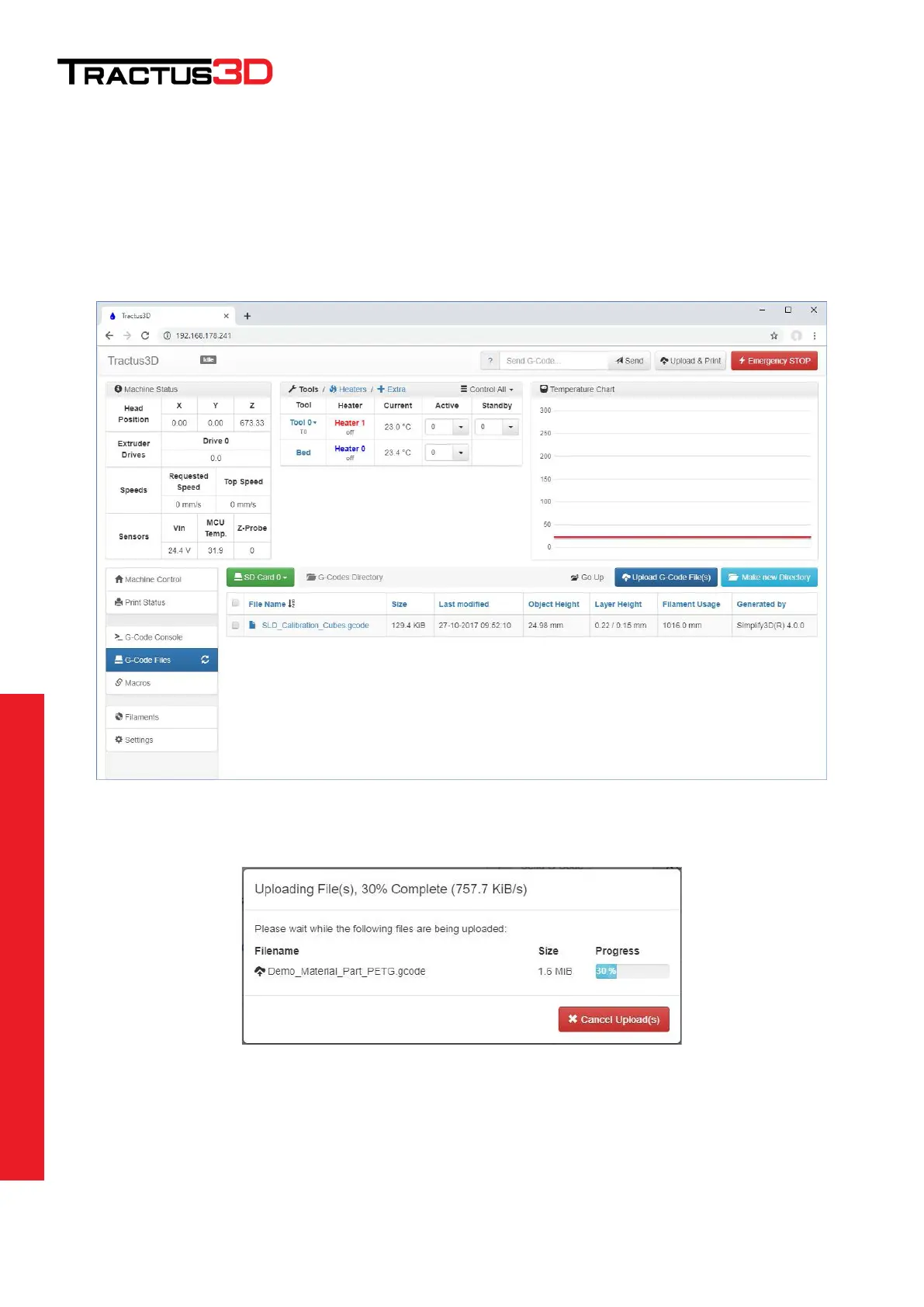
To upload the file please open the web interface.
Go to G-Code Files and click the Upload G-Code File(s) button.
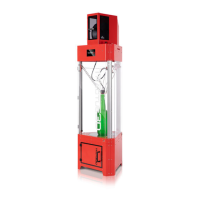
Select your file(s) from your computer. To upload click Open.
Now you will see an upload box, wait for it to complete.
When the upload is complete there will be a green CLOSE button. Now you can start printing your files!


 To Next Page