Displays the currently selected FM radio frequency
Selecting a Radio Station
There are two ways to change stations: You can adjust the frequency manually from the Radio screen or you
can choose one of the preset stations in “Saved Stations” list.
To adjust the frequency manually:
1. In Radio mode, press the LEFT or RIGHT buttons (the FM frequency will increase or decrease in
0.1MHz increments) until you reach the desired frequency.
2. You can also press and hold either LEFT or RIGHT to auto-scan for the next available station.
To select a preset station
:
1.
In Radio mode, press DOWN to skip forward to the next saved station in the station list.
2.
Press UP to go back to the previous saved station in your station list.
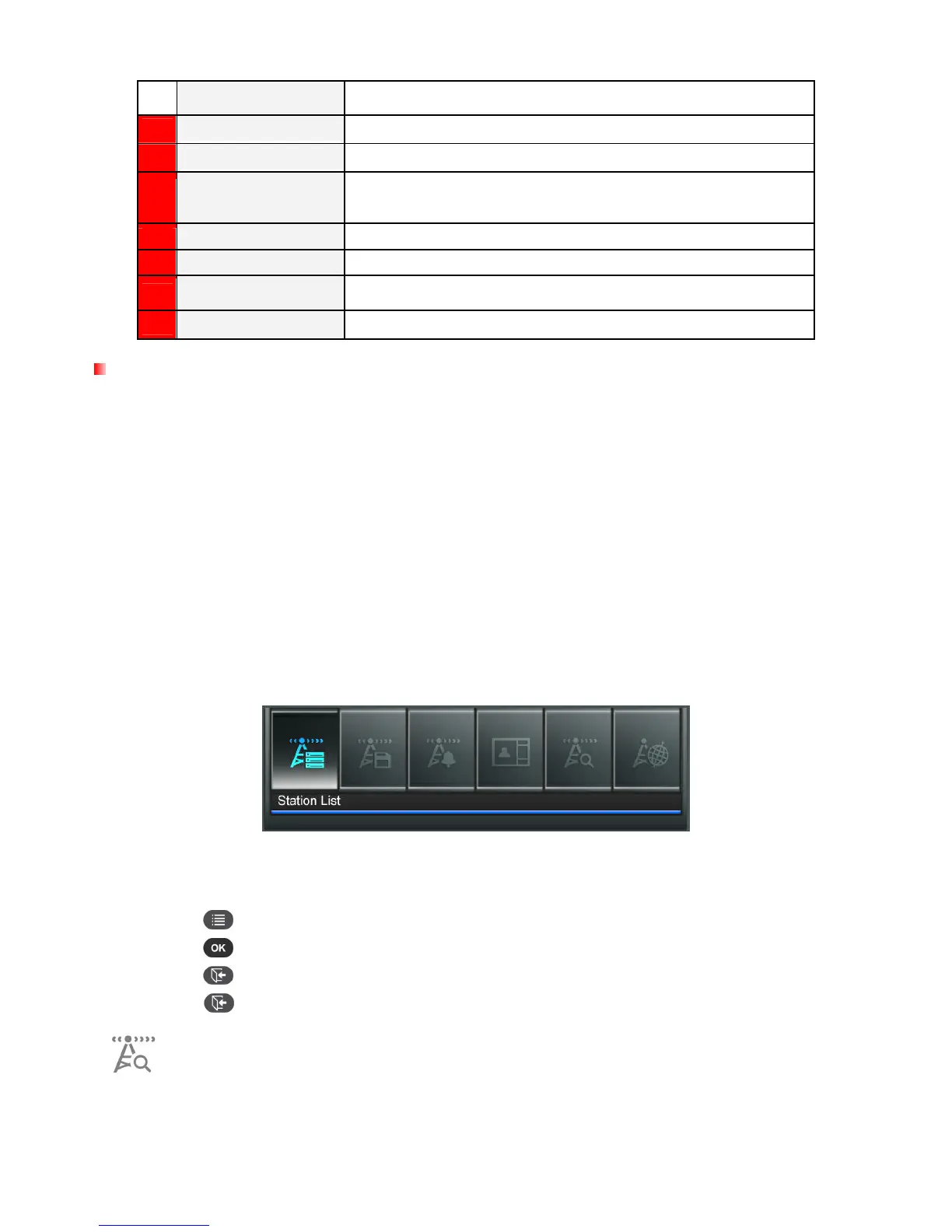
Options:
This menu shows list of options available in the Radio mode. Some of these options are available on the
remote or by using the menu buttons on the front of the Photo Frame.
1.
Press
and use the LEFT and RIGHT buttons to highlight the desired menu option.
2.
Press to access the highlighted function or open its sub-menu.
3.
Press once to go back to the previous screen.
4.
Press
again to revert to the Home menu.
Auto Scan: Automatically scan all FM frequencies and save the first 20 stations with strong
signals to the Station List. Note: performing an Auto Scan will reset all previously saved
stations in the Station List.


 To Next Page