TREASUREHUNTER3D
Makes underground treasures visible
Instruction manual 12
Turn it on
1. Move the slider switch on the Sensor unit to ON position in order to turn it on�
Green LED will indicate the sensor is turned ON�
Orange LED will indicate that the sensor is ready to be used�
2. Move the slider switch on the Receiver module to turn it on�
Green LED will indicate the sensor is turned ON�
Orange LED should turn ON, indicating that a link between the Sensor and Receiver unit is established�
3. Turn ON drone & drone Remote controller� (refer to drone user manual and instructions)
TROUBLESHOOTS
• If green LEDs are not turn on please check batteries are full and properly installed�
• If orange LED on Receiver unit will not start to blink check if antennas on both units are properly installed�
Smartphone application
DroneRover uses iOS application to navigate drone, display drone, detector information and scan results�
To start using application:
1. Install DroneRover application�
Applications can be downloaded from http://www�treasurehunter3d�com/downloads
or installed from AppStore�
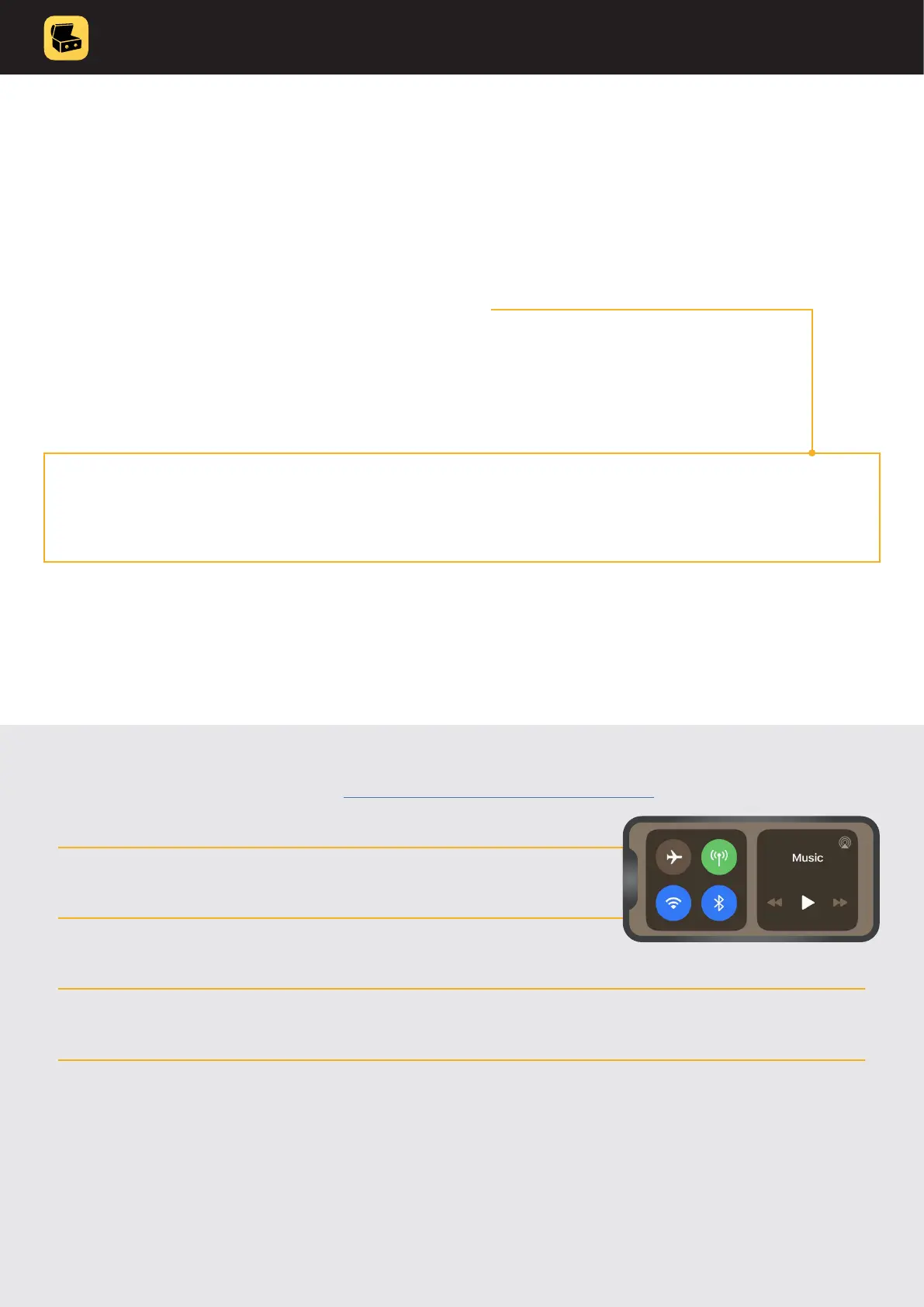
2. Make sure iPhone bluetooth is turned on�
3. Make sure sensor and receiver unit are both turned ON�
4. Run the application�
5. The Bluetooth LED indicator on the receiver unit will turn blue indicating the
smartphone is connected with a DroneRover sensor�
Congratulations, the DroneRover sensor is now ready to be used!



 To Next Page