TREASUREHUNTER3D
Makes underground treasures visible
Instruction manual 24
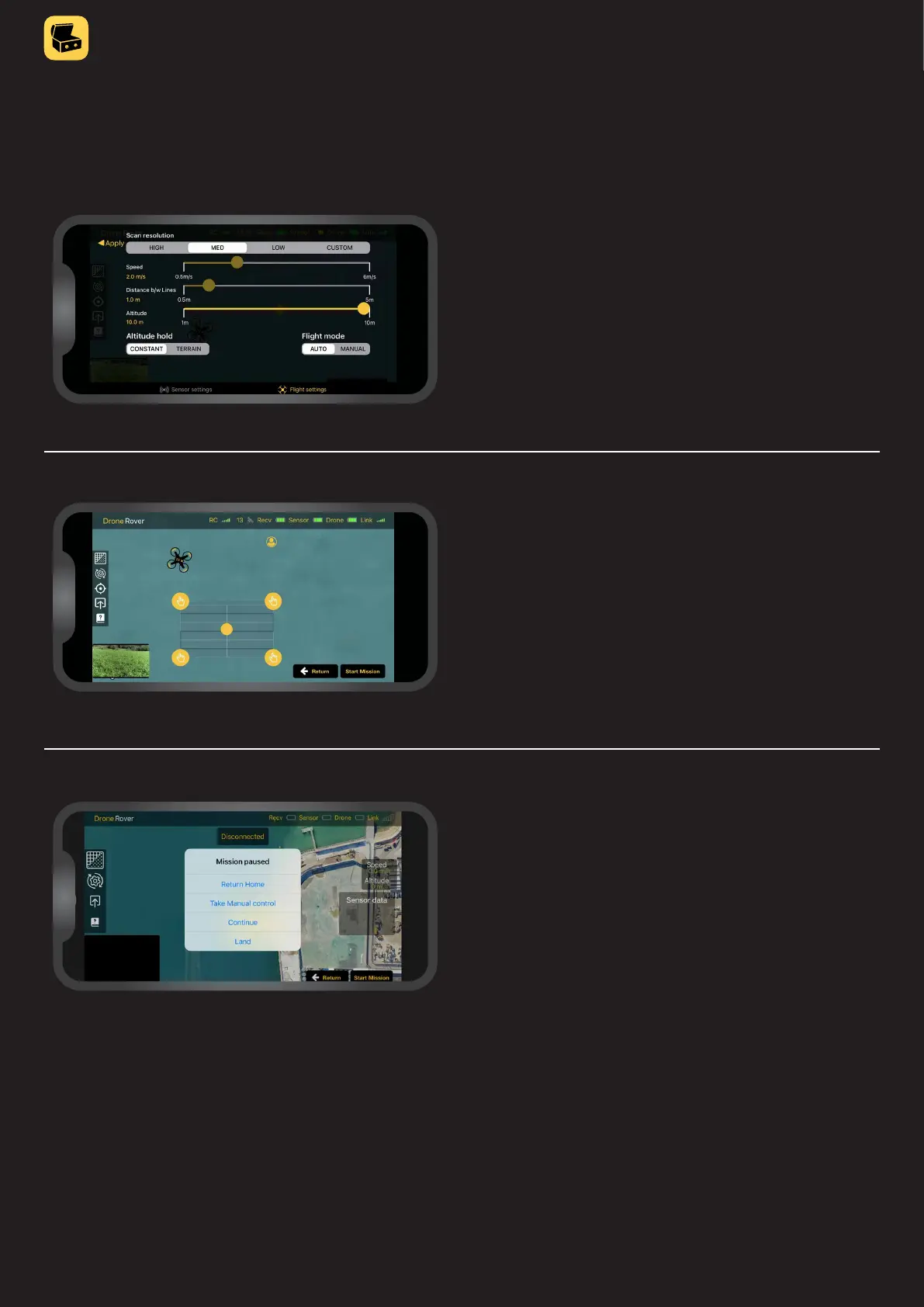
Starting mission
Missions can be started or aborted with a button at the right
bottom of the screen�
Pressing a button “Scan new area” will automatically enable
scanning area selection after that mission can be started
by pressing the “Start Mission” button and conrmation of
drone take off�
Once the mission is started the drone will take off, y to a
selected area, scan it and return to it’s home position to land�
Aborting mission
Users can always stop the mission by pressing the
“Abort mission” button� Once this button is pressed
Drone will stop scanning and will stay at it’s last position�
User can then choose between different options:
• Return Home - drone will return and land at its
home position **
• Take manual control - user will take control over
drone using remote control
• Continue - continue with the mission
• Land - land at its current position
** If drone is very close to home position it will land at position where
mission was aborted�
Automated scanning mode mission control
When automated scanning mode is selected in the
Flight settings menu tab, the user has the ability to
start automated area scanning�



 To Next Page