TREASUREHUNTER3D
Makes underground treasures visible
Instruction manual 23
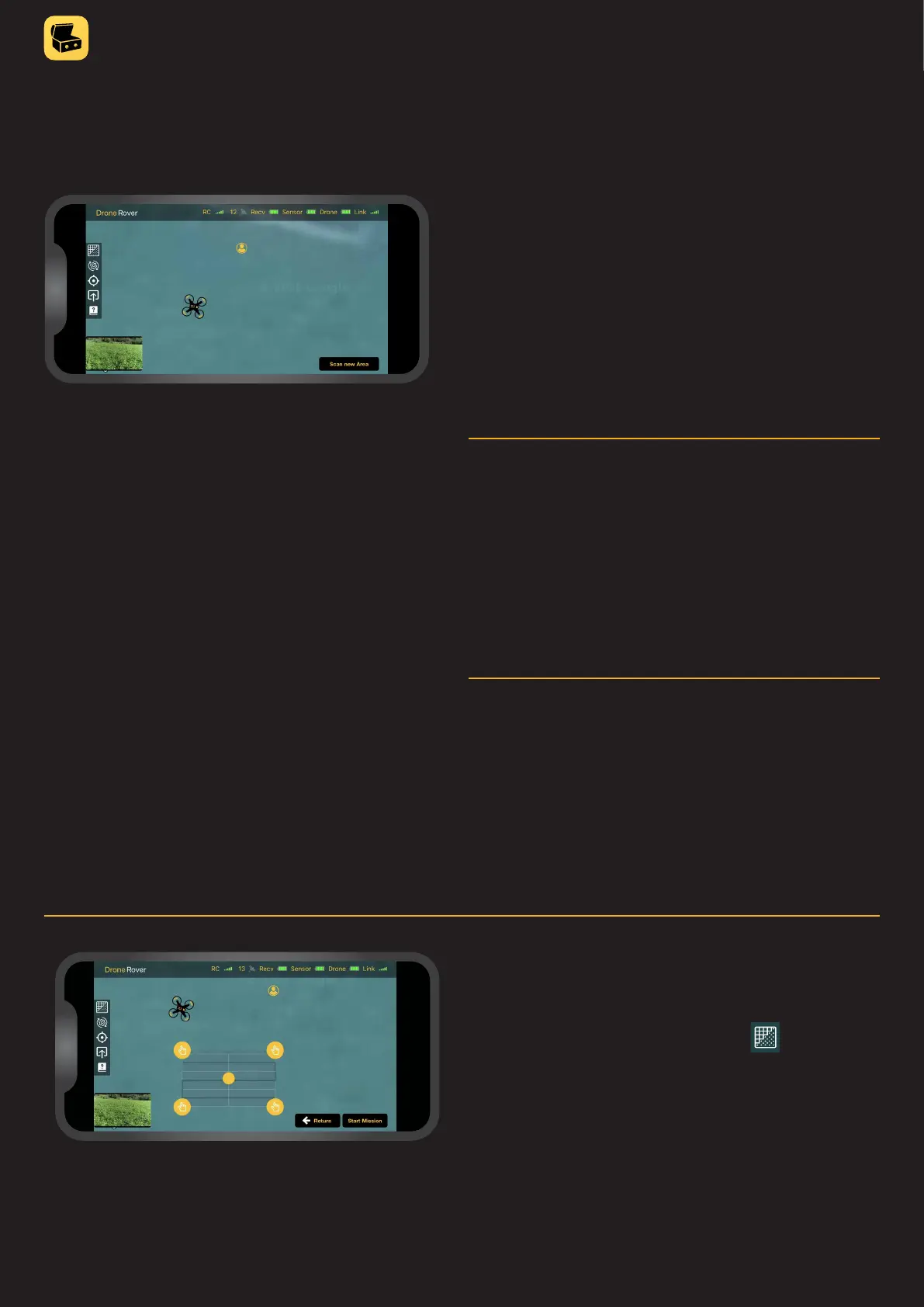
Battery & link status
Icons in top right corner indicate:
• Recv - sensor receiver module battery status
• Sensor - sensor module battery status
• Drone - drone battery status
• Link - data link quality between sensor receiver
and sensor module
Location information
Applications provide information about these locations:
• Smartphone/user location
• Drone current location
• Drone home location - this location where drone was
when mission was started and where drone will return
after scanning is completed
Main control screen
From the main control screen user can:
• Observe map with smartphone and drone location
• Select scan area
• Enter settings menu to adjust sensitivity,
scan resolution, ight mode & altitude
• Start / abort mission / scanning
• Monitor battery and link status
• See mission status & drone connection
• Share scan results
• Access support information
• View real-time video from drone camera
Scan area selection &
map view
• To select scan area, user should press then drag
a rectangle over the area that should be scanned�
• To adjust the location of the scan area, the user can put
a nger on the dot in the center and move the area to
another location�
• To change the shape of scan area, user can put
nger on the dot on the borders and move them to
desired location�



 To Next Page