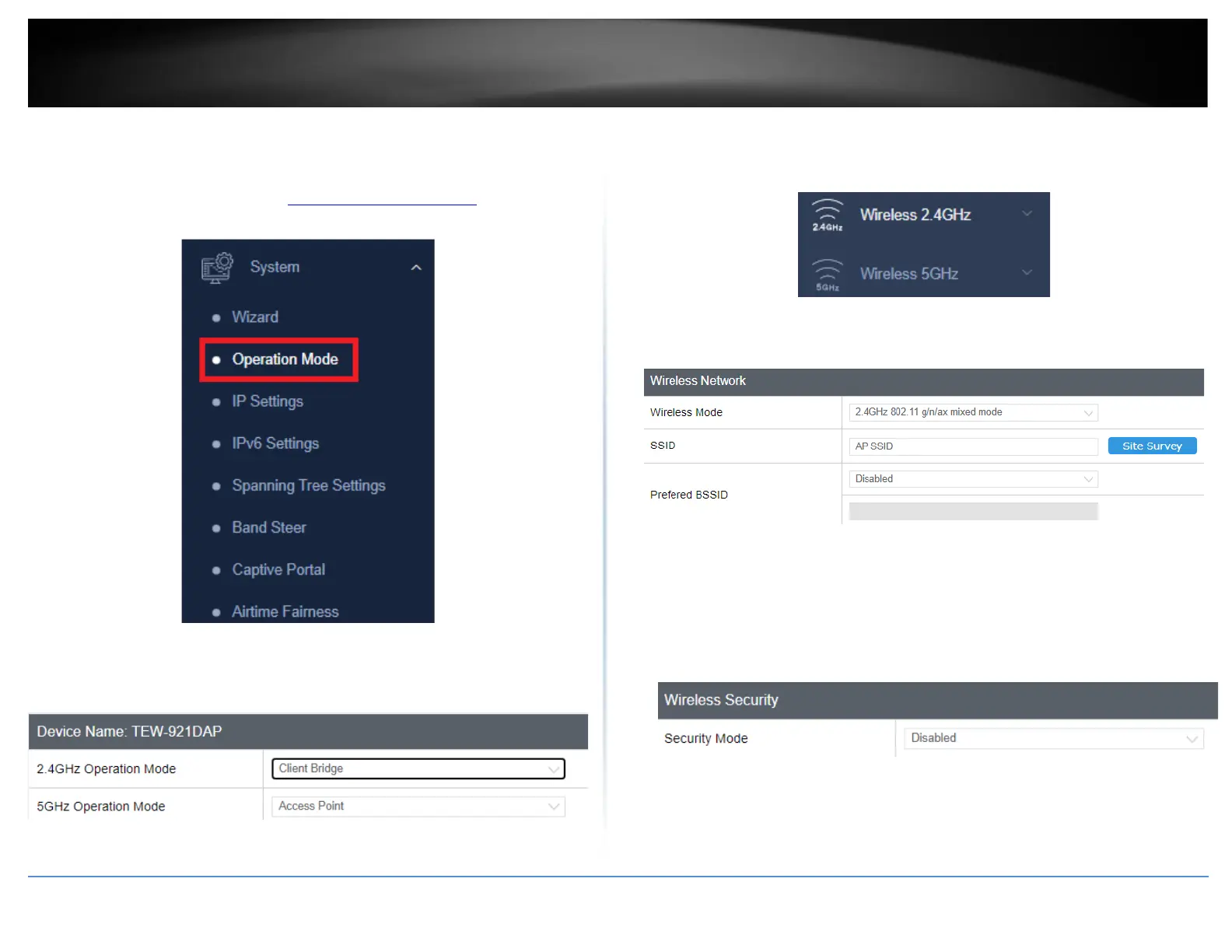
This section outlines the available features to configure for both wireless 2.4GHz and
5GHz when Access Point mode is selected.
1. Log into your management page (see “Access the management page” on page 13).
2. Click on System, and select Operation Mode.
3. Enable Client Bridge, under the wireless band (2.4GHz or 5GHz) you would like to
connect this access point to. Please make sure that the selected band is available on
your network.
4. Click Apply to save your current settings.
5. On the left-hand side menu, click on the wireless band tab (Wireless 2.4GHz /
Wireless 5GHz) you would like to configure and click Wireless Network.
6. Configure the below settings and click Save and Apply/Discard Changes to save
settings.
• Wireless Mode: Select the wireless mode to set on the selected wireless band in
client bridge mode
• SSID: Manually enter the wireless network name (SSID) you want to establish
connection. Or simply click on Site Survey to scan for available wireless network
(more details below).
• Preferred BSSID: Click option and enter the preferred wireless network you would
like to connect to.
• Security Mode: Select from the pull-down menu the wireless security that is used
on the wireless network you would like to connect to.




 To Next Page