• Most Active Client: Displays the client with the most utilization of data since the
last refresh
• All-time Top Client: Displays the client with the most utilization of data since the
access point last powered on
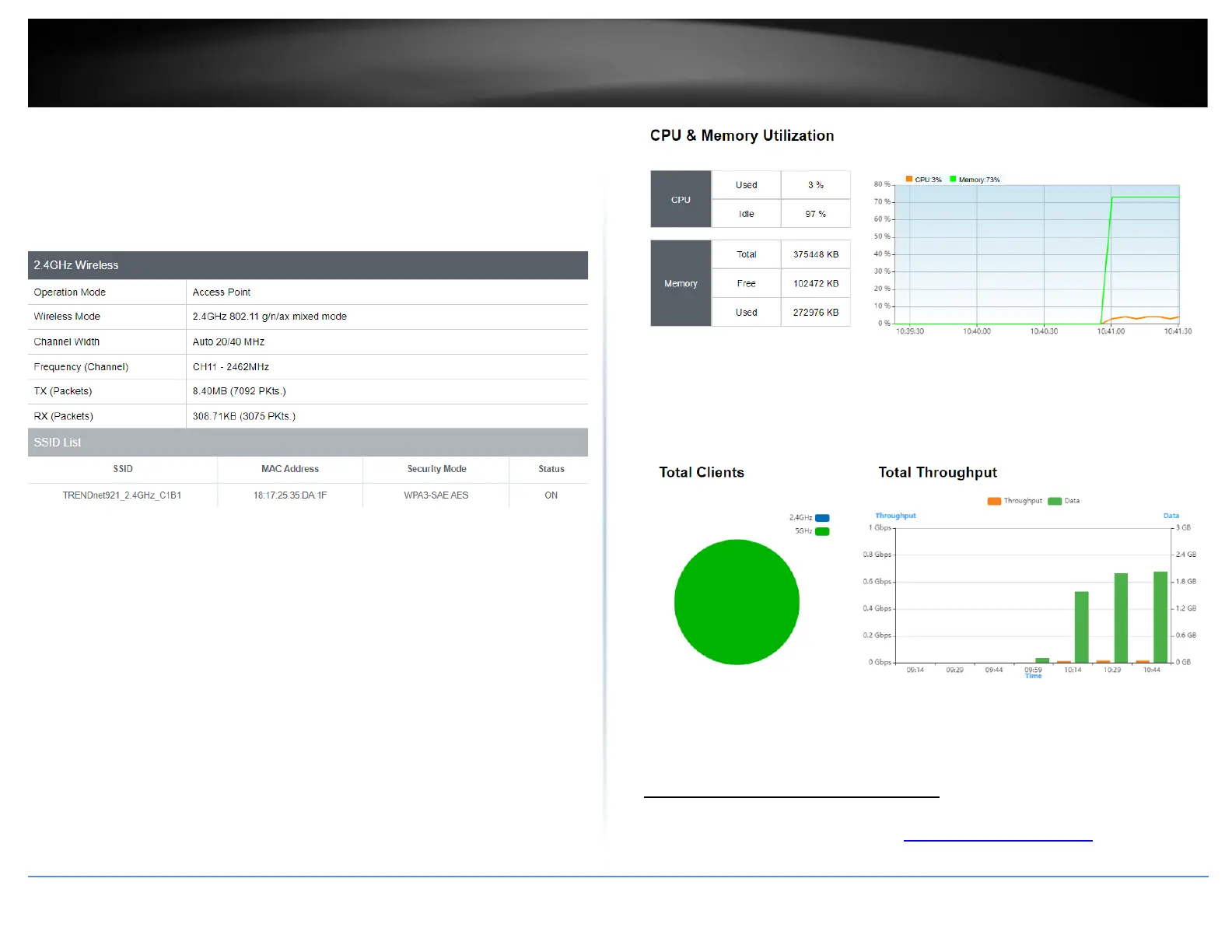
Wireless (Both 2.4GHz and 5 GHz)
• Operation Mode: Displays the current operating mode for each wireless band
• Wireless Mode: Displays the wireless mode set on each wireless band
• Channel Width: Displays the applied channel width
• Frequency (Channel): Displays the current operating wireless channel
• Tx/Rx Packets: Displays the Transmit (Tx) and Receive (Rx) packet rate
• SSID List: Displays the multiple SSID settings.
CPU & Memory Utilization
• CPU: Displays how much of the CPU’s computing power is being used and how
much of it is on standby
• Memory: Displays the total memory, how much memory is left and how much
has been used
• Total Clients: Displays the total number of connected clients by each wireless
band
• Total Throughput: Displays the total throughput and total data from all clients
in 15 minute increments
Check connected wireless clients
Dashboard > Dashboard > 2.4GHz/5GHz Wireless
1. Log into your management page (see “Access the management page” on page 16).
2. Click on the Status tab and click 2.4G or 5G Wireless Client List.




 To Next Page