Seeker D User’s Guide
Document Num., Rev. 4May 2018 Page 45
Selecting a Preset Frequency
The Preset Frequencies display is used to select the RF signal level measurement
frequency presets used by the Seeker D. The preset frequencies are numbered from 0 to 9
and can be congured using the Seeker Setup software.
The Seeker D is programmed at the factory with the following preset frequencies:
FREQ # Default Enabled Primary Frequency Secondary Frequency Tag
1 YES YES 612.0000 None 1
2 NO YES 138.0000 None 1
3 NO NO <empty> None N/A
4 NO NO <empty> None N/A
5 NO NO <empty> None N/A
6 NO NO <empty> None N/A
7 NO NO <empty> None N/A
8 NO NO <empty> None N/A
9 NO NO <empty> None N/A
0 NO NO <empty> None N/A
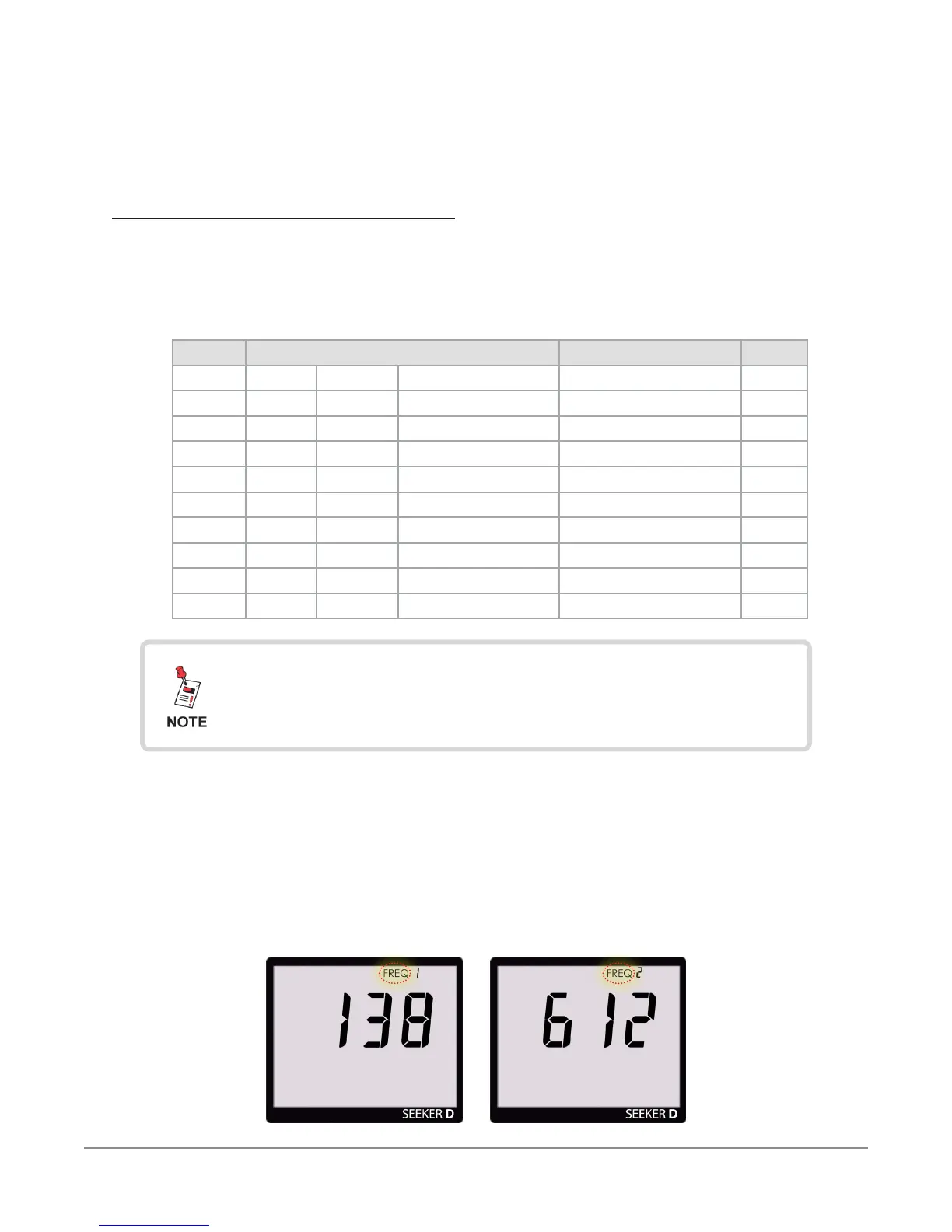
To select a preset frequency, turn your Seeker D on and press the SELECT button
repeatedly until the FREQ icon ashes at the top of the display, as indicated in the below
images.
• When the Preset Frequency display is selected, the FREQ icon at the top of the
display will ash as indicated by the red circle in the following images.
• When the Preset Frequencies display is selected, pressing the CHANGE button will
step through the enabled presets in numerical order starting at 1 and ending at 0.
Preset #1 Preset #2
For detailed instructions on how to set the primary and
secondary frequency presets and their associated tag
settings, see the Seeker Setup Software Operation Manual.


 To Next Page
 Loading...