User’s Manual – Conventional Mode
102
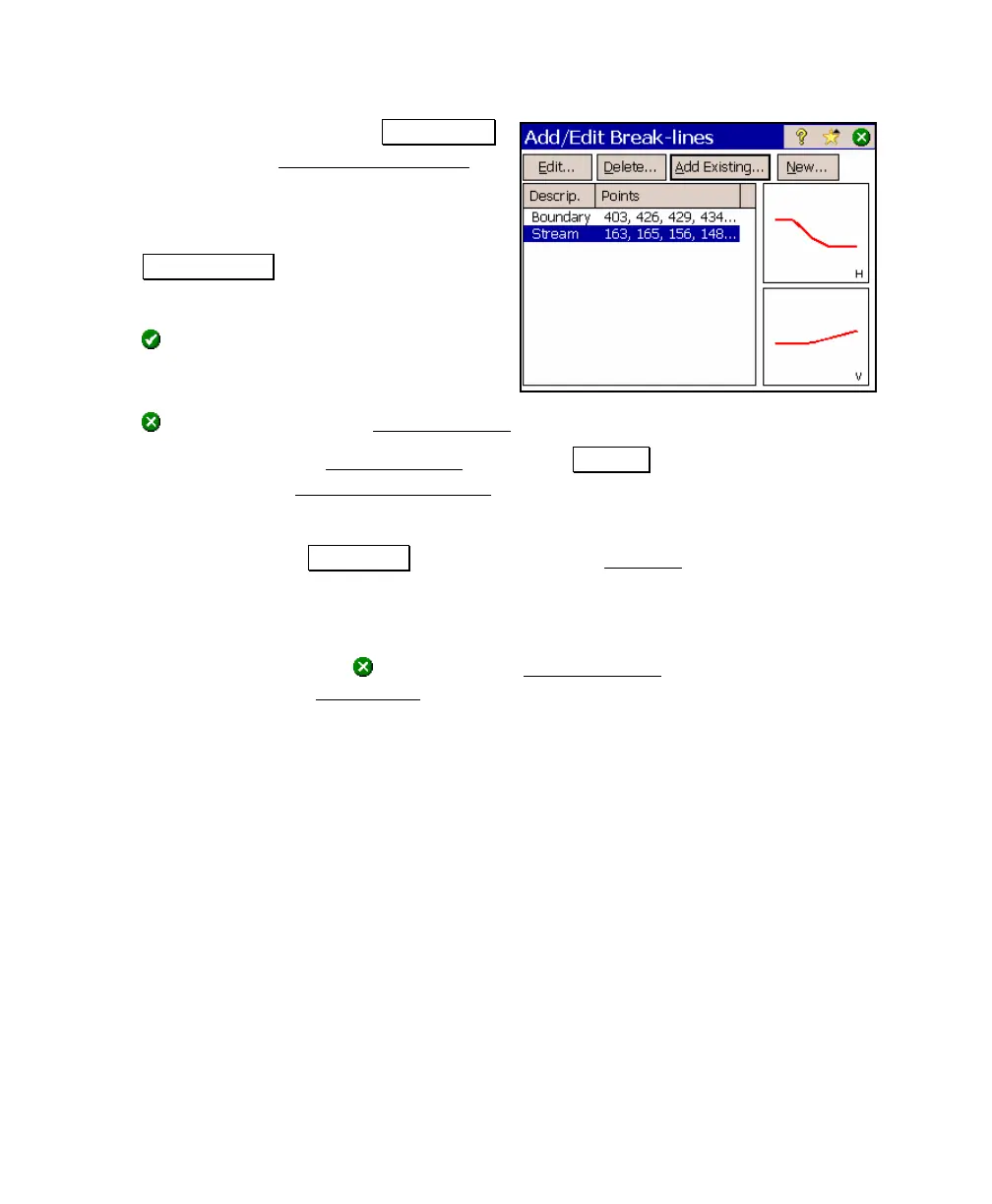
10. To select a break line, tap the Breaklines…
button to open the Add/Edit Break lines
screen. If any break lines have already
been selected, they will be listed here.
a. To add an existing break line, tap the
Add Existing… button. This will
display all the polylines in the current
job. Select the desired polyline and tap
. This will move the selected polyline
to the (non-reference) DTM layer.
b. When finished adding break lines, tap
(close) to return to the Setup DTM 3D screen.
11. When you return to the Setup DTM 3D
screen, the Points…
button will open the Points on DTM Layer screen where the
points on the DTM layer can be viewed, new points can be
imported, and existing points can be deleted (moved to the
Auxiliary layer). The 3D View… button will open the 3D View
screen where the DTM surface for the points on the DTM layer
can be viewed from any angle.
12. This completes the Stake DTM set up procedure and you are now
ready to stake points. Tap
(close) from the Setup DTM 3D
screen to return to the Stake DTM
screen.



 To Next Page