User’s Manual – Conventional Mode
164
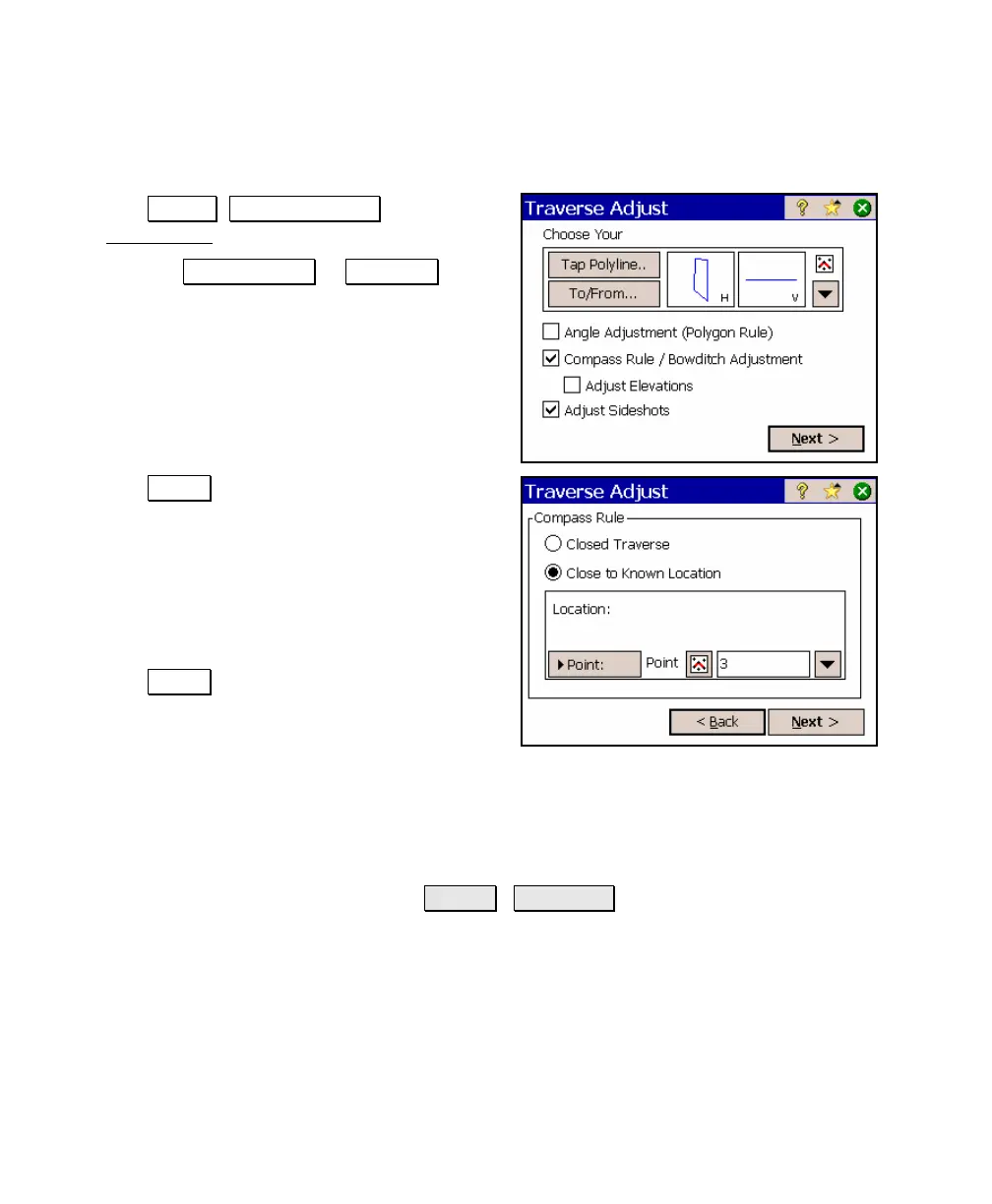
Performing a Traverse Adjustment
1. Tap Adjust , Traverse Adjust from the
Main Menu.
2. Use the Tap Polylines… or To/From…
button to select the polyline or points that
define your traverse, which should be in
the same order that the traverse points
were collected.
3. Select the appropriate checkboxes to define
the type of adjustment(s) to perform and
what will be adjusted.
4. Tap Next > to continue to the next screen.
The screen that opens will depend on the
selections made from the main screen.
5. If an angle adjustment is being performed,
the screen shown here will open. Enter the
closing angle for the traverse in the form of
an angle-right.
6. Tap Next > to open the next screen of the
adjustment wizard.
7. If a Compass Rule adjustment is being performed, the screen
shown here will open. Select Closed Traverse if you are adjusting
a closed traverse or select Close to Known Location if you are
adjusting an open traverse and closing to a known point or
location. A closing location can be defined by an existing point or
known coordinates by toggling the Point / Location button
accordingly.



 To Next Page