Getting Started
7
Using Survey Pro
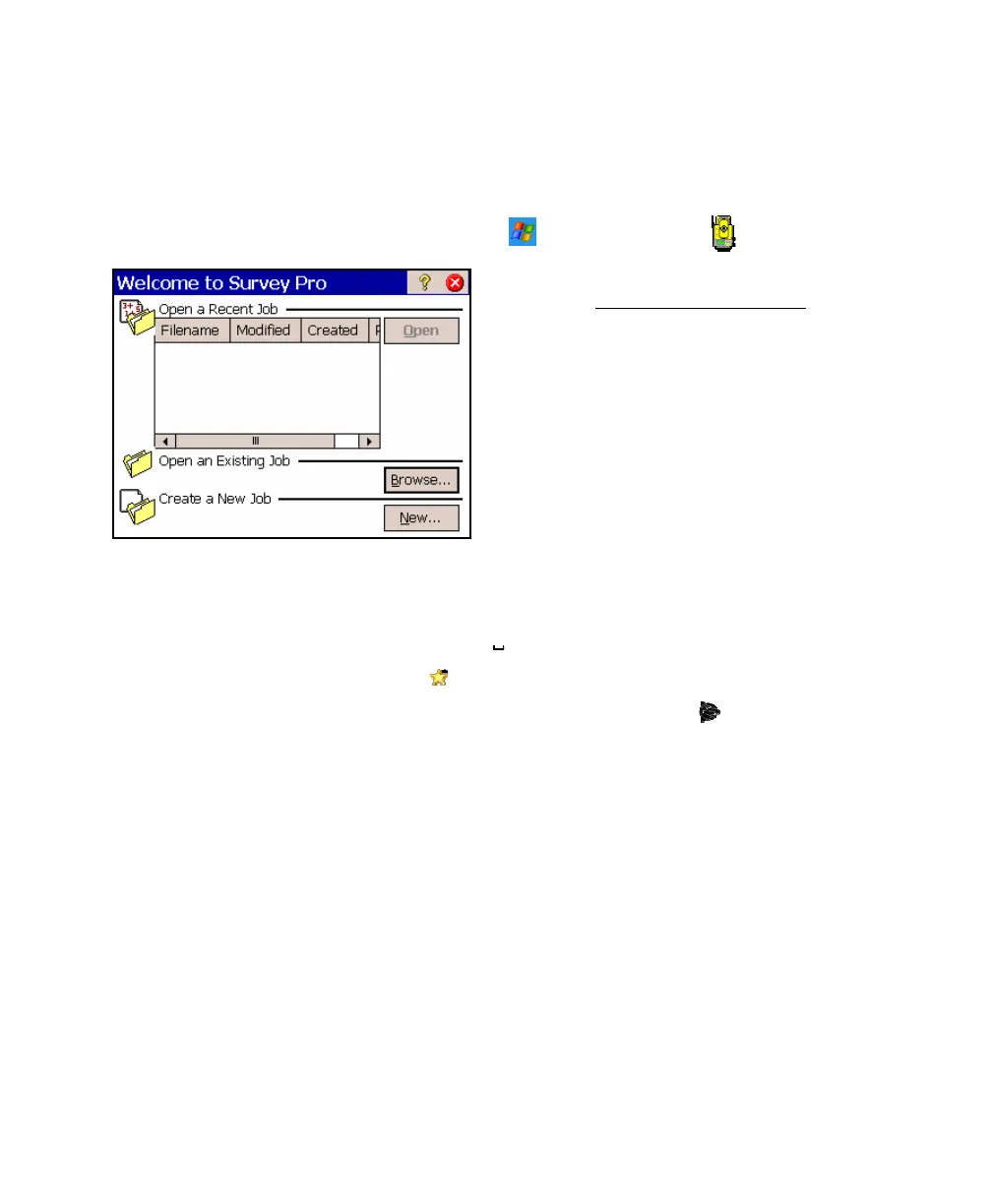
To start Survey Pro, tap Start > Programs >
Survey Pro cannot start without a job being
open so the Welcome to Survey Pro
screen will
ask if you want to open a recently opened job,
open an existing job, or create a new job. For
this example we will create a new job so you
can begin exploring the software.
Selections and cursor control in Survey Pro can
be made by simply tapping the screen with
your finger or a stylus.
You can temporarily disable the touch-screen if you need to clean it
by using any of the methods below:
• Press [CTRL] - [
] and press [ESC] to reactivate the screen.
• Use the
, Suspend Screen quick pick.
• Ranger 300X/500X only: Press [Fn] - [
] (Trimble logo).
Repeat to reactivate the touch-screen.



 To Next Page