GPS Module
263
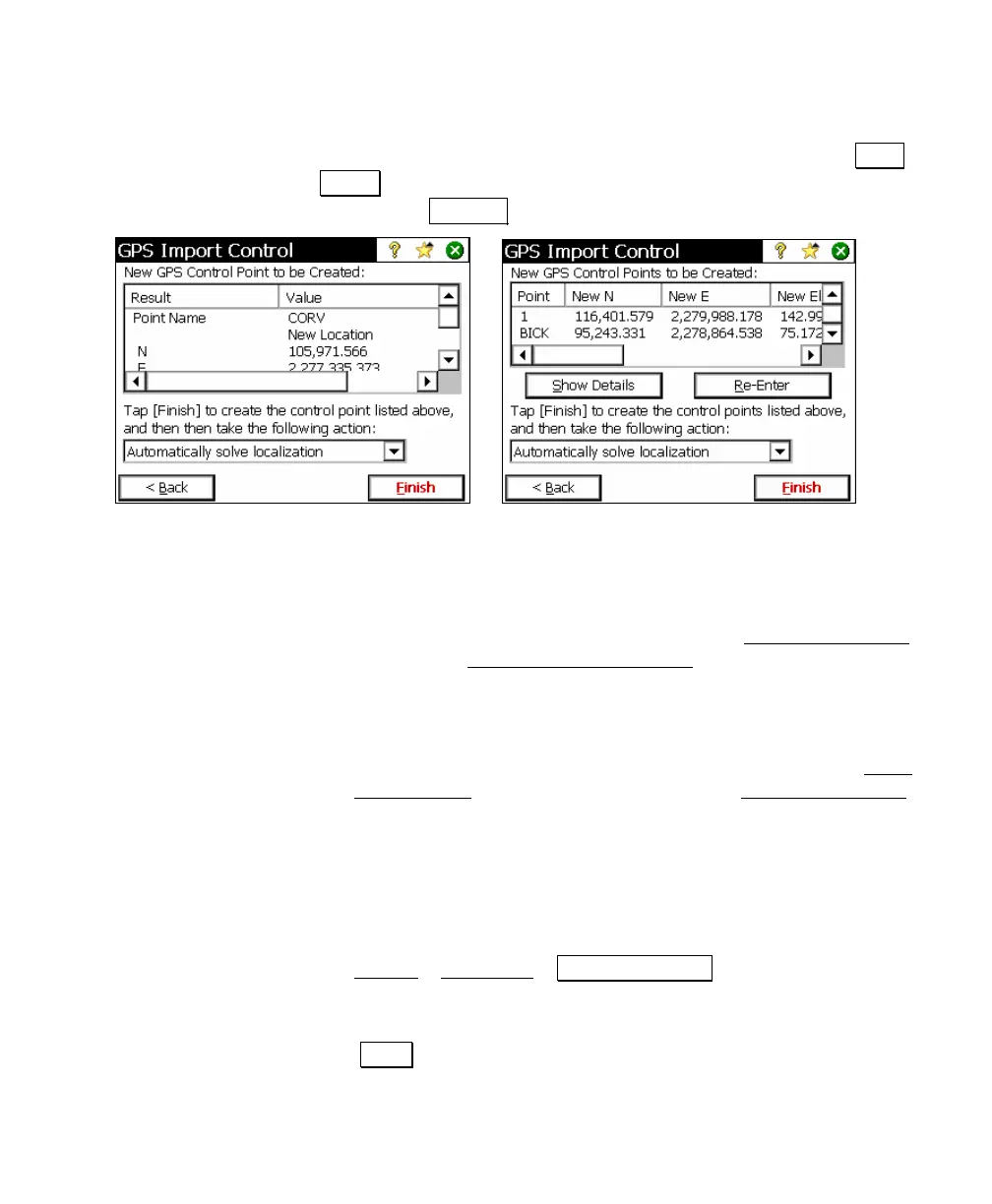
creating multiple control points, a summary is listed on this
screen. To see the complete details on a selected point, tap Show
Details. To edit the input for any point, select that point from the
list and tap Re-Enter.
8. Choose an action to take after Survey Pro creates the GPS control
points selected. You can choose from:
• Automatically solve localization (calibration): Use this option to
create the selected GPS control points, and automatically
solve the localization, without opening the Solve Localization
wizard. The Readjust with Projection
screen opens showing
you a preview of the update to the job file coordinates to be
applied with the new localization solution.
• Open the solve localization (calibration) wizard: Use this option
to create the selected GPS control points, then open the Solve
Localization wizard. You can then use the Solve Localization
wizard to complete the localization solution. This option is
useful if you are creating multiple control points and you wish
to view the residuals of the localization solution prior to
accepting.
• Solve the localization (calibration) later: Use this option to
create the selected GPS control points and exit. You can tap
Survey
> Projection > Solve Localization at any time after this
to finish solving the localization using the created control
points.
9. Tap Finish to create the GPS control points and take the selected
action.



 To Next Page