User’s Manual
48
Vertical Alignment
We have now added all available horizontal segment types. Next, we
will define the vertical alignment.
Since the horizontal and vertical alignments are defined
independently of each other, the first vertical segment that is defined
will start at the same POB defined above in Step 3.
13. Tap the VAL (Vertical Alignment) tab and
then tap the Insert button.
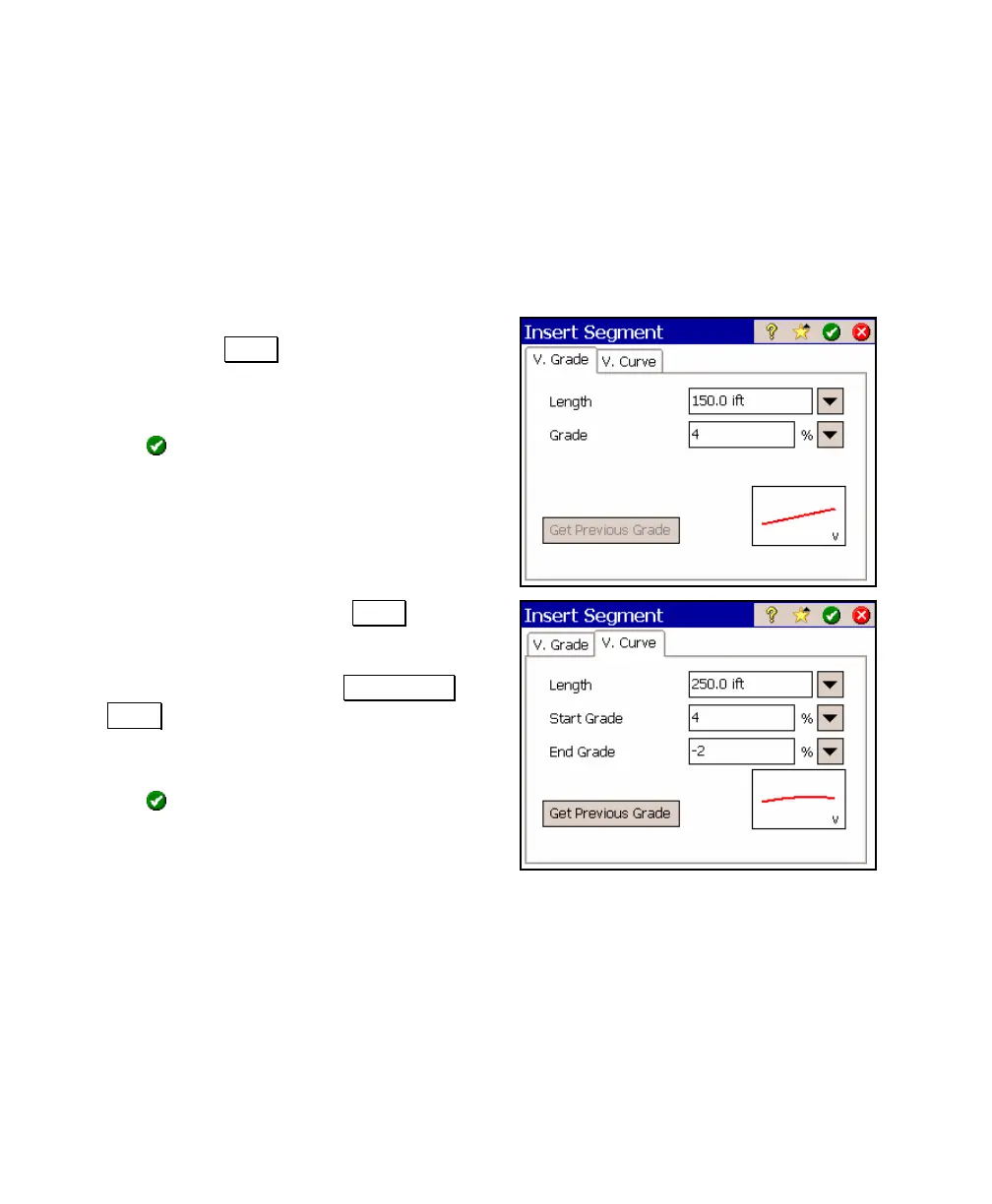
14. Tap the V. Grade tab to insert a grade.
Enter a Length of 150 and a Grade of 4%.
15. Tap
to add the segment to the vertical
alignment.
16. With End selected, tap the Insert button
again and then tap the V. Curve tab to
insert a parabolic vertical curve. Enter a
Length of 250 and tap the Get Previous
Grade button to automatically set the Start
Grade to the ending grade of the previous
section. Enter an End Grade of -2%.
17. Tap
to add the segment to the vertical
alignment.



 To Next Page