Road Layout
85
Add Templates to the Alignment
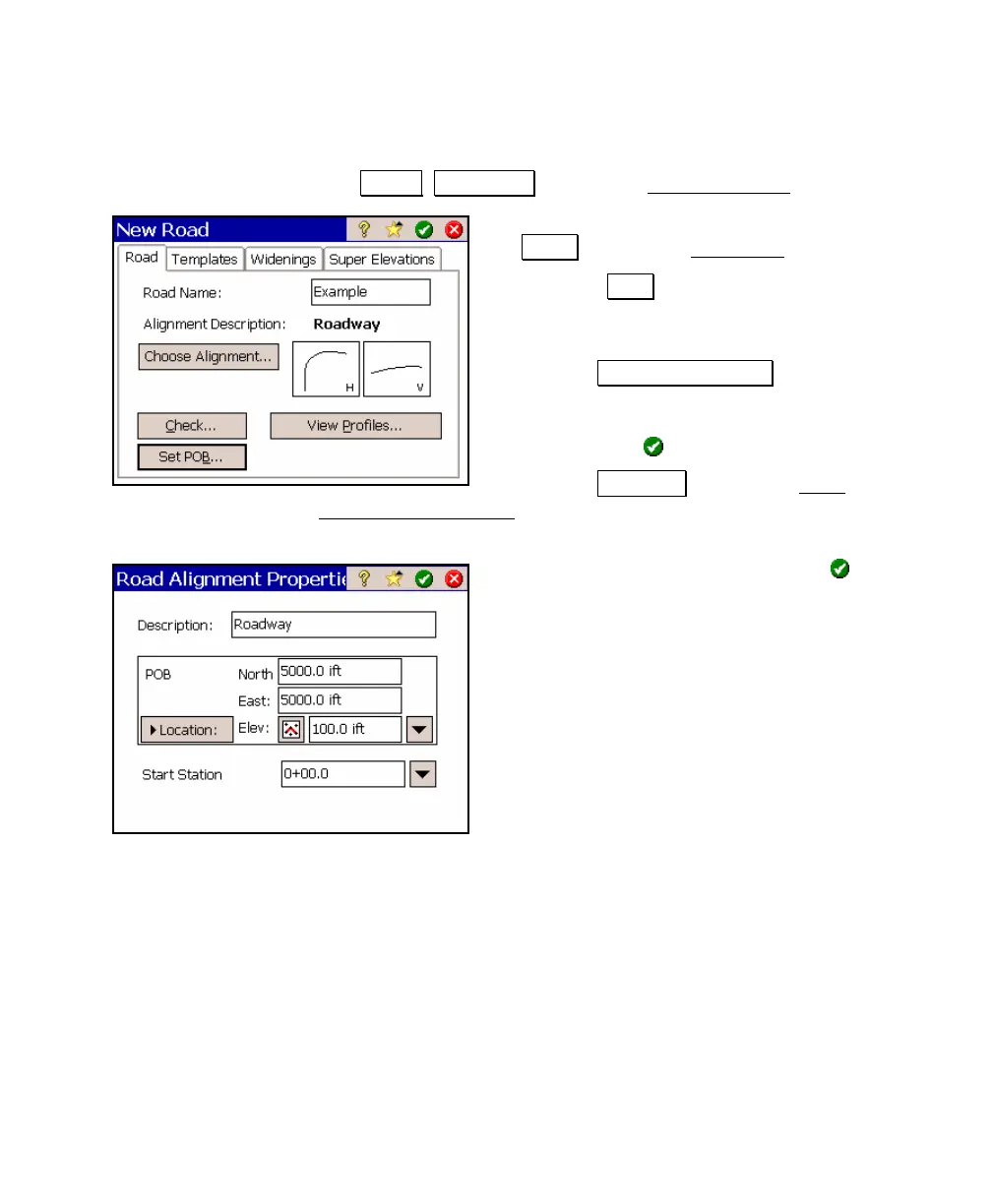
1. Tap Roads Edit Roads to open the Add/Edit Roads screen.
2. Since we are creating a new road, tap
New… to open the New Road
screen.
3. With the Road tab selected, enter a name
for the road in the Road Name field. In this
example, we used Example.
4. Tap the Choose Alignment… button and
select an alignment. In this example, we
selected the Roadway alignment created on
Page 44. Tap
to continue.
5. Tap the Set POB… to open the Road
Alignment Properties screen to define where the road begins in
the job.
6. Enter the following data then tap
:
North: 5000
East: 5000
Elev: 100
Start Station: 0+00



 To Next Page