EasyManua.ls Logo

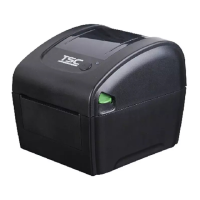
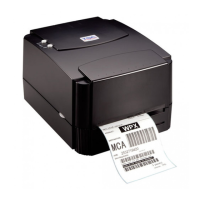
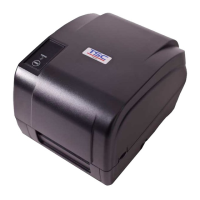
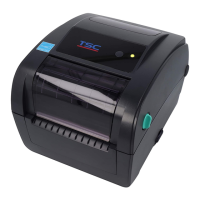
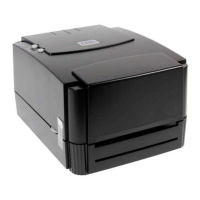
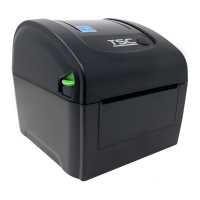
TSC DA310 Series - User Manual

TSC DA310 Series
49 pages
Print Icon
To Next Page IconTo Next Page
Loading...
USERS
MANUAL
DA210/ DA310 Series
DA220/ DA320 Series
Direct Thermal Bar Code Printer

Other manuals for TSC DA310 Series

Questions and Answers

  • C
    catherinewilliamsAug 20, 2025
    How to fix poor print quality on TSC Barcode Reader?
    • S
      Sherry HernandezAug 20, 2025
      To fix poor print quality on your TSC Barcode Reader, start by reloading the media correctly. Clean the print head to remove any dust or adhesive. Adjust the print density and print speed settings. Run a self-test to check the print head pattern for missing dots, which would indicate a damaged print head element.
  • M
    Matthew GeorgeAug 22, 2025
    Why is my TSC Barcode Reader skipping labels when printing?
    • S
      stanley28Aug 22, 2025
      If your TSC Barcode Reader is skipping labels during printing, ensure the label size is correctly specified in your settings. Calibrate the sensor using the Auto Gap or Manual Gap options. Also, clear any dust from the GAP/Black mark sensor using a blower.
  • D
    donna28Aug 25, 2025
    What does it mean when TSC Barcode Reader status from DiagTool shows “Out of Paper”?
    • Y
      yjacksonAug 25, 2025
      If the TSC Barcode Reader status from DiagTool shows “Out of Paper”, supply a new label roll. Ensure the label roll is installed correctly. Calibrate the gap/black mark sensor.
  • M
    Mrs. Laura GarzaAug 26, 2025
    Why is my TSC Barcode Reader printing irregularly?
    • K
      ktylerAug 26, 2025
      If your TSC Barcode Reader is exhibiting irregular printing, try turning it off and on to exit the dump mode. Also, re-set the Rs-232 setting.
  • A
    Amanda WallaceAug 28, 2025
    What to do if my TSC Barcode Reader displays a memory full error?
    • L
      Linda WilliamsAug 28, 2025
      To resolve a 'Memory full' error on your TSC Barcode Reader, delete any unused files in the FLASH/DRAM.
  • M
    Monica BrownAug 29, 2025
    What to do if my TSC Barcode Reader is not printing?
    • J
      Juan CampbellAug 30, 2025
      If your TSC Barcode Reader is not printing, first, reconnect the interface cable or try a new one to ensure a secure connection. If using a serial port, verify that the cable is pin-to-pin connected; if not, replace it. Also, check that the serial port settings on both the host and the printer are consistent, with the default baud rate set to 9600, n, 8, 1. In the Windows driver, confirm that the correct printer port is selected. For Ethernet connections, ensure the Ethernet RJ-45 connector's green LED is lit and the amber LED is blinking. Check if the printer obtains an IP address in DHCP mode or if the static IP address is correctly configured. Allow a few seconds for the printer to establish communication with the server before rechecking the IP address settings.
  • J
    jhansonAug 31, 2025
    Why is my TSC Barcode Reader continuously feeding labels?
    • S
      Sabrina DavenportAug 31, 2025
      To resolve continuous feeding labels with your TSC Barcode Reader, start by initializing the printer and calibrating the gap/black mark sensor. Ensure the label size is accurately set in your labeling software or program to match the installed paper. Also, check for and remove any labels stuck inside the printer mechanism near the sensor area.
  • T
    Tanya CooleySep 3, 2025
    Why doesn't the power indicator illuminate on my TSC Barcode Reader?
    • H
      Heather TurnerSep 3, 2025
      If the power indicator on your TSC Barcode Reader doesn't illuminate, ensure the power cord is properly connected to both the printer and the outlet. Also, make sure that the printer is switched on.
  • A
    Angel ChavezSep 5, 2025
    What to do if my TSC Barcode Reader has no response?
    • R
      Rodney AlvarezSep 5, 2025
      If your TSC Barcode Reader is not responding, ensure the power switch is turned on. Check if the green LED on the power supply is lit; if not, the power supply may be broken. Verify that both power connections—from the power cord to the power supply and from the power supply to the printer—are securely connected.
  • J
    Jerry MorganSep 7, 2025
    What to do if TSC Barcode Reader status from DiagTool shows “Head Open”?
    • D
      Daniel MitchellSep 7, 2025
      If the TSC Barcode Reader status from DiagTool shows “Head Open”, close the print carriage.

Summary

Introduction

Product Introduction

Overview of the TSC bar code printer series and its applications.

Product Features

Details the standard features of the direct thermal bar code printer.

Printer Standard Features

Lists the standard features offered by the printer.

Printer Optional Features

Lists optional features available for the DA210/310 series printers.

General Specifications

Provides general physical, power, and environmental specifications for the printer.

Print Specifications

Details print resolution, speed, dot size, and print width for different models.

Media Specifications

Specifies media roll capacity, core diameter, width, thickness, and label length requirements.

Operations Overview

Unpacking and Inspection

Instructions for unpacking the printer and checking the included items.

Printer Overview

Identifies external components and ports on the front and rear of the printer.

Front & rear

Identifies external components and ports on the front and rear of the printer.

Interior View

Illustrates and labels the internal components of the printer.

LED and Button Function

Explains the meaning of different LED colors and patterns indicating printer status.

LED Indication

Explains the meaning of different LED colors and patterns indicating printer status.

Regular Button Function

Describes the functions of the feed/pause button for various operations.

Setup

Setting up the Printer

Step-by-step guide for physically setting up the printer and connecting it.

Loading the Media

Instructions for loading standard roll labels into the printer.

Loading the Roll Labels

Instructions for loading standard roll labels into the printer.

Loading External Media

Guide for loading media from an external source using the rear chute.

Loading Media in Peel-off Mode (Option for DA220 series)

Procedure for loading media specifically for the peel-off function on DA220 series.

Loading Media in Cutter Mode (Option for DA220 series)

Procedure for loading media when using the cutter option on DA220 series.

Install the Adapter for 1.5 Paper Core (Option)

Instructions for installing an optional adapter for 1.5-inch paper cores.

Power-on Utilities

Gap;Black Mark Sensor Calibration

Procedure for calibrating the gap or black mark sensor for accurate media detection.

Gap;Black Mark Calibration, Self-test and Dump Mode

Combines sensor calibration, self-test printing, and entering dump mode.

Self-test

Prints printer configuration and checks for print quality issues.

Dump mode

Enters a mode to display raw data for debugging and verification.

Printer Initialization

Resets printer settings to factory defaults, clearing DRAM.

Set Black Mark Sensor as Media Sensor and Calibrate the Black Mark Sensor

Configures the black mark sensor as the primary media sensor and calibrates it.

Set Gap Sensor as Media Sensor and Calibrate the Gap Sensor

Configures the gap sensor as the primary media sensor and calibrates it.

Skip AUTO.BAS

Utility to interrupt the auto-execution of the AUTO.BAS program on startup.

Diagnostic Tool

Start the Diagnostic Tool

Instructions on how to launch and start the TSC Diagnostic Utility software.

Printer Function

Details the various functions available within the Diagnostic Tool for printer control.

Setting Ethernet by Diagnostic Tool (For DA220 series)

Guide to configuring Ethernet settings for DA220 series printers using the diagnostic tool.

Using USB interface to setup Ethernet interface

Steps to configure Ethernet settings via a USB connection.

Using RS-232 interface to setup Ethernet interface

Steps to configure Ethernet settings via an RS-232 serial connection.

Using Ethernet interface to setup Ethernet interface

Steps to configure Ethernet settings directly via the network interface.

Troubleshooting

LED Status

Diagnoses printer issues based on LED status indicators and provides solutions.

Print Problem

Addresses common printing issues, their causes, and recovery procedures.

Maintenance

Printer Part Cleaning

Provides instructions and schedules for cleaning and maintaining the printer parts.

Revise History

TSC DA310 Series Specifications

General IconGeneral
Resolution203 dpi
Memory4 MB SDRAM
InterfacesUSB 2.0, Serial (RS-232), Ethernet
InterfaceUSB 2.0, Serial (RS-232), Ethernet
Supported Barcode TypesCode 39, Code 128, UPC-A, UPC-E, EAN-8, EAN-13, PDF417, Data Matrix, QR Code
Operating Temperature41°F to 104°F (5°C to 40°C)
Storage Temperature-40 ~ 60 °C (-40 ~ 140 °F)
Humidity20% to 85% RH (non-condensing)
Power Supply100-240V AC, 50/60Hz
Current Consumption2.5A

Related product manuals