EasyManua.ls Logo

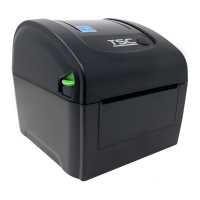
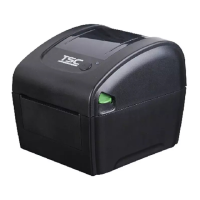
TSC DA320 Series - User Manual

TSC DA320 Series
49 pages
Print Icon
To Next Page IconTo Next Page
Loading...
USERS
MANUAL
DA210/ DA310 Series
DA220/ DA320 Series
Direct Thermal Bar Code Printer

Other manuals for TSC DA320 Series

Questions and Answers

  • S
    sandra35Aug 19, 2025
    How to fix poor print quality on TSC Barcode Reader?
    • A
      Ashley GouldAug 20, 2025
      To fix poor print quality on your TSC Barcode Reader, start by reloading the media correctly. Clean the print head to remove any dust or adhesive. Adjust the print density and print speed settings. Run a self-test to check the print head pattern for missing dots, which would indicate a damaged print head element.
  • S
    Susan EdwardsAug 21, 2025
    Why is my TSC Barcode Reader skipping labels when printing?
    • S
      Stephanie Robertson DDSAug 21, 2025
      If your TSC Barcode Reader is skipping labels during printing, ensure the label size is correctly specified in your settings. Calibrate the sensor using the Auto Gap or Manual Gap options. Also, clear any dust from the GAP/Black mark sensor using a blower.
  • M
    Melissa ScottAug 25, 2025
    What does it mean when TSC Barcode Reader status from DiagTool shows “Out of Paper”?
    • D
      Deanna LopezAug 25, 2025
      If the TSC Barcode Reader status from DiagTool shows “Out of Paper”, supply a new label roll. Ensure the label roll is installed correctly. Calibrate the gap/black mark sensor.
  • P
    Peter PattersonAug 26, 2025
    Why is my TSC Barcode Reader printing irregularly?
    • R
      Rachel MartinAug 26, 2025
      If your TSC Barcode Reader is exhibiting irregular printing, try turning it off and on to exit the dump mode. Also, re-set the Rs-232 setting.
  • J
    Jamie HughesAug 27, 2025
    What to do if my TSC Barcode Reader displays a memory full error?
    • S
      Sydney DaltonAug 28, 2025
      To resolve a 'Memory full' error on your TSC Barcode Reader, delete any unused files in the FLASH/DRAM.
  • A
    Annette LopezAug 29, 2025
    What to do if my TSC Barcode Reader is not printing?
    • L
      lwashingtonAug 29, 2025
      If your TSC Barcode Reader is not printing, first, reconnect the interface cable or try a new one to ensure a secure connection. If using a serial port, verify that the cable is pin-to-pin connected; if not, replace it. Also, check that the serial port settings on both the host and the printer are consistent, with the default baud rate set to 9600, n, 8, 1. In the Windows driver, confirm that the correct printer port is selected. For Ethernet connections, ensure the Ethernet RJ-45 connector's green LED is lit and the amber LED is blinking. Check if the printer obtains an IP address in DHCP mode or if the static IP address is correctly configured. Allow a few seconds for the printer to establish communication with the server before rechecking the IP address settings.
  • H
    Hayley WatsonAug 31, 2025
    Why is my TSC Barcode Reader continuously feeding labels?
    • L
      Laura WalkerSep 1, 2025
      To resolve continuous feeding labels with your TSC Barcode Reader, start by initializing the printer and calibrating the gap/black mark sensor. Ensure the label size is accurately set in your labeling software or program to match the installed paper. Also, check for and remove any labels stuck inside the printer mechanism near the sensor area.
  • J
    Jessica HillSep 3, 2025
    Why doesn't the power indicator illuminate on my TSC Barcode Reader?
    • K
      Kimberly JacksonSep 3, 2025
      If the power indicator on your TSC Barcode Reader doesn't illuminate, ensure the power cord is properly connected to both the printer and the outlet. Also, make sure that the printer is switched on.
  • S
    Scott MorrisSep 4, 2025
    What to do if my TSC Barcode Reader has no response?
    • L
      lisarogersSep 4, 2025
      If your TSC Barcode Reader is not responding, ensure the power switch is turned on. Check if the green LED on the power supply is lit; if not, the power supply may be broken. Verify that both power connections—from the power cord to the power supply and from the power supply to the printer—are securely connected.
  • T
    Terry Peterson MDSep 6, 2025
    What to do if TSC Barcode Reader status from DiagTool shows “Head Open”?
    • A
      Andrew OwensSep 6, 2025
      If the TSC Barcode Reader status from DiagTool shows “Head Open”, close the print carriage.

Summary

LED and Button Function

Setup

Setting up the Printer

Step-by-step guide to physically setting up the printer.

Loading the Media

Loading Roll Labels

Instructions for loading standard roll labels into the printer.

Power-on Utilities

Sensor Calibration

Steps to calibrate the gap or black mark sensor.

Printer Initialization

Procedure to reset printer settings to factory defaults.

Diagnostic Tool

Starting the Diagnostic Tool

Instructions on how to launch the TSC Diagnostic Utility software.

Printer Functions

Overview of functions available within the Diagnostic Tool.

Troubleshooting

LED Status Troubleshooting

Lists common problems based on LED status and provides recovery procedures.

Print Problems and Solutions

Details common printing issues and their potential solutions.

Maintenance

TSC DA320 Series Specifications

General IconGeneral
ModelDA320 Series
ConnectivityUSB
Supported Barcode Types1D bar codes: Code 39, Code 128, etc. | 2D bar codes: PDF-417, DataMatrix, QR code, Aztec
Max. Print SpeedNot applicable
Max. Print WidthNot applicable
Max. Print LengthNot applicable
Humidity5% to 85% (non-condensing)

Related product manuals