EasyManua.ls Logo

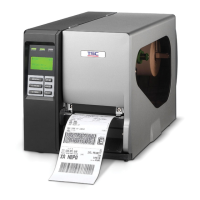
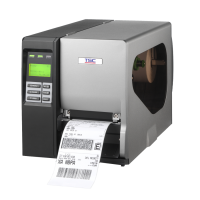
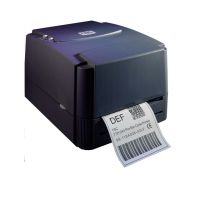
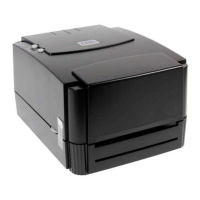
TSC TTP 246M - User Manual

TSC TTP 246M
33 pages
Print Icon
To Next Page IconTo Next Page
Loading...
USER’S
MANUAL
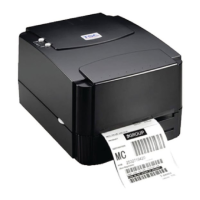
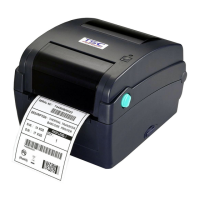
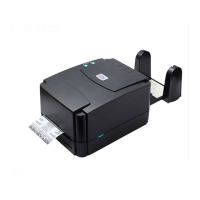
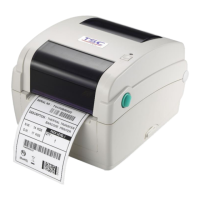
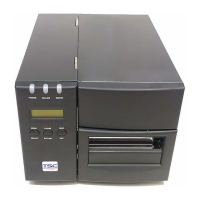
TTP-246M/344M
THERMAL TRANSFER / DIRECT THERMAL
BAR CODE PRINTER

Other manuals for TSC TTP 246M

Questions and Answers

  • G
    Gilbert NewmanAug 19, 2025
    Why is the printing quality poor on my TSC Barcode Reader?
    • J
      John CarrollAug 19, 2025
      Poor printing quality on your TSC Barcode Reader can stem from several causes: dirt accumulated on the print head (refer to the user’s manual for cleaning instructions), improper density settings (adjust the print density and speed), incompatible ribbon and media (change to proper ribbon or label roll), or incorrect print head pressure (adjust the print head pressure adjustment knob).
  • A
    Angela ProctorAug 21, 2025
    What to do if my TSC Barcode Reader has no paper?
    • L
      Lauren GrayAug 21, 2025
      If your TSC Barcode Reader indicates 'No Paper', it could be due to running out of labels (supply a new label roll), incorrect label installation (refer to the user’s manual for reinstallation steps), or the moveable gap/black mark sensor not being properly located (move the sensor to the correct position).
  • A
    Adam MartinAug 23, 2025
    How to fix a TSC Barcode Reader when there is no ribbon?
    • J
      Joe SanchezAug 23, 2025
      If your TSC Barcode Reader shows a 'No Ribbon' error, this may be due to: running out of ribbon (supply a new ribbon roll), the ribbon being installed incorrectly (refer to the user’s manual for reinstallation steps), or the ribbon sensor not being well calibrated (calibrate the ribbon sensor).
  • W
    William MoyerAug 26, 2025
    What to do if my TSC Barcode Reader has a paper jam?
    • F
      fwelchAug 26, 2025
      If your TSC Barcode Reader is experiencing a paper jam, it could be due to the label size not being set properly (reset the label size) or labels being stuck inside the print mechanism (remove the stuck label).
  • B
    Bruce SheaAug 27, 2025
    Why doesn't the power indicator illuminate on my TSC Barcode Reader?
    • B
      Brandon AbbottAug 28, 2025
      If the power indicator on your TSC Barcode Reader is not illuminated, the power cord may not be properly connected. Check that the power cord is securely connected between the printer and the outlet.
  • V
    vmunozAug 30, 2025
    Why is there no printout printing through the serial port on my TSC Barcode Reader?
    • S
      Sandy RobinsonAug 30, 2025
      If you're getting no printout through the serial port on your TSC Barcode Reader, it could be due to inconsistent serial port settings between the host and printer (reset the serial port setting) or an incorrect serial port cable pin configuration (replace the cable with pin to pin assignment).
  • A
    Ashley DavidsonSep 1, 2025
    What to do if the TSC Barcode Reader carriage is open?
    • P
      Patricia KingSep 1, 2025
      If your TSC Barcode Reader displays 'Carriage Open', ensure that you close the print carriage.
  • S
    Scott PetersonSep 3, 2025
    What to do if my TSC Barcode Reader memory is full?
    • L
      Lauren JohnsonSep 3, 2025
      If your TSC Barcode Reader indicates that the memory (FLASH/DRAM) is full, delete any unused files in the FLASH/DRAM to free up space.
  • J
    James WashingtonSep 5, 2025
    Why is my TSC TTP 246M Barcode Reader printing poorly?
    • W
      William CastilloSep 5, 2025
      Poor printing quality from your TSC Barcode Reader can stem from several causes: * Dirt accumulation on the print head. * Improper density settings. Try adjusting the print density and speed. * Incompatible ribbon and media. Consider changing to a proper ribbon or label roll. * Incorrect print head pressure. Adjust the print head pressure adjustment knob.
  • B
    Bryan MartinSep 7, 2025
    What to do if my TSC TTP 246M is not feeding paper?
    • B
      Benjamin HendricksSep 7, 2025
      If your TSC Barcode Reader isn't feeding paper, here's what might be happening: * The label roll might be empty. Try supplying a new label roll. * The label might be installed incorrectly. * The moveable gap/black mark sensor might not be in the correct location. Try moving the sensor to the proper location.

Summary

Getting Started

Set Up

Setting Up the Printer

Provides step-by-step instructions for physically setting up the printer, including connections and power.

Ribbon Installation

Detailed instructions and diagrams for installing the thermal transfer ribbon onto the printer spindles.

Label Roll Installation

Step-by-step guide on how to load a label roll into the printer, including sensor placement.

Using TTP-246 M;344 M

Gap;Black Mark Sensor Calibration Utility

Explains how to calibrate the gap/black mark sensor for accurate label detection.

Printer Initialization

Details the process of restoring printer settings to their factory defaults and the implications.

Troubleshooting Guide

Lists common printer problems like 'No ribbon' or 'No paper' with their causes and solutions.

Printer Cleaning

TSC TTP 246M Specifications

General IconGeneral
Print Resolution203 DPI
Media Thickness0.06 ~ 0.25 mm (0.00236 ~ 0.0098")
Memory8 MB Flash
ConnectivityUSB
Processor32-bit RISC
Print MethodThermal Transfer/Direct Thermal

Related product manuals