TYPHOON BLUETOOTH™ 56K WIRELESS MODEM KIT
Article Number: #20006
Version 2.0 All specifications and information are subject to changes without further notices
7
3ii. Start and Stop Bluetooth™ services
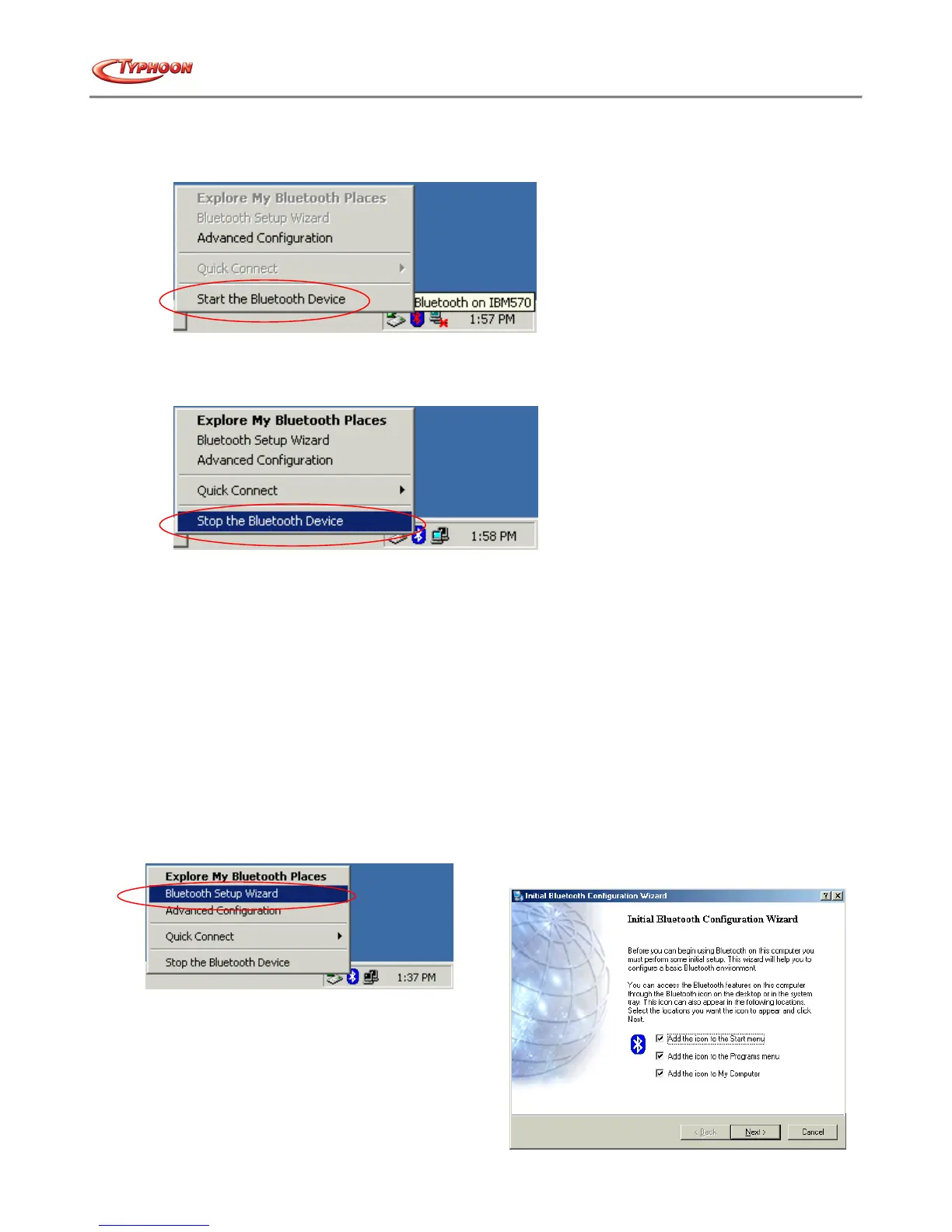
1. To start Bluetooth™: in the Windows system tray, right-click the Bluetooth™ icon and select "Start
Bluetooth™ Device". The Bluetooth™ icon is blue in color with a white insert when Bluetooth™ is running.
2. To stop Bluetooth™: in the Windows system tray, right-click the Bluetooth™ icon and select "Stop
Bluetooth™ Device". The Bluetooth™ icon is blue in color with a red insert when Bluetooth™ is stopped.
3iii. Create a connection from the Bluetooth™ icon in the system tray
In the Windows system tray, right-click the Bluetooth™ icon, select Quick Connect and then the Bluetooth™
service that you wish to use.
If this computer has created a connection to the desired type of service in the past, the options on the shortcut
menu are:
• The name(s) of any device(s) with which prior connections to this type of service have been established. Select a
name from the list to re-establish connection.
• Other Devices-Select this option to search for additional devices that potentially provides the desired service,
select a device from the list, and then click Connect.
If this computer has never created a connection to this type of service, the only option on the shortcut menu is
"Find Devices". Select this option to search for devices that potentially provide the desired service, select a device
from the list, and then click Connect.
3iv. Create a connection using the Bluetooth™ Setup Wizard
1. From the Bluetooth™ Explorer, right-click on “My Bluetooth™ Places” and select “Bluetooth™ Setup Wizard”,
or alternatively from the Bluetooth™ menu, select “Bluetooth™ Setup Wizard”.
2. From the Windows system tray: right-click the
Bluetooth™ icon and select Bluetooth™ Setup
Wizard.
3. The "Initial Bluetooth™ Configuration Wizard" will
pop up. Click on "Next" to proceed to the next page.



 To Next Page