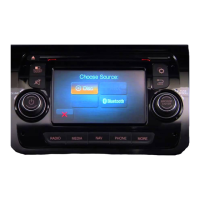
USING Uconnect® ACCESS
Getting Started With Apps
Applications (Apps for short) in your Uconnect® Access
system are designed to deliver the features and services
that you want. There are two basic categories:
• Built-In Apps — uses the built-in Cellular Network on
your Uconnect® 8.4A or 8.4AN radio.
• Uconnect® Access via Mobile (if equipped) — uses
the Uconnect® Access app and your smartphone’s
data plan to access your personal Pandora®, iHeart-
Radio, Aha™ and Slacker accounts from the vehicle
and control them using the vehicle touchscreen. Cus-
tomer’s data plan charges will apply.
Get started with your Uconnect® Access Apps by press-
ing the Uconnect® “Apps” button on the menu bar at the
bottom right corner of the in-vehicle touchscreen. Avail-
able Apps and features are organized by the tabs on the
left of the screen.
• Favorite Apps — this is the default screen when you
first press the “Apps” button on the touchscreen, and
is a good place to put the Apps you use most fre-
quently. To make an App a “favorite,” press the
“Settings” button on the touchscreen to the right of the
App and select “Make a favorite.”
• All Apps — all of your available Apps will reside in
the “All Apps” folder.
• Running Apps — press this tab to see which Apps are
currently running.
NOTE: Most Uconnect® Access features do not require
that you have a compatible Smartphone. The Uconnect®
2
ALL ABOUT Uconnect® ACCESS 47



 To Next Page