ULEAD VIDEOSTUDIO USER GUIDE
112
channel in the Attribute tab in the Options Panel then select which audio
channel to duplicate.
Volume rubber banding
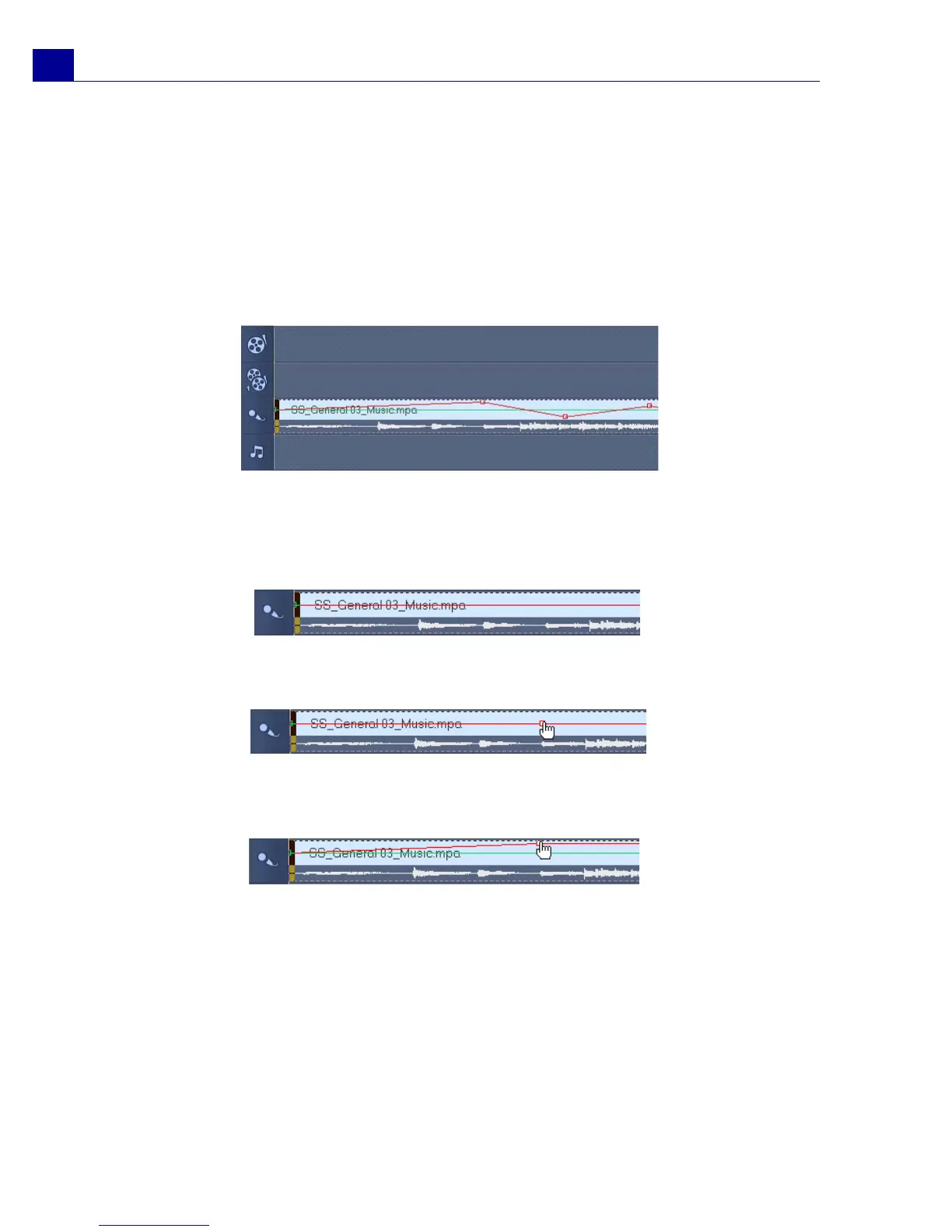
The volume rubber band is the horizontal line in the middle of the track and can
only be seen when you are in Audio View. You can use the rubber band to adjust
the volume of the audio track of video clip and the audio clips in the Music and
Voice tracks.
To adjust the volume level using the rubber band:
1. Click Audio View.
2. On the Timeline, click the track whose volume level you want to adjust.
3. Click a point on the rubber band to add a key frame. This allows you to adjust
the volume level of the track based on this key frame.
4. Drag the key frame upwards/downwards to increase/decrease the volume level
at this point of the clip.
5. Repeat steps 3 and 4 to add more key frames to the rubber band and to adjust
the volume level.



 To Next Page