ULEAD VIDEOSTUDIO USER GUIDE
40
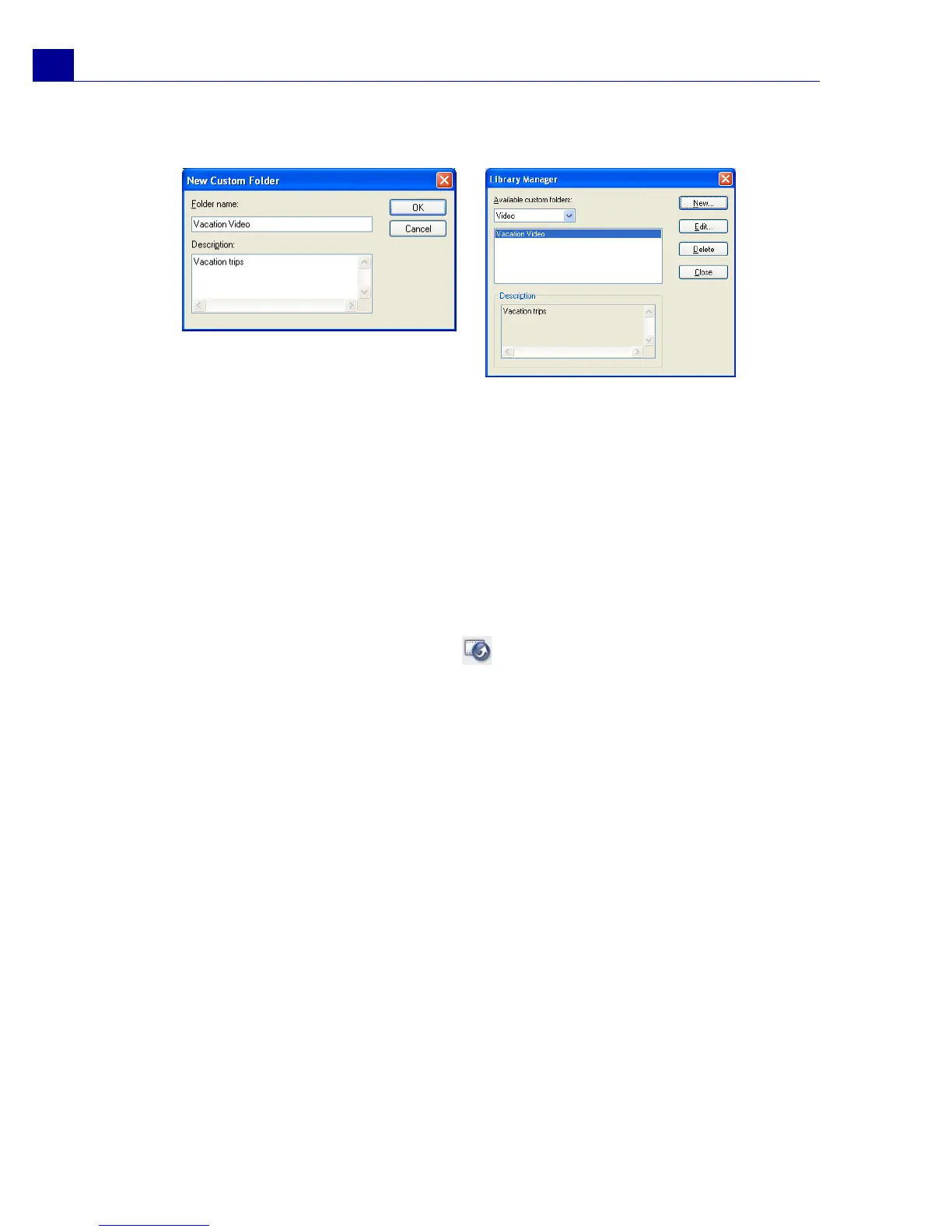
3. Click New to display the New Custom Folder dialog box and create a new
folder. Specify a library Folder name and a Description. Click OK.
Click Edit to rename or modify the description of a selected custom folder.
Click Delete to remove a selected custom folder from the Library.
4. Click Close.
Exporting a video file
VideoStudio provides you with a number of ways to export and share a video file. A
video file can be exported to a Web page, converted to an executable greeting
card, sent by e-mail, or set as a desktop screen saver.
Select a video file in the Library and click . Choose the type of output for your
video.
Starting a new movie project
When you run VideoStudio, it automatically opens a new project and lets you start
composing your movie production. A new project always uses VideoStudio's default
settings. To check what these settings are, click File: Project Properties.
Project settings determine how your movie project is rendered when you preview
it. Rendering is the process by which VideoStudio converts raw video, titles,
sounds, and effects into a continuous stream of data which can be played back in
your computer. You can modify the project settings in the Project Properties
dialog box.



 To Next Page