ULEAD VIDEOSTUDIO USER GUIDE
78
4. Click to preview the effect.
5. Click OK to apply the effect to the image.
Resizing and distorting clips
To resize or distort a clip:
1. Select a clip in the Timeline then select the Attribute tab under the Options
Panel.
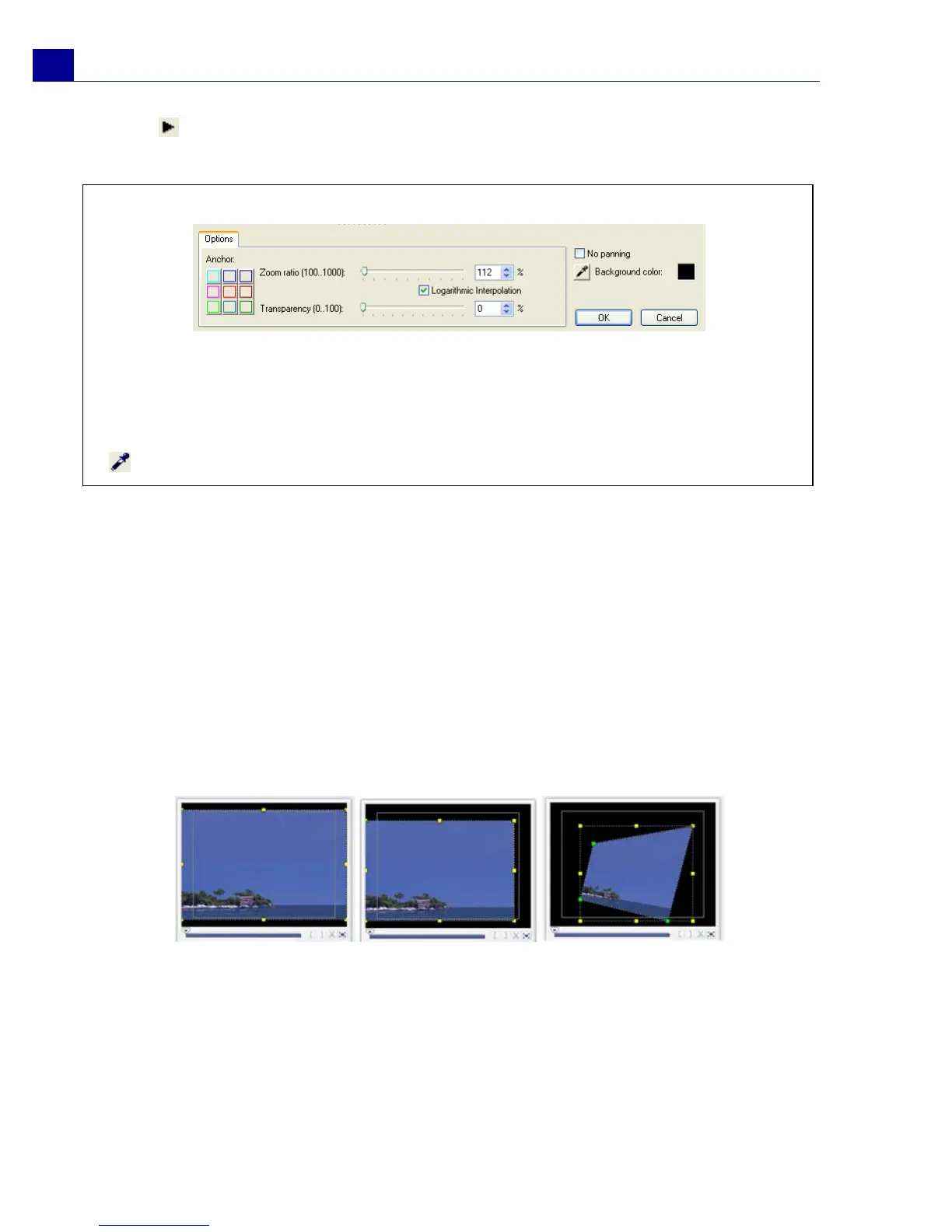
2. Select Distort clip then drag any of the following handles:
• Yellow handles at the corners to resize the clip proportionally (A).
• Yellow handles at the sides to resize without maintaining proportions (B).
• Green handles at the corners to skew the clip (C).
Tips:
• Click the Anchor boxes to move the marquee box at fixed positions in the Image
Window.
• To zoom in or out of a fixed area without panning the image, select No panning.
• To include a fade-in/out effect, increase the Transparency. The image will fade to
the Background color. Click the color box to choose a background color, or click
to select a color on the Image Window.
AB
C



 To Next Page