ULEAD VIDEOSTUDIO USER GUIDE
64
Saving trimmed clips
Frequently, when you make changes (i.e., after auto-splitting clips using Split by
Scene, extracting clips using Multi-trim Video, or manually trimming clips), you
may wish to make a permanent change to the clip and save the edited file.
VideoStudio gives you a margin of safety in that it saves the trimmed video to a
new file and does not alter the original file.
To save, select a trimmed clip in the Storyboard, Timeline or the Library and select
Clip: Save Trimmed Video.
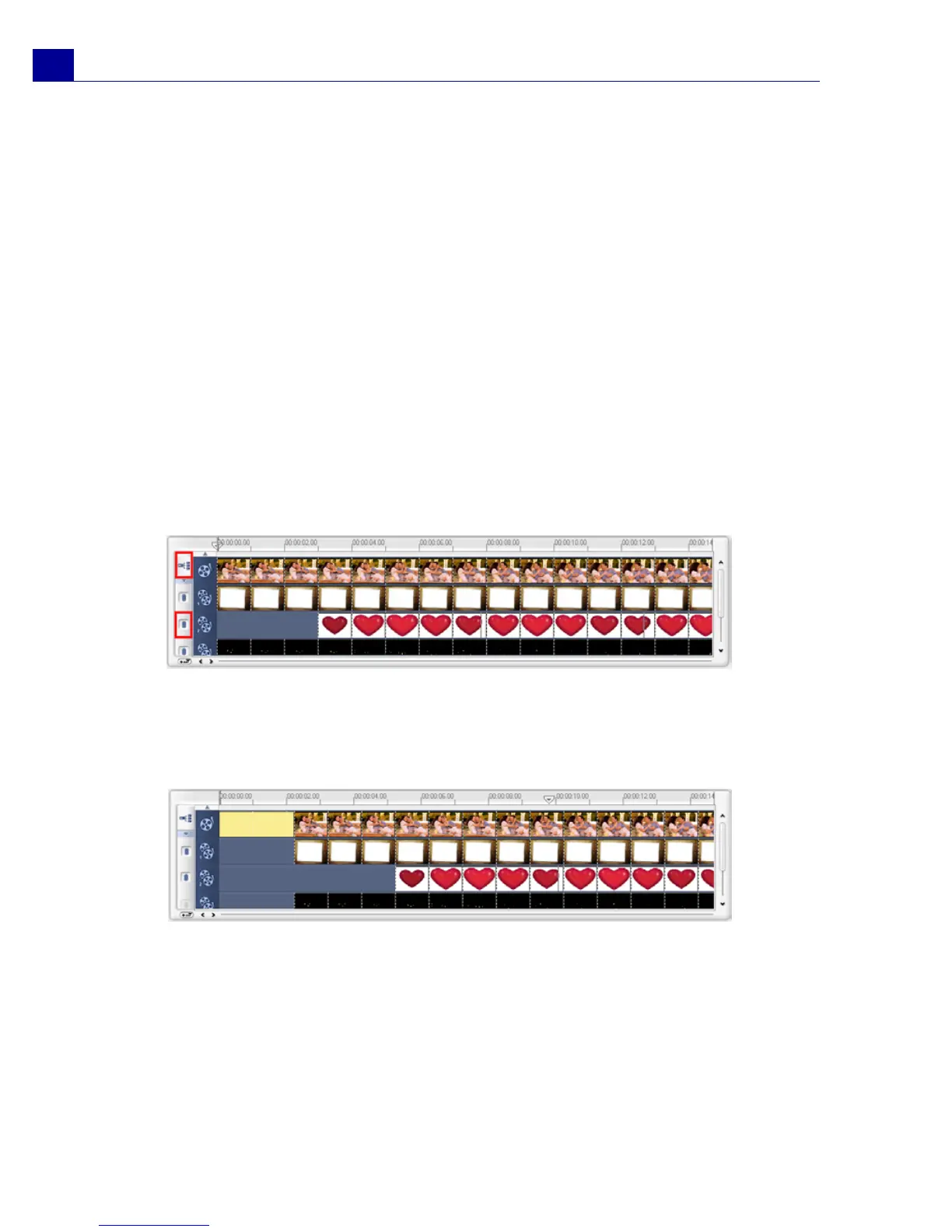
Ripple Editing
Ripple Editing allows you to insert clips while automatically moving other clips
(including empty spaces) aside, to make room for it on the Timeline. Use this mode
to maintain the original track synchronizations when inserting additional clips.
Ripple Editing is enabled for the tracks where content is inserted.
A color clip is inserted before the original clip and all clips where Ripple
Editing is applied shift accordingly



 To Next Page