ULEAD VIDEOSTUDIO USER GUIDE
89
3. Click the Color Box then select the color to be rendered as transparent.
To add a border around the current overlay clip:
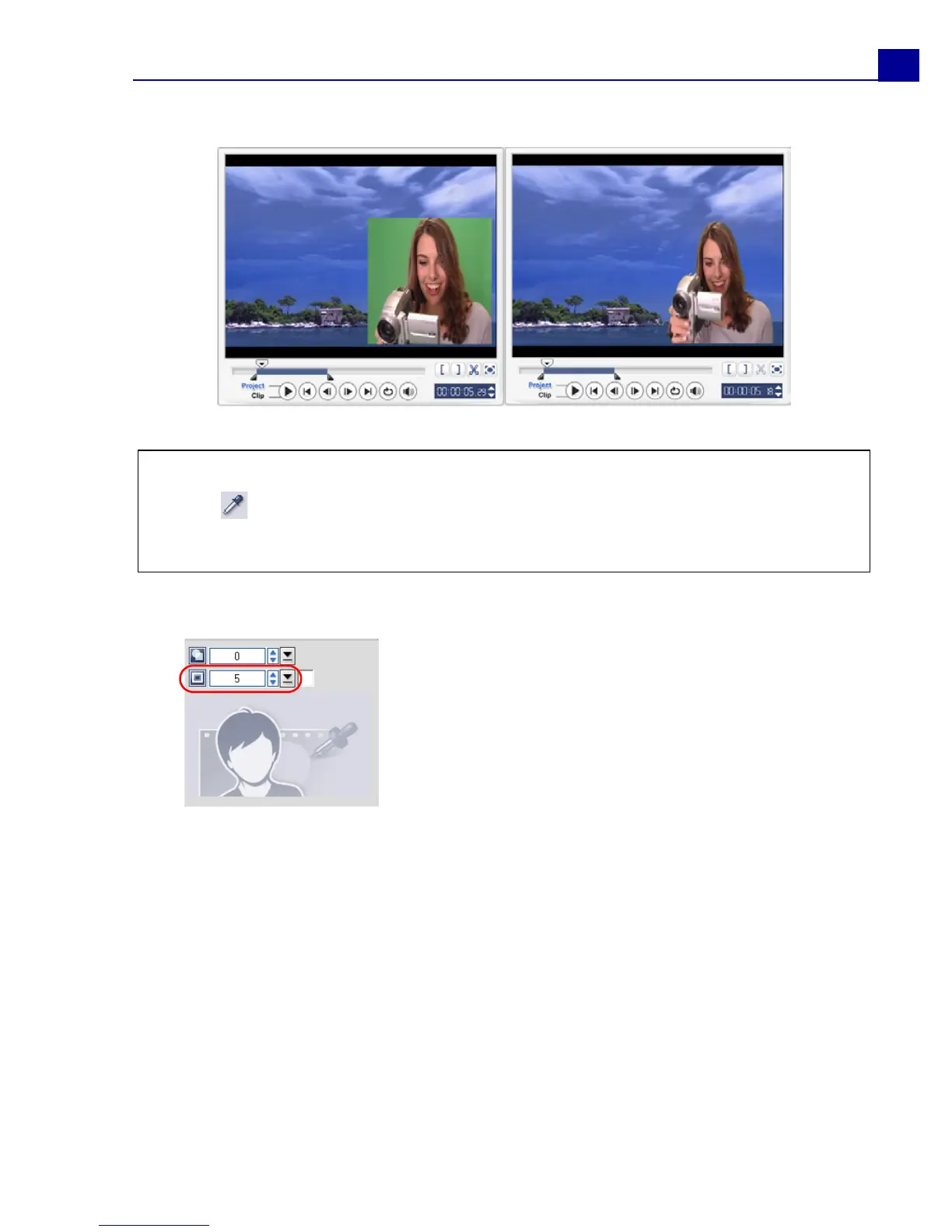
Without Chroma Key With Chroma Key
Tips:
• Select then click on a color in the image that will be rendered as transparent.
•Drag the Similarity Slider to specify the color range of the selected color that will
be rendered as transparent.
In the Attribute tab, click Mask & Chroma Key
to go to the Overlay Options Panel. Drag the
Border slider to set the thickness of the border of
the overlay clip. Set the color of the border by
clicking the Color Box beside the slider.



 To Next Page