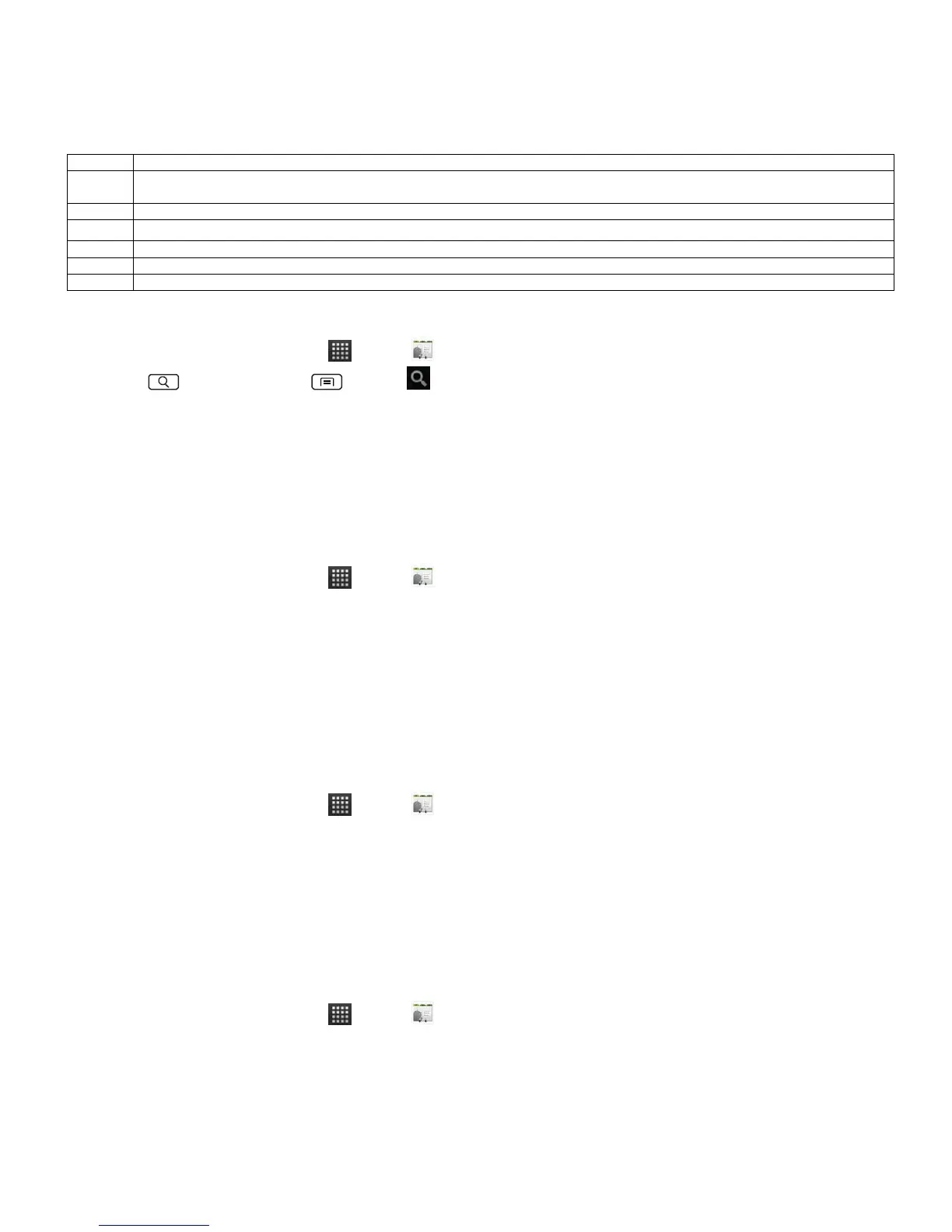
Tap to open Quick Contact.
Add to favorites: To remove a contact from your favorites list, tap the gold star again. The star turns gray and the contact is removed from
your favorites list.
Tap to compose a text message.
Tap to view the address on Maps
Search for a contact
1. From the Home screen, tap Apps > Contacts.
2. Press Search or press Menu > Search.
3. Start entering the contact’s name.
As you type, contacts with matching names appear below the search box.
4. Tap the matching contact in the list to open.
Editing/Deleting Contacts
Editing contact details
1. From the Home screen, tap Apps > Contacts.
2. Tap and hold the contact you want to edit > Tap Edit contact.
3. Edit the contact information.
4. Tap Done.
Setting a contact’s default phone number/email
Setting a contact’s default phone number
The default phone number is used when you initiate a call or text message by tapping and holding a
contact.
1. From the Home screen, tap Apps > Contacts.
2. Find the desired contact > Tap and hold the phone number to designate it as the default phone
number.
3. Tap Make default number.
• The default phone number is indicated with a checkmark.
Setting a contact’s default email
The default email is used when you send an email from the list by tapping and holding a contact.
1. From the Home screen, tap Apps > Contacts.
2. Find the desired contact > Tap and hold the email address to designate it as the default email
address.
3. Tap Make default email.
• The default email is indicated with a checkmark.


 To Next Page