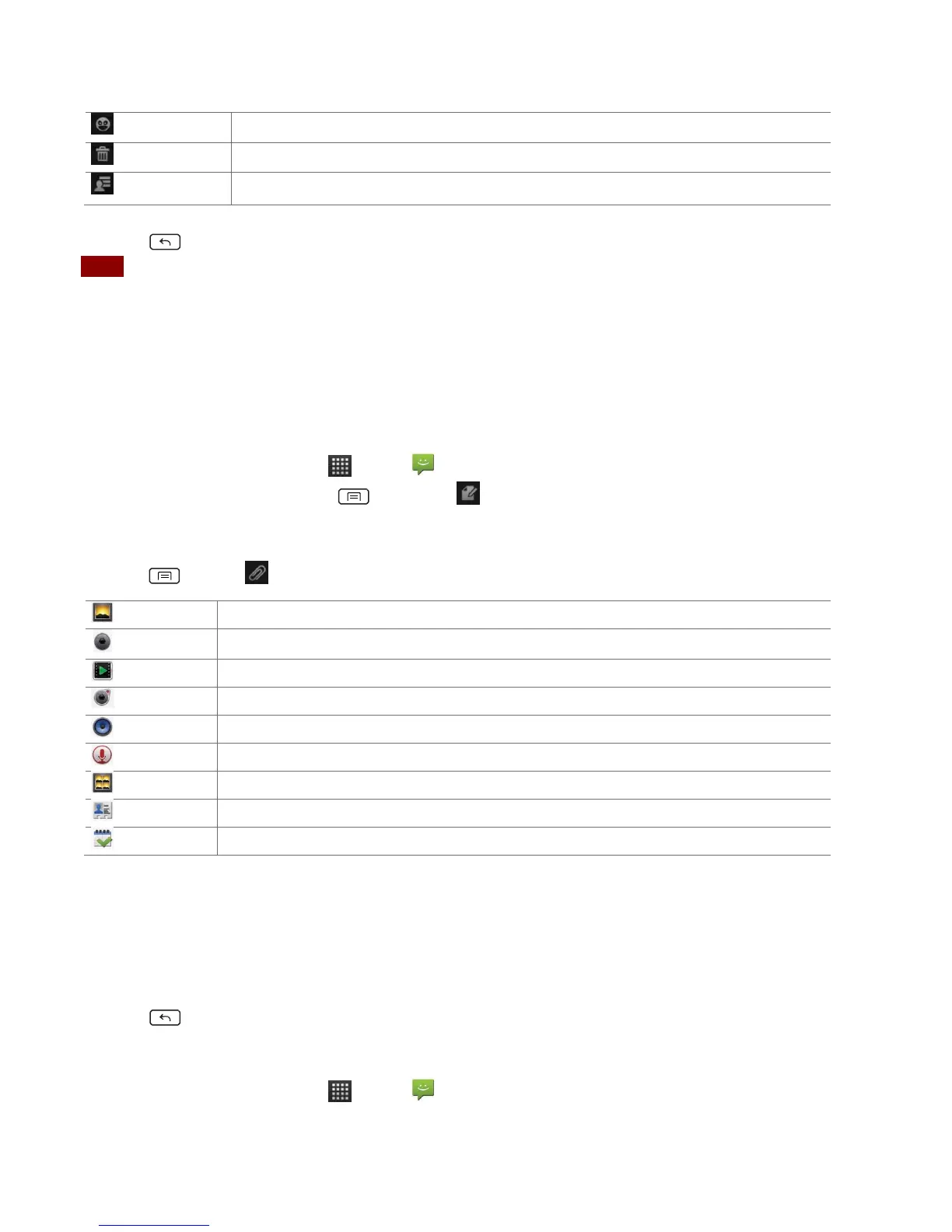
Insert a smiley in the message.
Delete the message in progress.
Go back to text messaging inbox.
5. Tap Send.
• Press Back to save the message as a draft.
NOTE Your text message automatically becomes a multimedia message on below condition:
• Compose a message over 160 characters
• Add subject
• Attach an item
Sending a multimedia message (MMS)
To compose a multimedia message, start by creating a new text message. Then simply add an
attachment.
1. From the Home screen, tap Apps > Messaging.
2. Tap New message. Or press Menu > Compose.
3. Enter the phone number in the To field. Or select recipients from the contact list.
4. Tap Type to compose > enter your message.
5. Press Menu > Attach > choose the type of attachment.
Create a slideshow from up to 10 of your photos.
6. From the message body, tap:
• View: To view the attached item.
• Replace: To change attached files.
• Remove: To remove attached files.
7. Tap Send MMS.
• Press Back to save it as a draft.
Resuming a draft message
1. From the Home screen, tap Apps > Messaging.
2. Tap the message indicated by “Draft” to resume editing.
3. When you finish editing, tap Send.


 To Next Page