Use
Connection
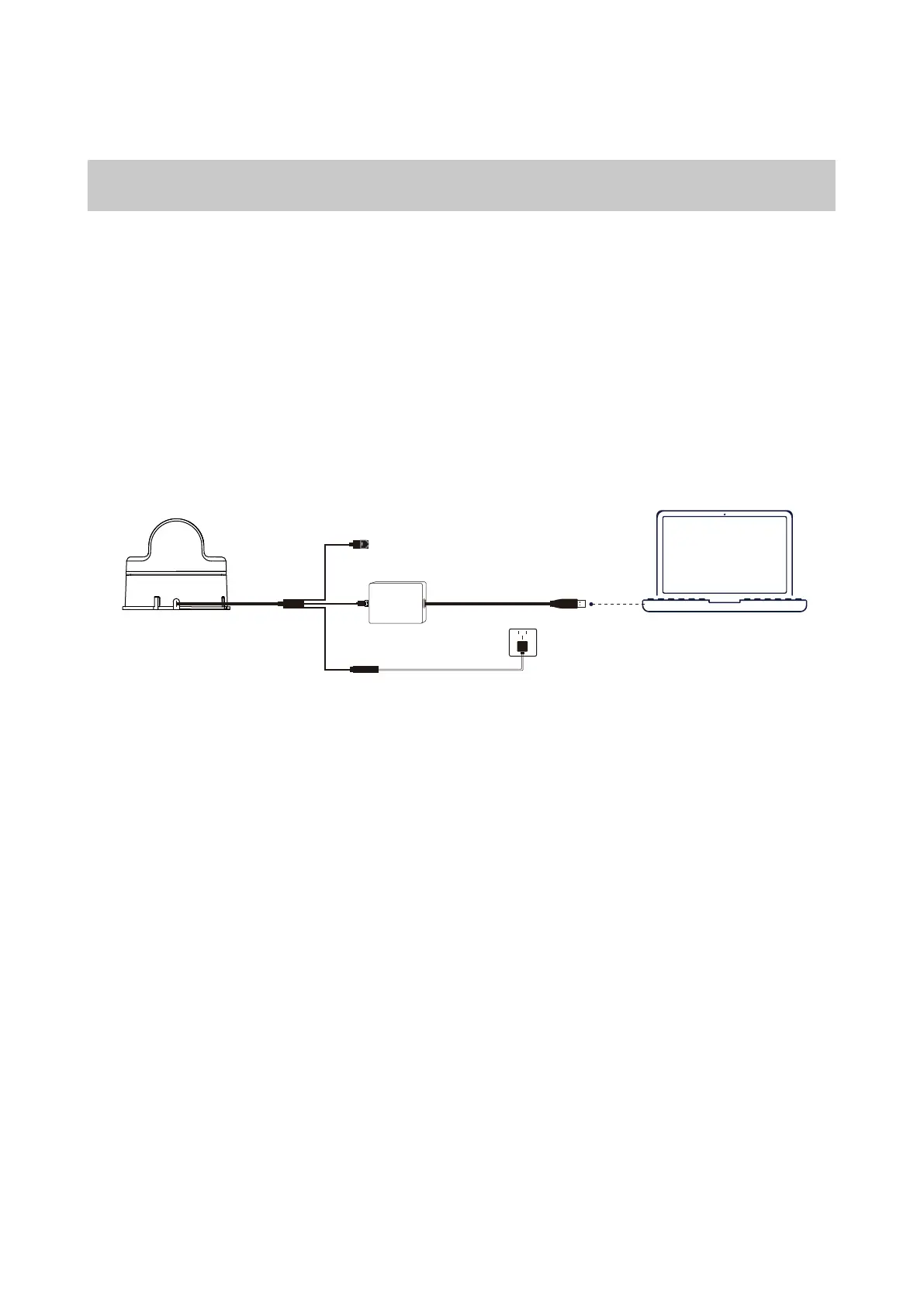
The 4PIN plug of the L2 can provide data transmission but not power. For specific wire sequences,
please refer to the Interface Definition section. If you need to temporarily test or use L2, it is recom-
mended to use the adapter module, power adapter and data cable provided in the package. The
connection and use methods are as follows:
a.Insert the 4PIN serial port of the L2 into the adapter module.
b.Insert the power adapter into the power supply port of the cable to supply power.
c.Insert the Type - C interface of the data cable into the data communication port of the adapter
module, and connect the other end to a personal computer.
The L2 supports network UDP data transmission. Connect the network port and power port of the
cable to use.
The L2's network port can be directly used for data transmission. When using, insert the network
port into a switch or computer, and insert the power adapter into the power supply port of the
cable to use. The default configuration information of the L2 is:
IP: 192.168.1.62, Gateway: 192.168.1.1, Subnet Mask: 255.255.255.0, Default Destination Server IP Ad-
dress for Sending Data is 192.168.1.2. The UDP port for sending data by the radar is 6101, and the
receiving port of the destination server is 6201.
When using for the first time, please note that the address of the destination server and the IP of
the L2 do not conflict. If you need to modify the configuration information, you can do so through
an upper computer or SDK.
· The adapter module, power adapter and data cable are all provided with the package, which can
achieve power connection, control signal transmission and data transmission, etc., or you can use
other materials according to your own needs to replace them, improving the use convenience and
system protection ability (such as dust and water resistance).
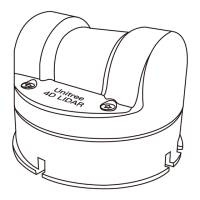
· When debugging, please place the L2 radar on the provided rubber pad and place the rubber pad
on a horizontal table to ensure the radar works stably and avoid knocking and falling.
2024 Unitree Robotics. All rights reserved. 9
Unitree4D LiDAR-L2
UART Switching module Connect a power supply
USB to TypeC cable
Unitree
UART TTL Connection
ENET UDP Connection



 To Next Page