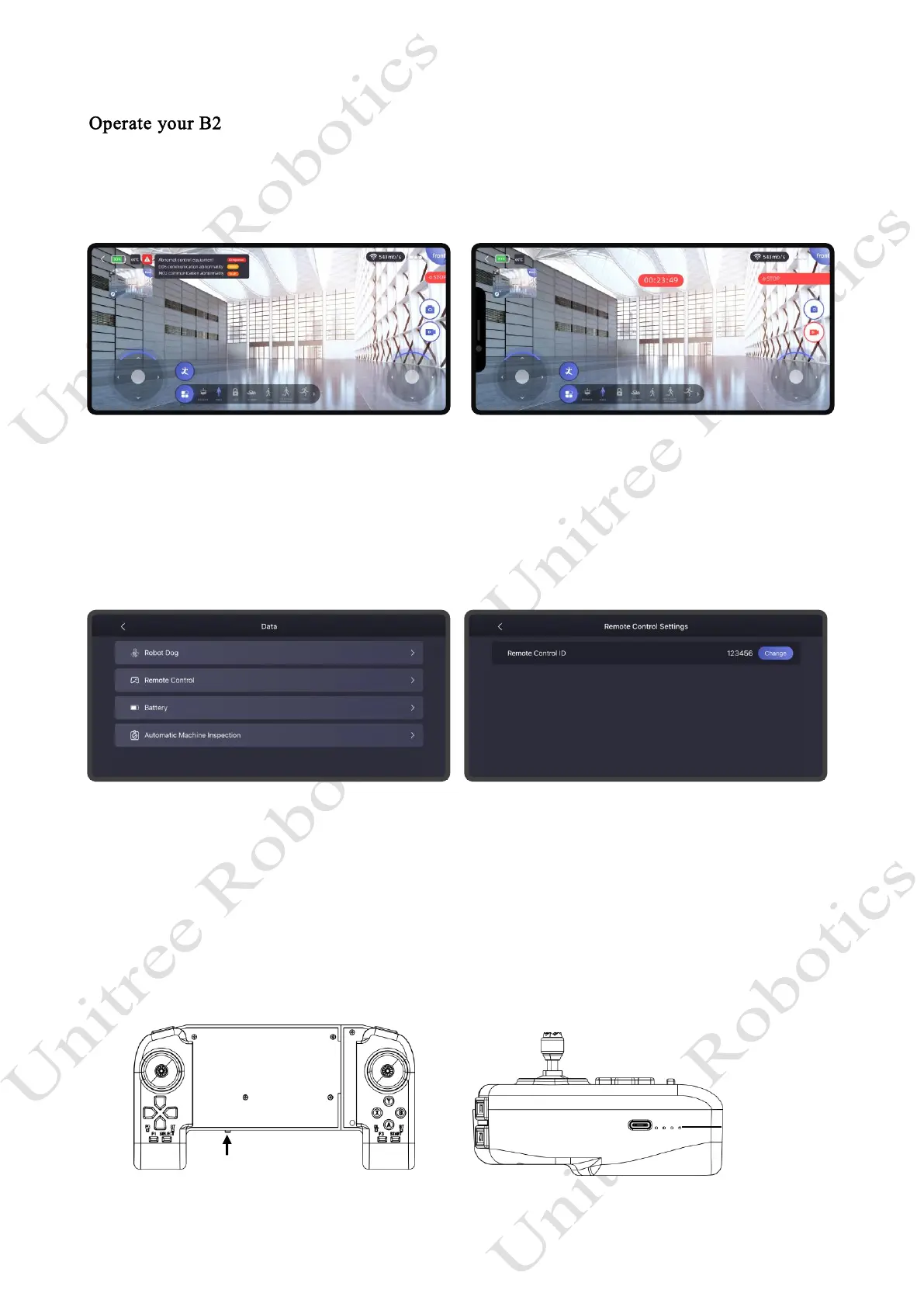
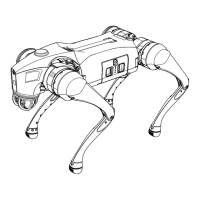
1) Use the Unitree Go App to control
After completing the built-in tutorial in the Unitree Explore App, you can use the app to control your B2
as you want.
2) Use remote control to control
First, short press the power button on the remote control, then press and hold the power button for more
than 2 seconds. When you hear a "beep" sound, the remote control will be turned on.
To use the remote control for the first time, you need to bind it in the Unitree Explore App. Go to [Settings]
-> [Remote Control Settings], enter the corresponding remote control code to bind it with the data transmission
module on the robot dog. Click [Modify] to change the remote control for operation.
Once the remote control is powered on and successfully connected to B2, the data transmission light on
the left side will be fully lit, indicating that the remote control is connected to the B2's data transmission
module. At this point, you can choose to use either regular remote control commands or AI remote control
commands to control the robot dog to perform corresponding actions. There are differences between the two:
Regular remote control mode: relies on manual intervention and decision-making, providing good
stability and reliability.
AI remote control mode: it will autonomously adapt to the environment and make decisions, providing
better adaptability for scenarios such as climbing stairs and walking on complex terrain.


 To Next Page