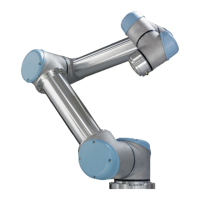
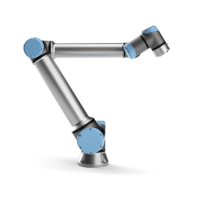
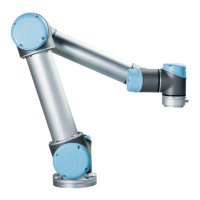
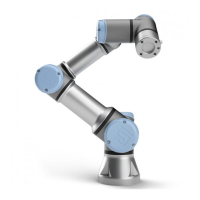
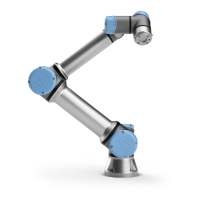
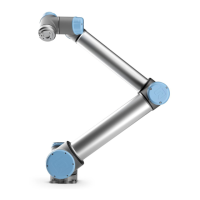
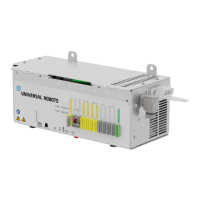
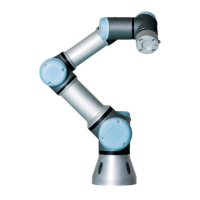
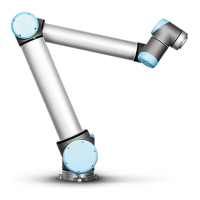
The UR Log Viewer is a software tool designed to assist users and integrators of Universal Robots (UR) cobots in performing service-related analysis and understanding robot behavior. It is applicable to UR3, UR3e, UR5, UR5e, UR10, UR10e, UR16e, and UR20 robot models, supporting both CB3 and e-Series controller versions, with software versions CB3: 3.4 and higher, and e-Series: 5.0 and higher, 6.0 and higher.
Function Description
The primary function of the UR Log Viewer is to read, analyze, and examine robot data from e-Series and CB3-Series robots. This tool is crucial for troubleshooting, understanding robot behavior, and identifying areas for improvement in applications and programming. It processes various types of files generated by the robot, including Support Files, Service Files, Flight Reports, Log History files, and Real-time recordings created by the UR Log Viewer itself.
The software provides a comprehensive view of robot operations, allowing users to delve into detailed log entries, visualize data through graphs, and summarize important error codes. It acts as a support tool, offering insights into potential issues and helping users to take corrective actions. However, any findings based on this tool are the sole responsibility and interpretation of the user, and for definitive service needs, users are advised to consult their distributor or Universal Robot's technical support.
Usage Features
The UR Log Viewer offers several features to facilitate data analysis:
- File Loading: Users can load robot data files by dragging and dropping them onto the Log Reader tab, selecting the file path from their computer, or opening them directly from Windows using the "open with" option.
- Log Reader Tab: This tab is used to load support files. Once a file is loaded, users can filter messages to be shown, choosing between "Info," "Warning," and "Error" types. "Developer Messages" are available for expert-level users upon advice.
- Flight Records: When a Support File, Flight Report file, or Real-time Recordings data file is opened, the "Flight Records" section becomes available. Double-clicking on a Flight Record entry opens six new windows, each displaying real-time data graphs for a specific joint. These graphs show information such as Position, Velocity, Acceleration, Current, and Torque, with the X-axis representing the script line number or data point index. Users can also generate personalized graphs by right-clicking on a Flight Record and selecting other data variables from a drop-down list.
- Log Start Section: When a Log History file is opened, the "Log Start" section is displayed, showing information, warnings, and error codes with their respective entries. Users can expand these entries to view the message description, error category, error code, error source, time, date, and timestamp. The "Open groups" button allows for opening all grouped entries.
- Error Timeline Charts: By right-clicking on a Log entry and selecting "Error Default Timeline" or "Error Selection Timeline," a new window appears, visualizing the occurrence of errors over time. Users can adjust the displayed range of errors, change the chart type, and switch to an accumulated view.
- Log Analysis Tab: This tab provides a summary of important error codes found in the loaded file. Users can select different time frames (e.g., Last Month, Last Quarter, Last Six Months, Last Year, All) to observe the robot's progress over time. The serial number of the robot, its current software version, and the last program running are also displayed. Critical error codes are highlighted to draw attention to issues requiring corrective action.
- Real-time Data Recording (Record data Tab): This feature allows for real-time data recording from a robot connected via an Ethernet cable. Before recording, users must ensure their computer's IP address is in the same range as the robot's, the firewall is not blocking the connection, and the RTDE Interface is enabled on the robot's security settings. Users can select desired data fields, define the update frequency, and adjust sample time and measurement duration. "Continue record" enables long recording periods, saving new record files periodically based on auto-record settings (recommended 100Hz and 5 minutes for long terms).
- Export from Robot Tab: This tab facilitates the creation and export of a Support File directly from a connected robot to the computer via an Ethernet connection. This is particularly useful for older robot software versions (PolyScope 5.7 and 3.12 below), where Log History and Flight Reports are retrieved instead of the Support File. After download, users can choose to open the data directly in the UR Log Viewer or save it to their computer.
- Shortcuts: The software includes shortcuts for efficiency: CTRL+C to copy selected Log History lines, CTRL+E to copy error codes from selected Log History lines, CTRL+A to select all check boxes, and CTRL+N to select default check boxes.
Maintenance Features
The UR Log Viewer itself is a software tool, and its maintenance primarily involves ensuring compatibility and providing feedback for improvements:
- Software Updates: Universal Robots continuously improves the reliability and performance of its products, including the UR Log Viewer. Users are advised to update their robot to the latest software version for complete usage experience and to ensure all selected data fields are available in the Log Reader tab.
- Troubleshooting the Viewer: If users encounter issues loading files, restarting the software is recommended. For any support or service needs related to the UR Log Viewer, users should consult their local Universal Robots distributor or the Universal Robot's website.
- Help Tab: The "Help Tab" provides a software description and a summary of the manual for future reference. It also allows users to change the language of the interface. Languages with "(ErrorCodes)" show only error codes in the selected language, while others display the user interface in the specific language. Second-level error codes are exclusively available in English.
- Reporting Issues: In case of any issues with the UR Log Viewer software, users can send the logfile to their provider to help improve and add new features. The "Get Logfile" button on the right bottom corner of the Help tab allows users to save the UR Log Viewer's logfile, which can then be sent to the provider.
The UR Log Viewer is a critical tool for maintaining and optimizing the performance of Universal Robots cobots, offering detailed insights into their operational data for effective analysis and problem-solving.



 To Next Page

 General