MSC-400 Reference Manual
Rev 4
28
NOTE - Though some steps are similar, there are additional steps to adding and configuring
RS232 Devices. See Section: CREATING & PROGRAMMING RS232 DEVICES for complete
instructions on adding RS232 controlled devices in MSC Editor.
TIP - If the system being programmed has RS232 controlled devices, it is recommended that those
devices be added prior to starting the next section, CONFIGURATION.
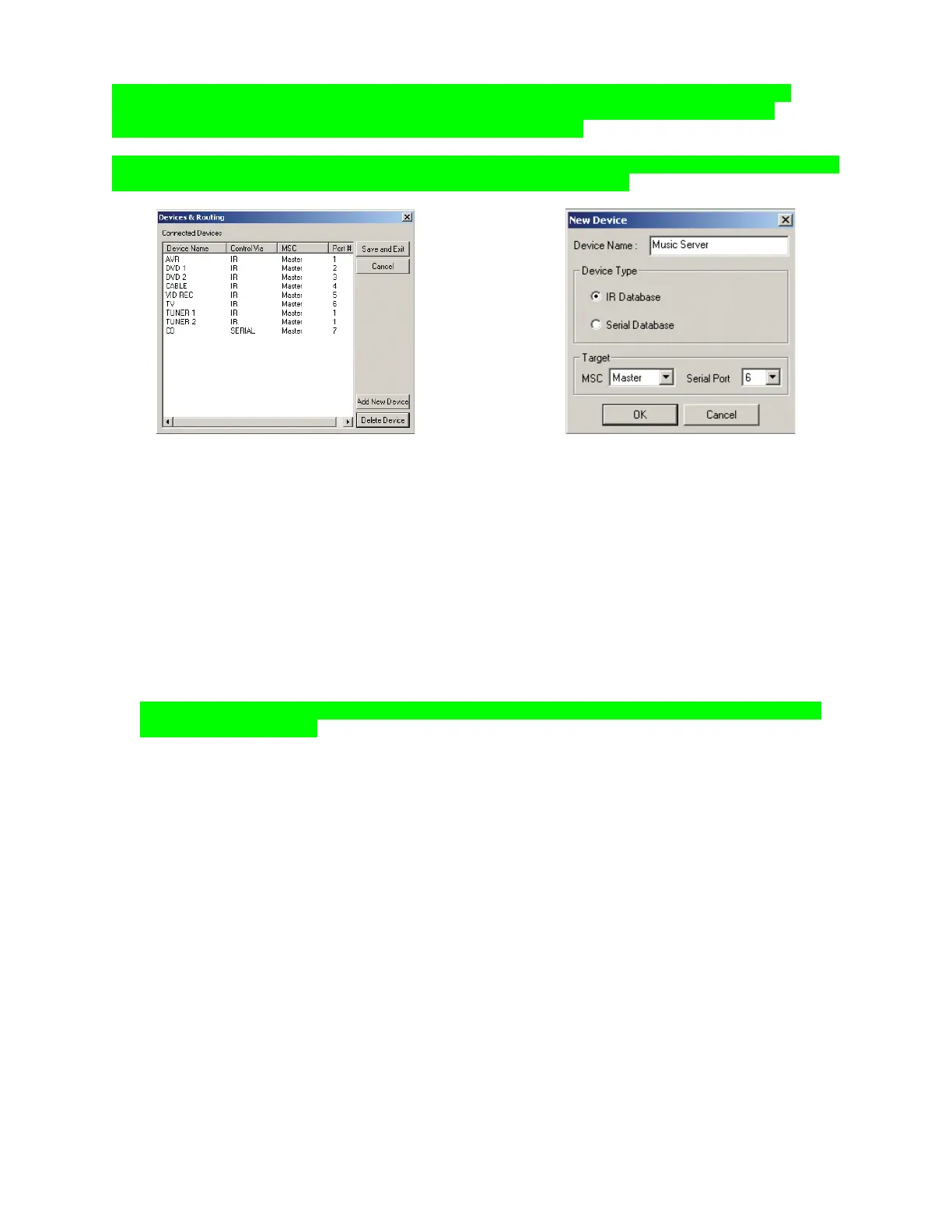
New Device Window
1. In the DEVICES & ROUTING WINDOW, click the ADD NEW DEVICE BUTTON. The NEW DEVICE
WINDOW will appear. New Device
2. In the DEVICE NAME BOX type the device name as it is to appear in TREE VIEW/CONNECTED
DEVICES.
3. Select IR DATABASE.
4. Select MSC MASTER or SLAVE as appropriate.
5. Select IR PORT 1-12 or ALL as appropriate.
6. Click OK to Add the New Device. The new device will appear in the DEVICES & ROUTING
WINDOW.
7. In the DEVICES & ROUTING WINDOW, click SAVE AND EXIT to save settings and add the new
devices to the tree view.
NOTE - Clicking the close button (X) in the Devices & Routing Window will close the window
without saving settings.
2
3
4 5
6
1
7



 To Next Page