MSC-400 Reference Manual
Rev 4
50
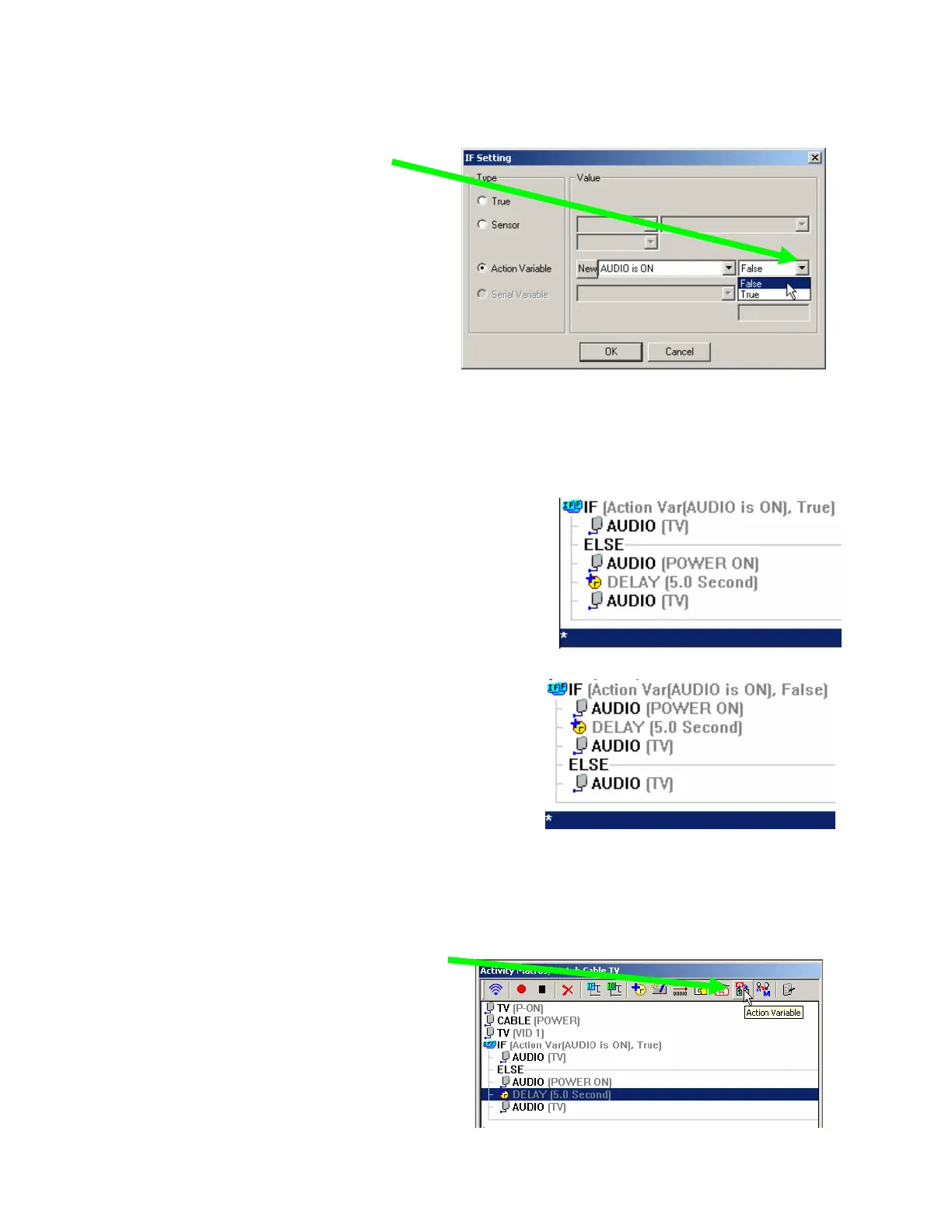
7. Now, you complete the IF setting by
choosing True or False using
the list box.
8. Now you are using dragging or copy and paste to create the steps you need in both the IF branch
and the ELSE branch.
When the Smart Macro runs, it will check the state of the variable and only run one branch, either
the IF or the ELSE branch of the macro. Each branch can have as many steps as you need.
Try sounding out the sentence “If Audio is On is True
do this: ELSE if Audio is ON is False do this:” Makes
sense. You’d put the Inputs alone in the IF branch and
all the power commands, the delay and the inputs in
the ELSE branch.
What if you said “If Audio is ON is False do this:
ELSE if Audio is ON is True do this.” That also
makes sense, but you’d now put the power
commands, the delay and the inputs in the IF and
the inputs alone in the ELSE statement .
The key is to understand the difference in the logic when you actually program the steps in the IF
branch and the ELSE branch. So sound it out and if it sounds illogical to you, go back to Step 7
and reset the variable state. It needs to make sense to you, the programmer!
9. Finally, the critical step of setting the
variable. This is done by clicking on the
Action Variable button on the Smart Macro
toolbar and inserting a Variable setting as
a new step in the macro.



 To Next Page