MSC-400 Reference Manual
Rev 4
52
ADDING RELAY COMMANDS TO SMART MACROS
The MSC-400 has two Dry Contact Relays that can be used for a variety of functions such as opening
and closing drapes, operating lifts, screens or activating switched devices such as amplifiers, switched
outlets, etc. There are six switch modes to choose from: Latching ON, Latching OFF, Press and Hold ON,
Press and Hold OFF, Timed ON and Timed OFF. Example: Relay 1 is connected to a mini plug that is
connected to the 12V Control IN on a Power Amplifier (it is also connected to the 12V Convenience
Terminal on the MSC-400 as the source of the control voltage). The Relay configuration is Normally Open
(NO). When the ON Command is issued, the Relay will close, 12V will be present on the mini plug and
the amplifier will turn ON. When the OFF Command is issued, Relay 1 will open, the control voltage is cut
and the amplifier turns OFF.
The exact opposite would occur if the Normally Closed (NC) configuration were used. When the ON
Command is issued, the Relay will open, interrupting normal operation, and when OFF is issued, the
Relay will close and the normal function will resume.
Both examples are also true of the Press and Hold options, the difference being, with the Latching ON
and OFF commands, the Relay remains open or closed until the next command is issued. With Press and
Hold, the Relay will open and close with the same logic, but now, will remain open or closed only for as
long as the command is being sent from the remote, or, for the duration set in Minimum Press Time.
Relays can be embedded into Smart Macros and will execute as programmed as steps in System
ON/OFF or Source Select Macros without any additional programming. However, in order to control a
Relay with a button press from a remote, a Macro Group: Relay Commands, will need to be setup in order
to create the RF Triggers required for control of the Relay from a remote. To program Relay Commands:
Embedding Relay Commands in a Smart Macro
In a previous section a SOURCE SELECT MACRO was created for DVD 1in the EXAMPLE SYSTEM.
Mr. and Mrs. Example have just added a new POWERED SUBWOOFER to their Home Theater and want
to activate it automatically when DVD 1 is selected.
1. In MSC EDITOR TREE VIEW, click the DVD 1 SOURCE SELECT SMART MACRO so it is featured
in the SMART MACRO WINDOW.
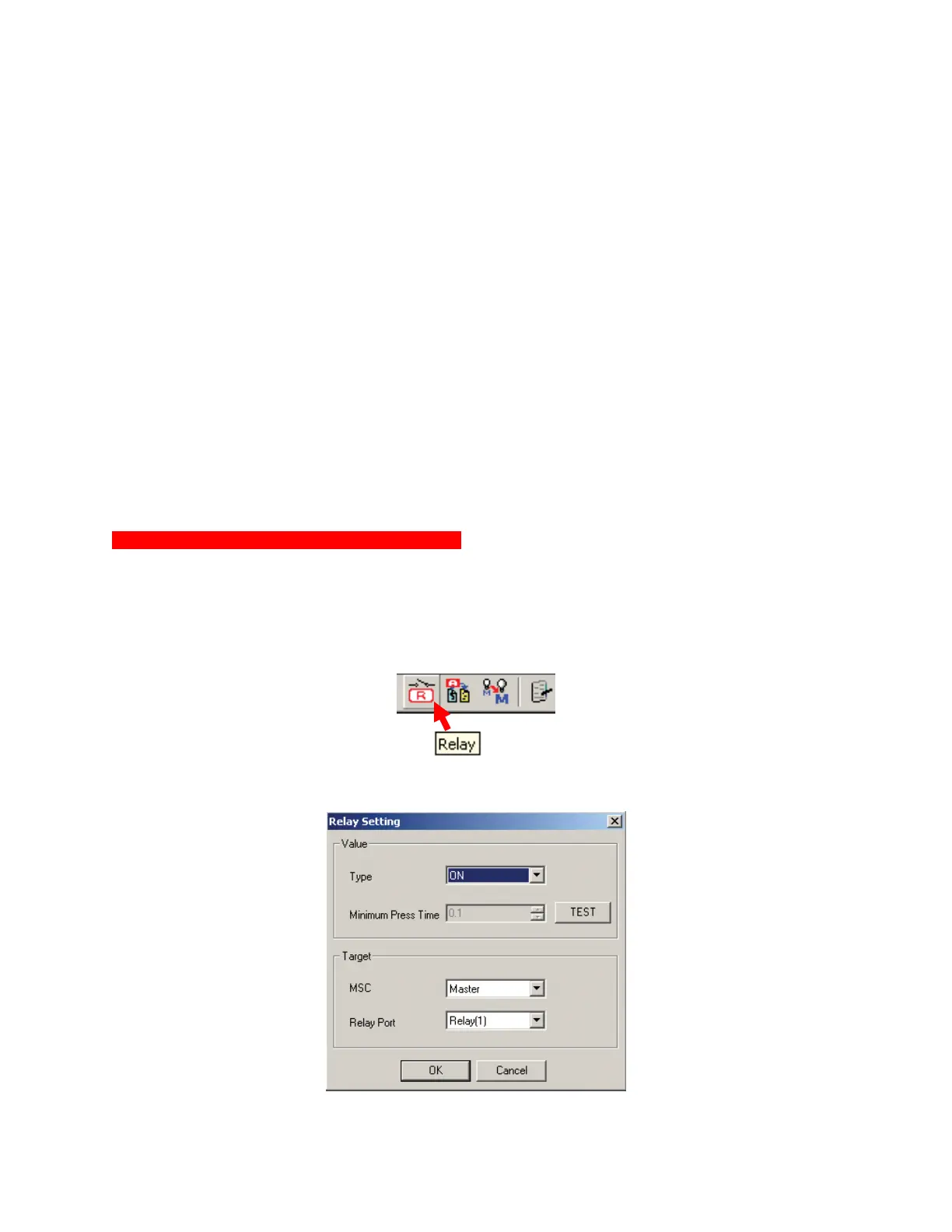
2. In the SMART MACRO WINDOW TOOL BAR, click the RELAY BUTTON.
a. The RELAY SETTING WINDOW will appear. Relay Setting ON
Relay Setting ON
3
4
5
6
7



 To Next Page